Account Registration Process
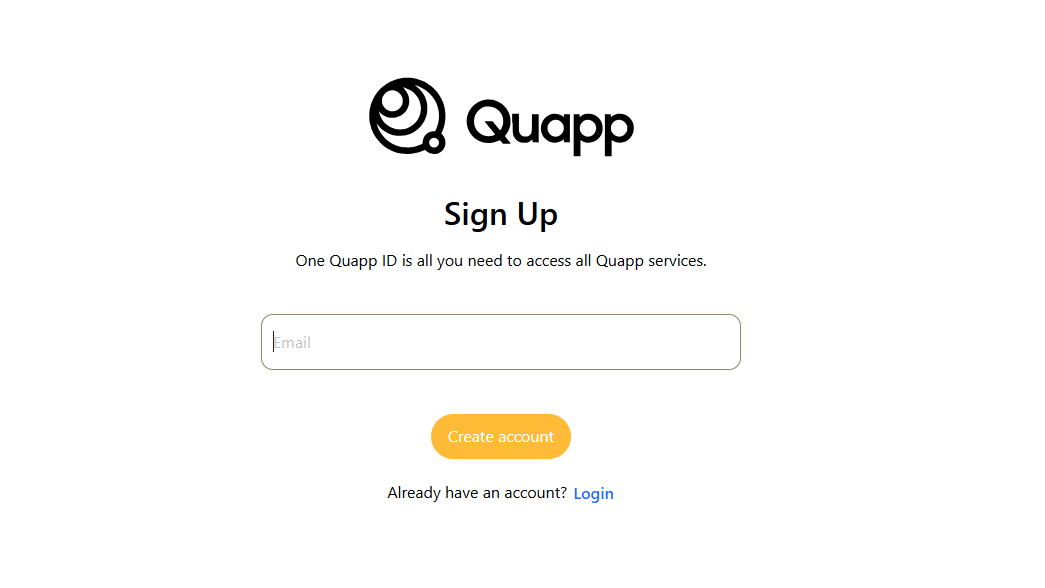
1. Enter email
On the Sign Up screen, enter the email address associated with your account.
Click Create account to proceed.
2. Verify your email
The system sends a 6-digit verification code to the email address you provided.
Check your email inbox for the verification code. If the email is not visible, check your Spam or Junk folder.
Enter the 6-digit verification code in the Verification Code field.
Click Submit to continue.
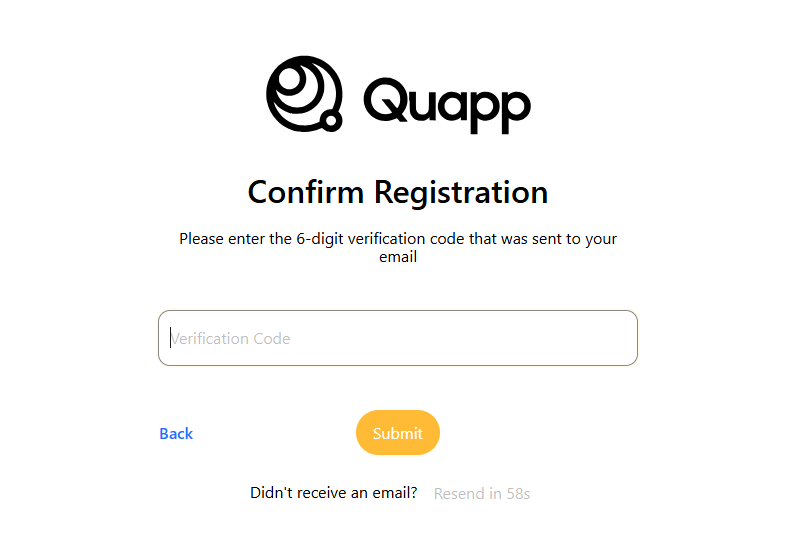
If the code expires or is not received, select Resend to request a new verification code.
3. Complete your profile
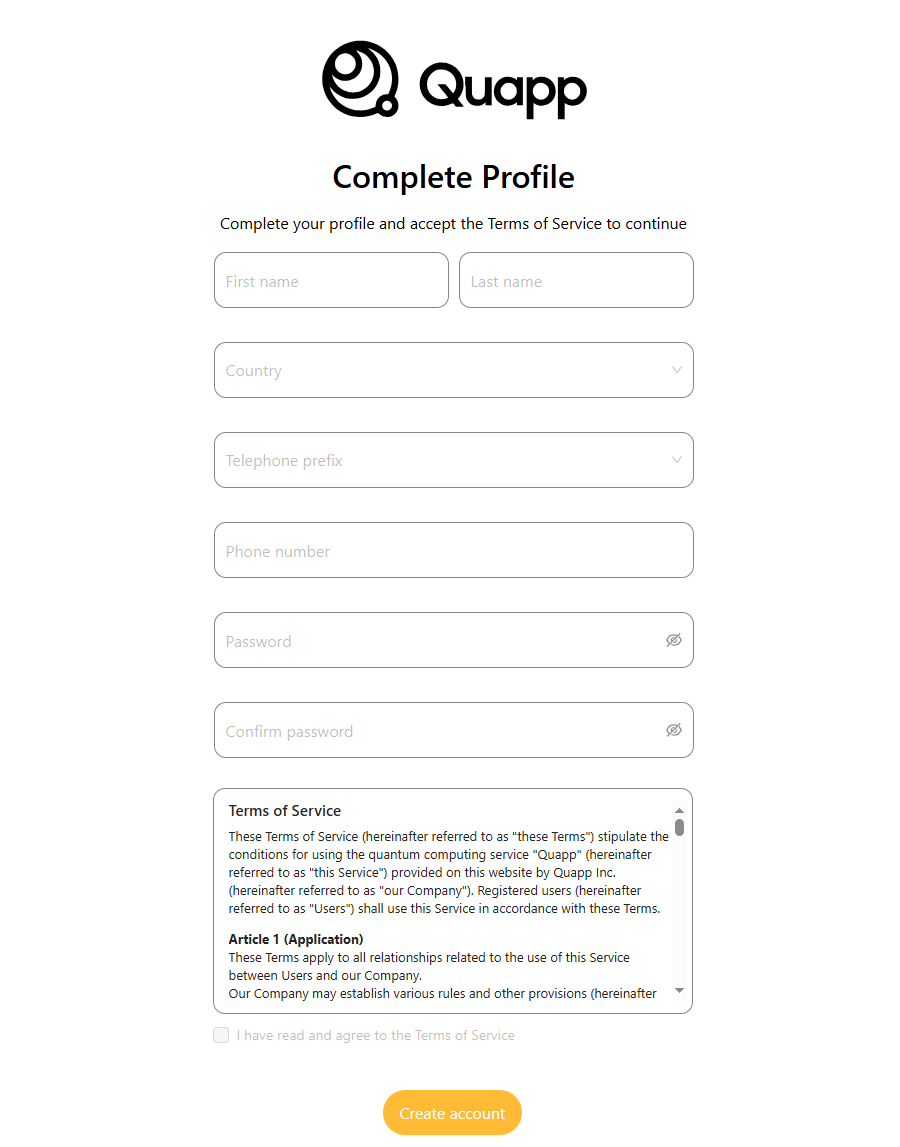
On the Complete Profile screen, provide the required information:
- First name
- Last name
- Country
- Telephone prefix
- Phone number
- Password
- Confirm password
Review the Terms of Service displayed on the page.
Select “I have read and agree to the Terms of Service.”
Click Create account to finalize the registration.
4. Registration completed
After successful registration, the system displays a “Sign Up Successful” message.
You can then sign in using your registered email address and password to access the Quapp platform.
Log In to Your Account
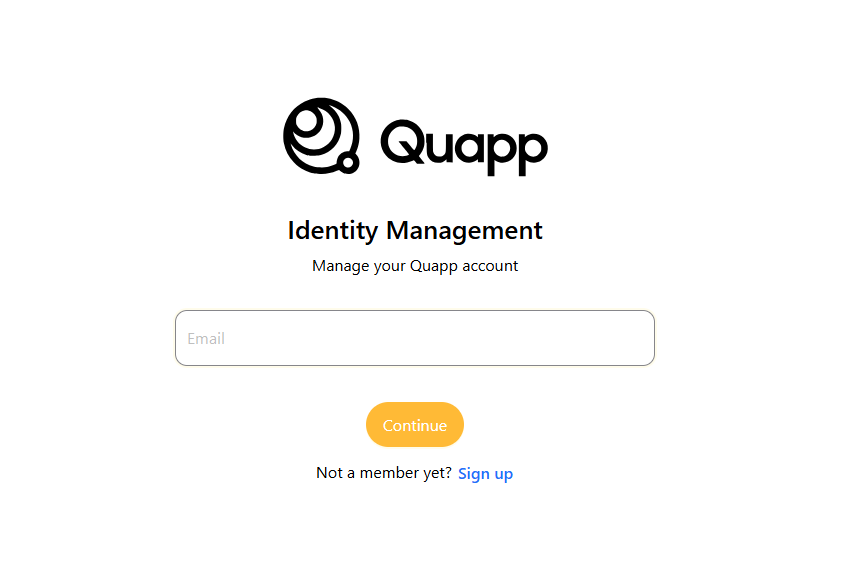
Enter Email
On the Sign In screen, enter the email address associated with your account.
Click Continue to proceed.
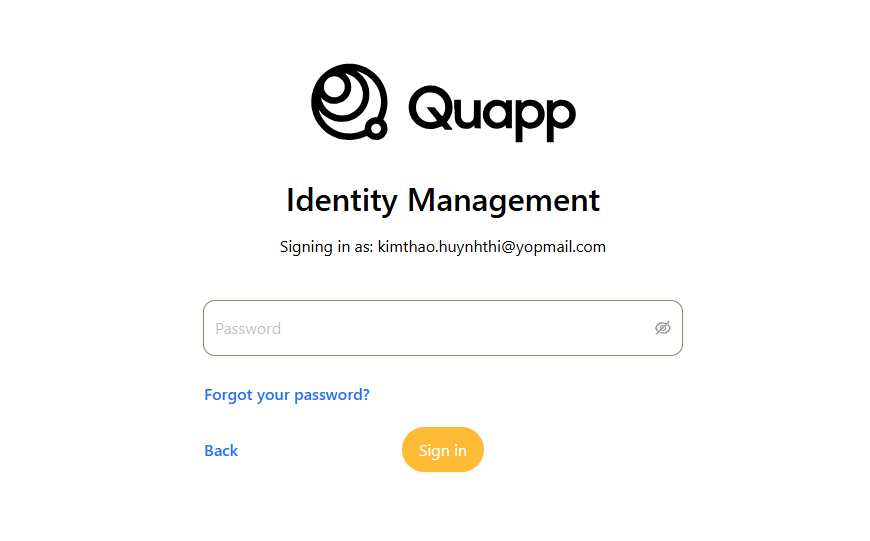
Enter password
On the password entry screen, enter your account password.
Click Sign in to authenticate.
5. Login successful
After successful authentication, you are redirected to the Quapp functions and can begin using the available features based on your access permissions.