Common Issues and Resolutions
Troubleshooting Common Platform Issues
Users may encounter various challenges while using the platform. Below are some typical issues and suggested solutions to address them effectively:
1. Execution Failures
- Issue: Quantum applications fail to run or generate errors.
- Resolution:
- Ensure all input parameters are correctly configured.
- Check environment settings for compatibility.
- Verify dependencies and confirm that the quantum backend is available.
2. Login and Account Issues
-
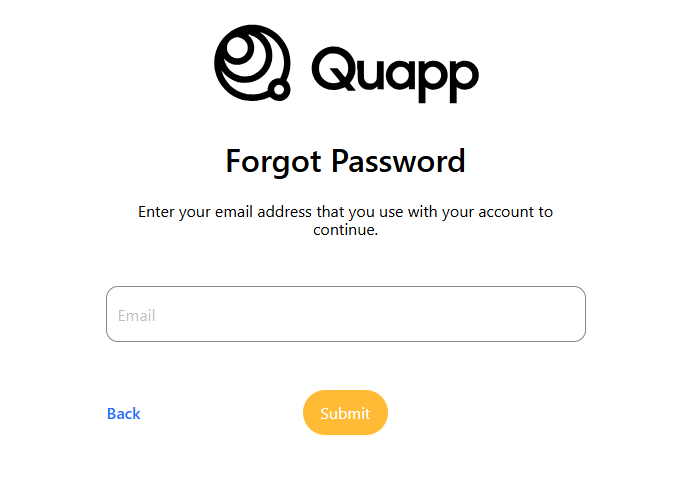
Issue: Difficulty logging in or resetting a password.
-
Resolution:
-
Use the Forgot Password option and follow the instructions sent via email.
-
Contact the support team if problems persist.
-
3. A Control You Expect Is Missing
- Issue: The Deploy, Invoke or Delete button is not visible, or an item is missing from Project Settings.
- Cause: Quapp hides or disables controls you do not have permission to use, rather than showing an error when you press them. A missing button is therefore a permission symptom, not a bug.
- Resolution:
- A new project member receives only the four Own permissions plus Functions → View and Functions → Create. Deploy, Invoke, Delete, both Jobs permissions and Project Admin are off by default.
- Ask a Project Admin to grant the permission on Project Settings → Users.
- Members who are not a Project Admin also see fewer items in the Settings hub. See Project Permissions.
4. Deployment Problems
- Issue: A deployment appears to hang, or you cannot tell whether it succeeded.
- Resolution:
- Wait. Deployment takes a few minutes because the environment has to be built. This is not a hang.
- To confirm success, open the function's Invocation tab. If you can invoke the function, the deployment worked.
- Do not rely on Last Deployed Time. It records the most recent deployment attempt and is also set when a deployment fails, so a fresh timestamp is not proof of success.
- For a failed deployment, look up the code you received in Deployment Related Messages, which lists the root cause and resolution for each one.
5. Quota Limits Reached
- Issue: An invocation is refused with a quota error.
- Cause: Quotas apply per project, and more than one kind exists — jobs per day, jobs per month, and free simulator minutes. Any one of them can block a run.
- Resolution:
- Open Project Settings → Project Quota and compare the Usage value against the limit to see which quota was hit.
- Either wait for the reset cycle — daily or monthly, depending on the quota — or submit a quota increase request. While a request is pending, its amount and state are shown in the Request columns.
- Check the usage values before launching a large batch run, rather than after. See Project Quota.
- Codes are documented in Quota Related Messages and Approval Request Message.
6. Provider Credential Problems
- Issue: You registered your workspace's own provider credential, but invocation still fails or the provider is unusable.
- Cause: A credential only permits invocation once it has been verified against the provider. An Unverified credential blocks invocation.
- Resolution:
- Test the credential from workspace settings and confirm it verifies successfully.
- A credential can also be rejected as a duplicate: a workspace cannot hold two active credentials for the same provider.
- Remember that when a workspace has its own credentials, jobs run through those accounts instead of the shared platform defaults — so a credential problem affects every job for that provider.
- See Workspace Provider Credentials.
7. Jobs That Fail or Stay Queued
- Issue: A job stays in Queued for a long time, or ends in Error.
- Resolution:
- A long Queued state on real quantum hardware is normal. The job is waiting for the device, and the wait depends on machine load and on the device's availability window. Check the device status before concluding something is wrong.
- Quapp retries jobs that fail for transient reasons. Retry Job on the job details page shows how many retries remain, and you receive one notification for the final outcome rather than one per attempt.
- For a job in Error, open the job to read its logs and details. Only jobs in Done display full result data.
- See Job Queue and Job Related Messages.
8. Deleted Items
- Issue: Something was deleted and you need it back, or a deleted item still appears in a list.
- Resolution:
- A deleted function is recoverable. It moves to the Function Trash and can be restored from there. See Function Trash.
- A deleted project is not recoverable by you. Deletion removes all its functions and jobs immediately, and only a System Admin can restore it — contact support promptly. Deleted project names cannot be reused.
- A deleted project remains listed with the status DELETED, for reference only. That is expected and does not mean the deletion failed.
- A deleted job can be restored, but only by a System Admin, from the Jobs Archive.
9. IDE Session Problems
- Issue: Reopening the browser IDE reports that a session is already running, or the editor does not start.
- Resolution:
- Leave the IDE using Quapp's own close control, outside the editor. Closing the browser tab, or a panel inside VS Code, does not end the managed session on the server.
- Only one IDE session can run per function. Opening the other editor asks you to confirm, and confirming ends the running session — save your work first.
- A first start is slower than a normal page load because the environment is provisioned on demand.
- See Browser IDE.
If none of the above resolves the problem, see Technical Support Channels for how to reach the support team, and include the error code and the job or function ID in your request.