Function Details
The Function Details page provides a complete view of a function, including its configuration, source code, deployment status, invocation options, and execution history. This page helps users manage the full lifecycle of a function from development to execution.
Function Information
At the top of the page, you can see general information about the function.
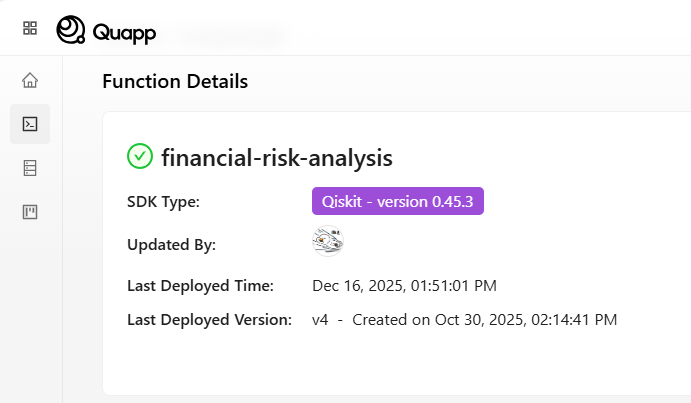
This section includes:
- Function name – The unique name of the function
- SDK Type – The framework and version used to create the function (for example, Qiskit)
- Updated By – The user who last modified the function
- Last Deployed Time – The most recent deployment timestamp
- Last Deployed Version – The version currently deployed
You can also view the function’s creation, build, deploy, and completion timestamps, giving you a quick overview of its deployment history.
Build and Deploy Function Process
The build and deploy status shows how the function progresses through its lifecycle.
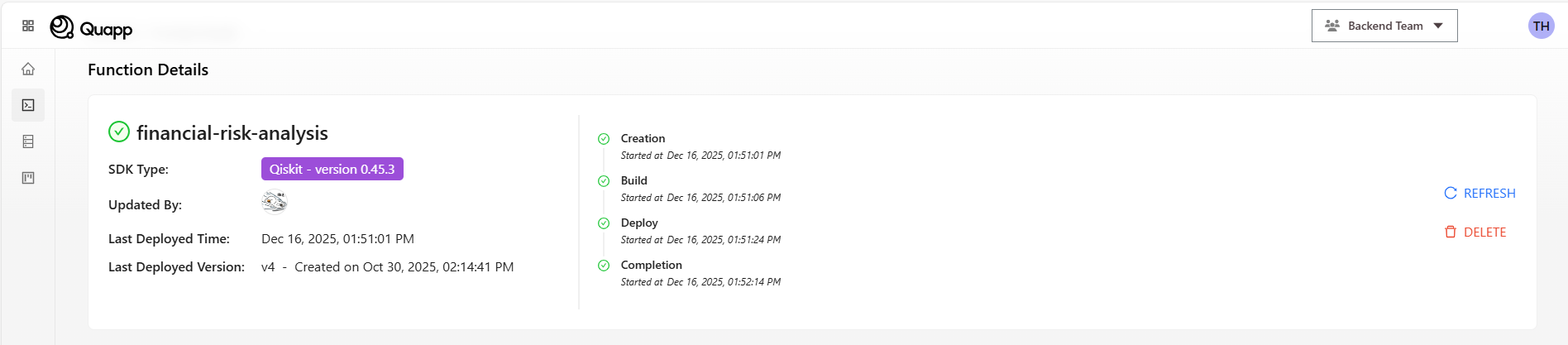
Typical stages include:
- Creation – The function is created in the system
- Build – The system packages the source code and dependencies
- Deploy – The function is deployed to the execution environment
- Completion – The deployment process finishes successfully
If an error occurs during build or deployment, you can review detailed logs in the Build Logs or Deploy Logs tabs.
Source Code
The Source Code tab allows you to view and manage the function’s implementation.
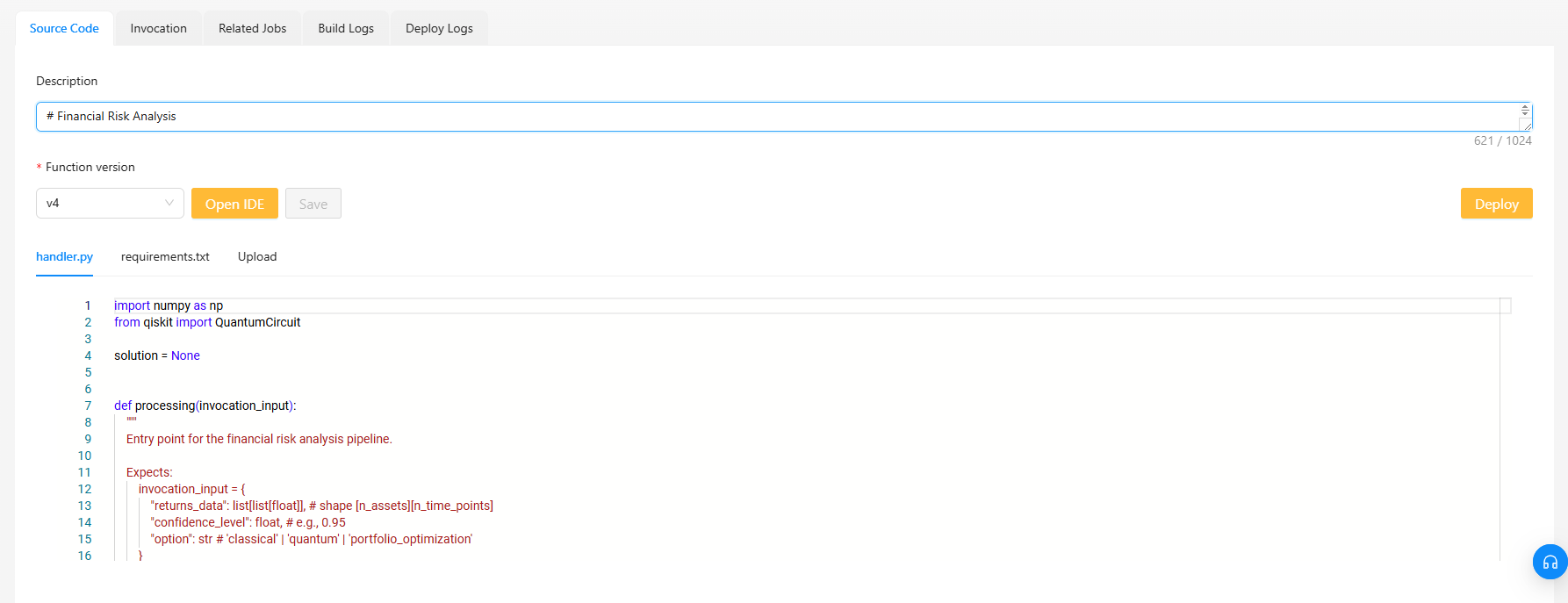
In this section, you can:
-
Select a function version
-
View or edit source files such as:
handler.pyrequirements.txt
-
Upload custom Python files if needed
-
Save changes to create a new version
-
Deploy the selected version
This area is useful for maintaining different versions of the same function and updating logic over time.
Invocation
The Invocation tab allows you to run the function manually.
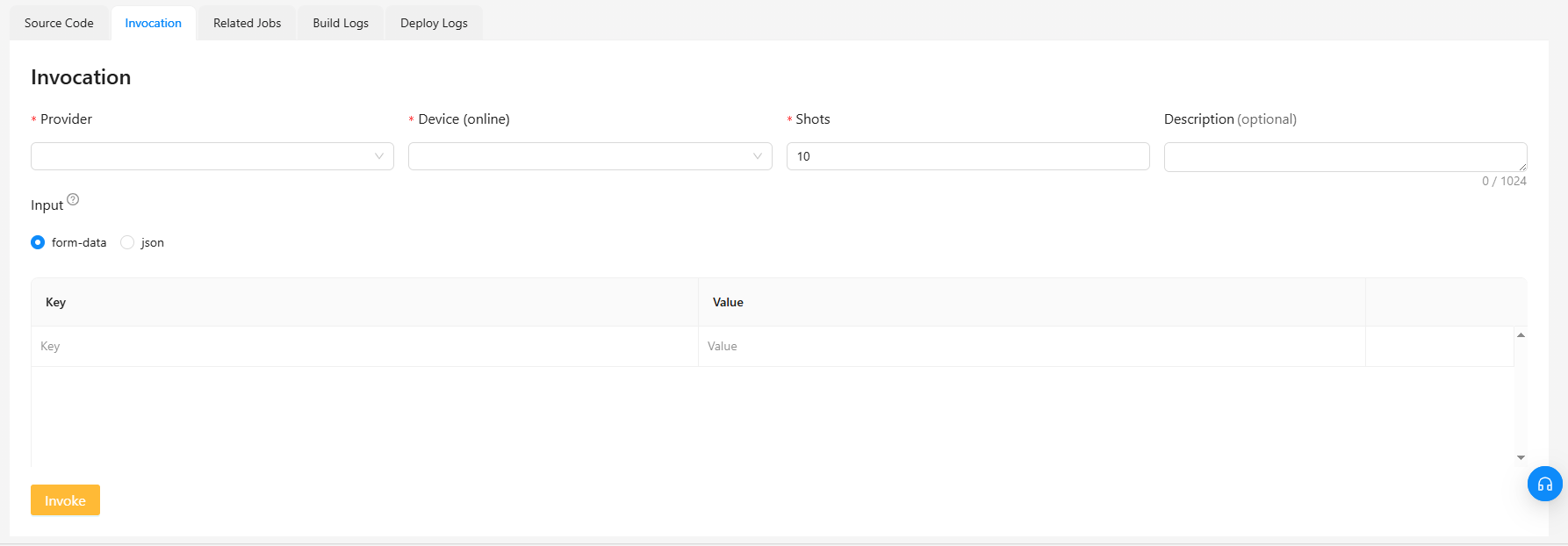
Here, you can configure:
-
Provider – The compute provider used for execution
-
Device – Hardware or simulator available under the selected provider
-
Shots – Number of execution runs (default is 10)
-
Description (optional) – A short note for this invocation
-
Input – Data passed to the function, using:
- Form data (key–value pairs)
- Raw input (JSON, string, or number)
Once configured, click Invoke to execute the function. Each invocation creates a new execution record that can be tracked later.
Related Jobs
The Related Jobs tab lists all jobs created from this function.
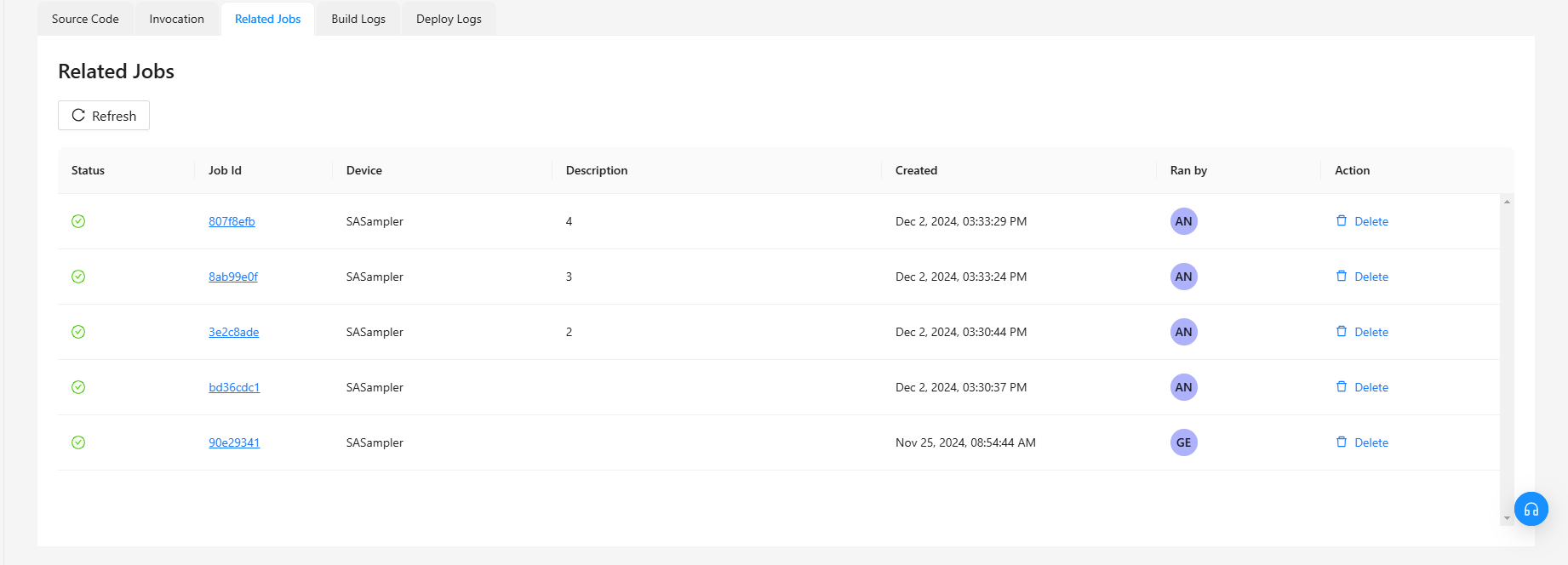
For each job, you can see:
- Status – Current execution state
- Job ID
- Device – Where the job was executed
- Description
- Created Time
- Retries Left
- Run By – The user who invoked the function
Jobs are grouped by function, even if they were executed on different providers or devices. You can also archive completed jobs for future reference.
Build Logs
The Build Logs tab shows detailed logs generated during the build process.
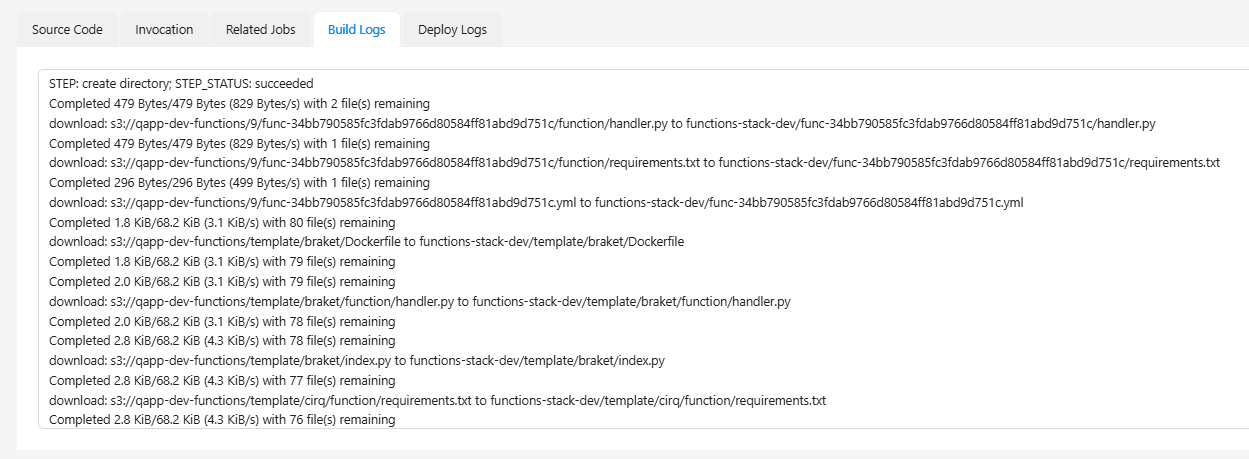
These logs include:
- Dependency installation
- Source code packaging
- System-level messages
Build logs are especially useful when:
- A deployment fails
- Dependencies are missing or incompatible
Deploy Logs
The Deploy Logs tab displays logs related to the deployment process.
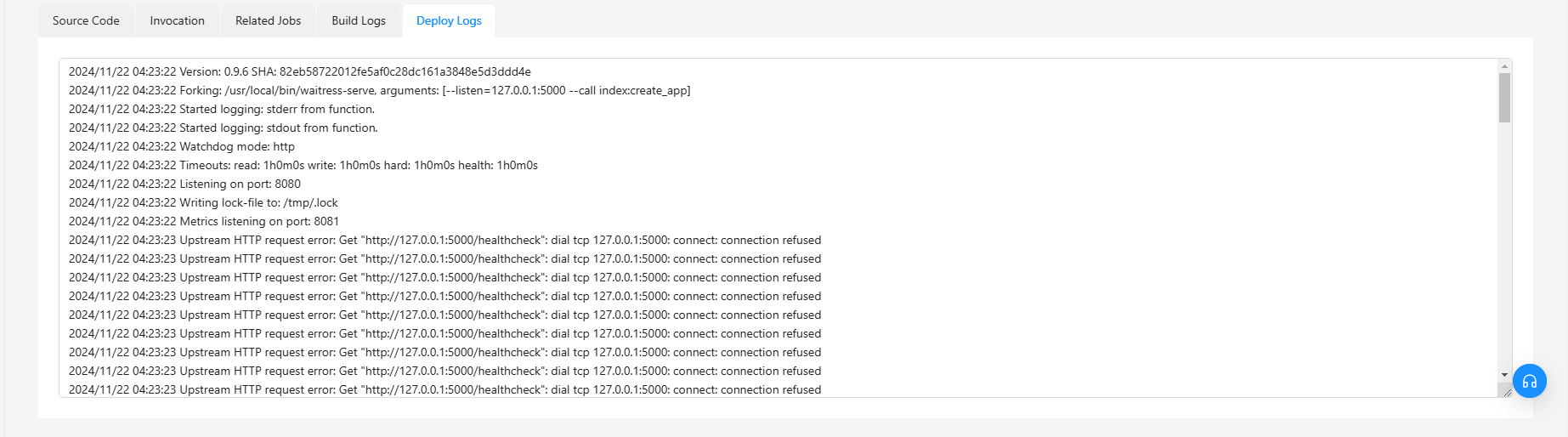
This may include:
- Runtime environment setup
- Container initialization
- Framework-specific messages
Deploy logs help diagnose issues that occur after a successful build but before the function becomes ready for invocation.