Create Function
This page is the canonical reference for creating a function through the interface — the five-step wizard, its fields and its navigation rules. For the code contract the function has to satisfy —
handler.py, the return shape each SDK expects,post_processing()andrequirements.txt— see Create function (Code-level).
Accessing the Function Creation Page
- From the left sidebar, select Functions.
- On the Functions page, click Create Function to open the function creation wizard.
The function creation process consists of five steps:
- Basic Info
- Choose Method
- Choose Template
- Review Code
- Deploy
Step 1: Basic Info
Provide the basic information required to create a function.
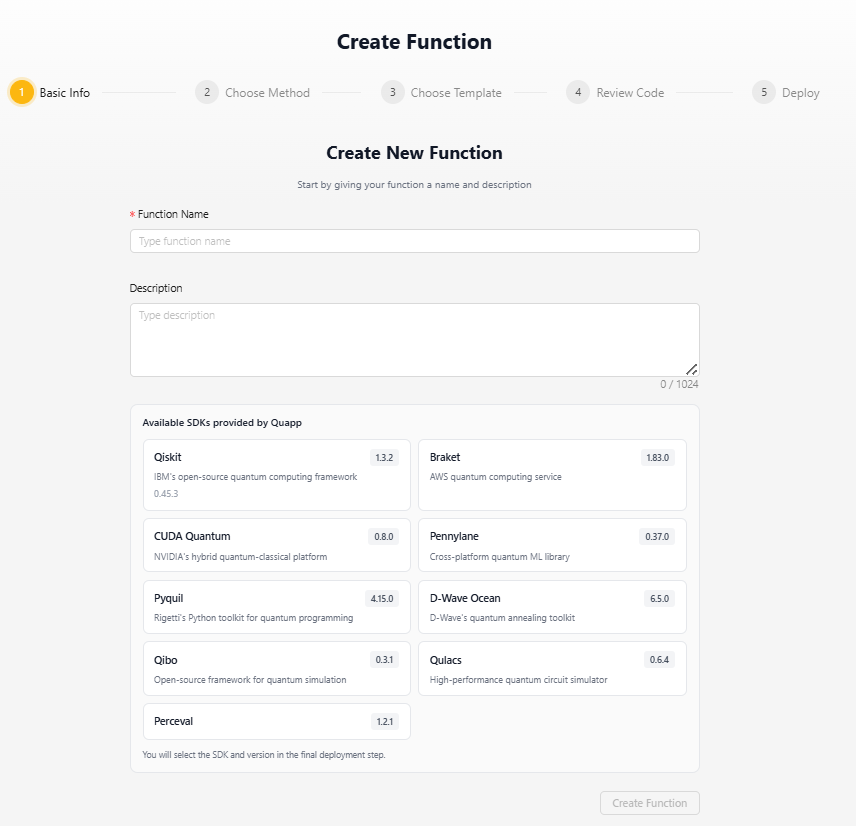
Function Name
Enter a unique name for the function.
Validation rules:
- Allowed characters: lowercase letters (a–z), numbers (0–9), and hyphens (-)
- Spaces are not allowed
- Minimum length: 2 characters
- Function names must be unique within the project
If the name is invalid or already exists, an error message is displayed.
Description (Optional)
Provide a short description to help identify the purpose of the function. The description can be up to 1024 characters.
Programming Language
Choose the language your function is written in. Quapp supports:
| Language | Notes |
|---|---|
| Python | The default language |
| JavaScript | |
| Q# | |
| C |
Each language comes with its own file definitions and templates, and the platform builds and runs the function end to end. The notebook IDE's AI Suggestion additionally supports Julia.
A programming language is not the same thing as an SDK. The language is how you write the function; the SDK is the quantum framework the function runs against, and you choose it later, in Step 5.
Available SDKs
The panel lists the SDKs Quapp currently supports, together with the versions available for each one. The SDKs shown are:
| SDK / Environment | Example versions |
|---|---|
| Qiskit | 1.3.2, 0.45.3 |
| Braket | 1.83.0 |
| PennyLane | 0.37.0 |
| CUDA Quantum | 0.8.0 |
| D-Wave Ocean | |
| Tytan | |
| PyQuil | |
| Qsharp | |
| Qibo | |
| Qulacs | |
| Perceval | |
| Quantum HPC |
Notes:
- The panel in the product is the authoritative list. Versions are added and retired over time, so check the panel rather than relying on the table above.
- SDK cards are displayed for reference only.
- SDK selection is not performed in this step.
- The SDK and SDK version are selected during deployment (Step 5).
After entering the required information, click Create Function to proceed to the next step.
Step 2: Choose Method
Select how to begin creating the function.
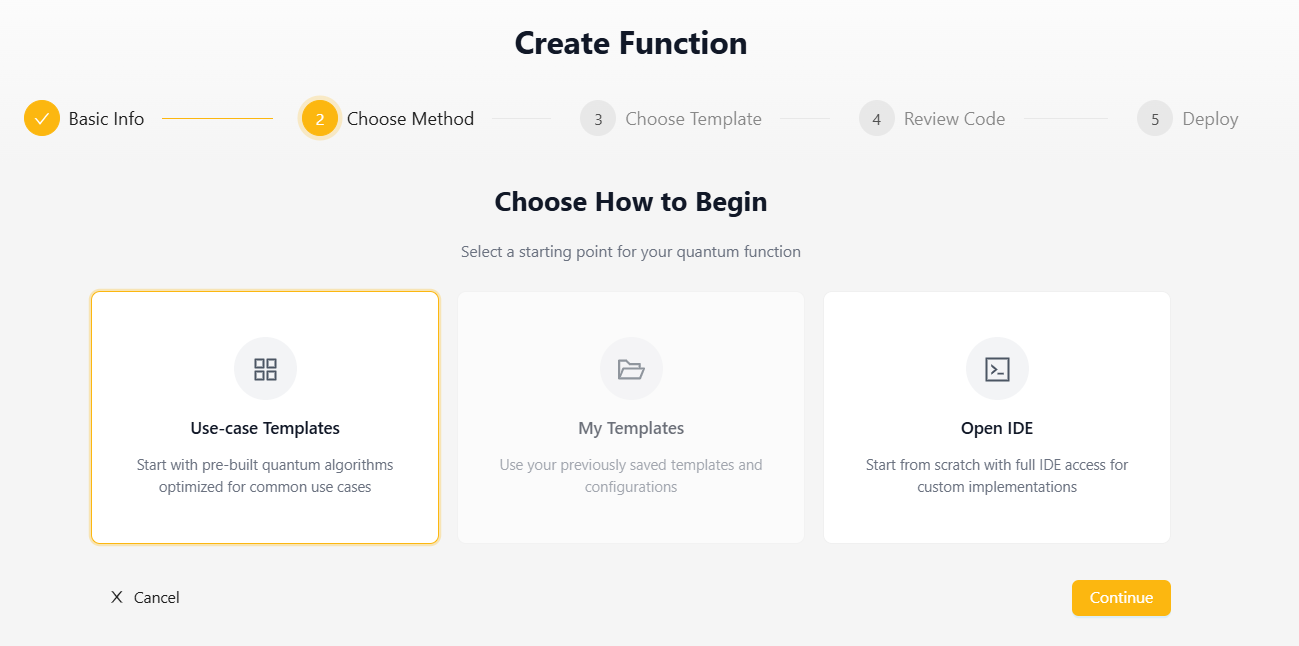
Available options:
Use-case Templates
Start from pre-built quantum algorithm templates optimized for common use cases.
My Templates
Start from a template previously saved by the user.
Open IDE
Create the function from scratch using the integrated IDE environment.
Step 3: Choose Template
This step is displayed when Use-case Templates is selected in Step 2.
Choose a predefined quantum algorithm template and configure its parameters.
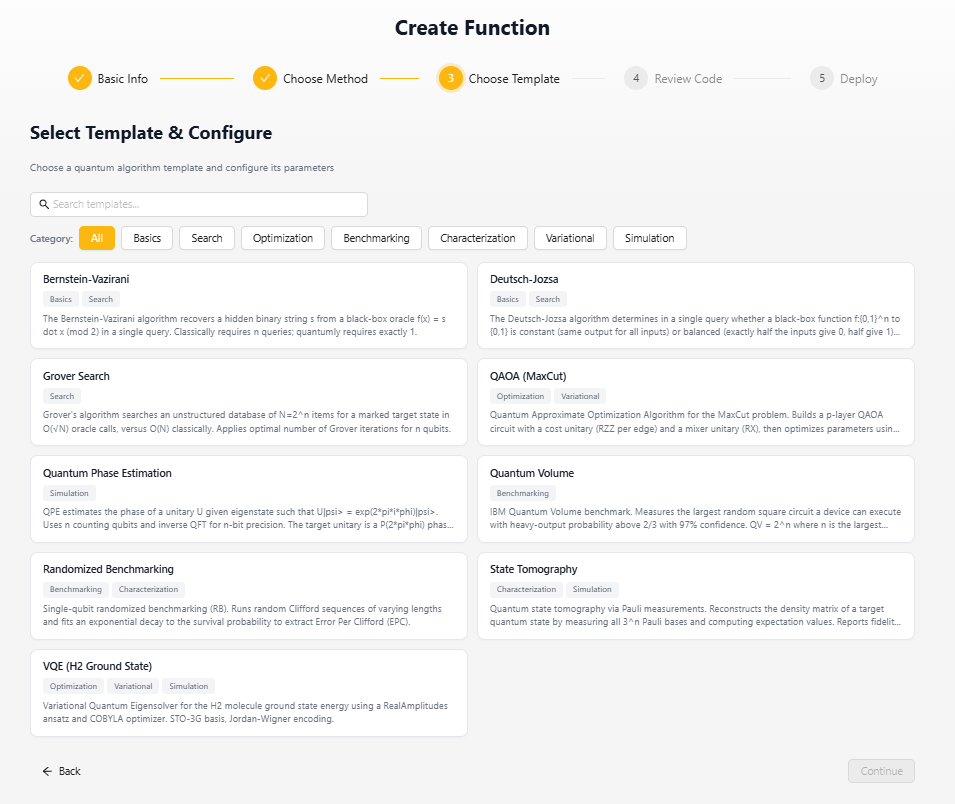
Available categories may include:
- Basics
- Search
- Optimization
- Benchmarking
- Characterization
- Variational
- Simulation
Example templates:
- Bernstein-Vazirani
- Deutsch-Jozsa
- Grover Search
- QAOA (MaxCut)
- Quantum Phase Estimation
- Quantum Volume
- Randomized Benchmarking
- State Tomography
- VQE (H2 Ground State)
Navigation
Users can return to Step 2 and modify their selections before entering the code review stage.
Step 4: Review Code
Review and edit the function source code before deployment.
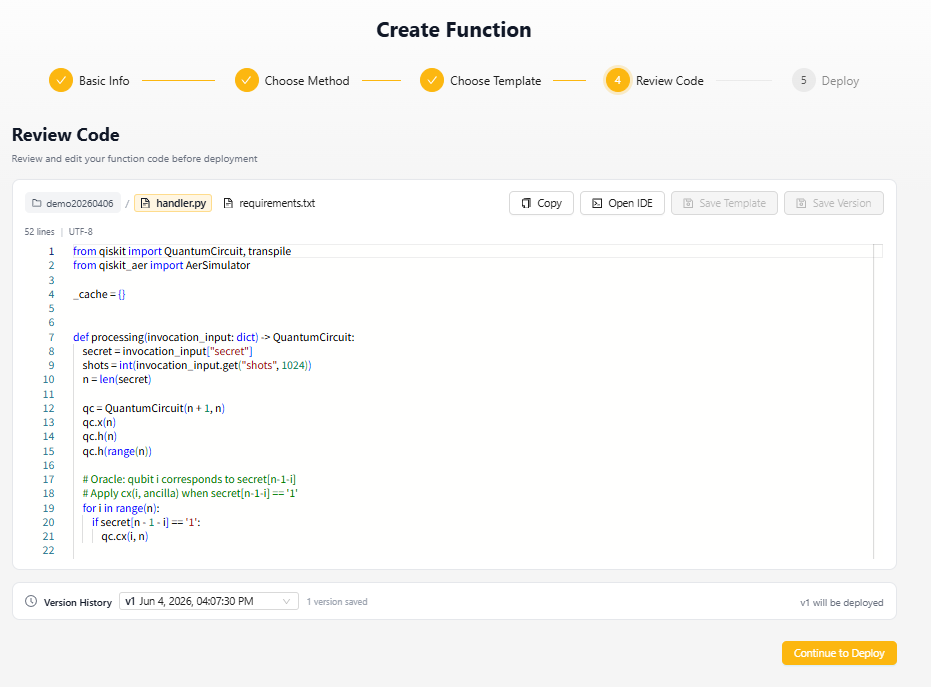
The editor supports the following files:
handler.py
Contains the function implementation.
The file must contain the required function definitions described in the Developer Guide.
requirements.txt
Used to declare external Python dependencies.
Each dependency should be listed on a separate line using standard requirements.txt syntax.
Additional Files
Users may upload Python files from their local environment.
Uploaded files:
- Do not replace handler.py
- Can be imported and used by handler.py
- Are available in the function runtime environment
Version History
The editor includes a Version History section for managing saved code versions.
Save Version
The Save Version button becomes available only when code changes are detected.
When a version is saved:
- A new code version is created
- The version is added to Version History
- Previous versions remain available for selection
Navigation
Once the user enters Step 4, navigation to previous wizard steps is disabled.
The user can only:
- Continue to Step 5 (Deploy)
- Return from Step 5 back to Step 4
This behavior ensures consistency between the selected template and the generated source code.
Step 5: Deploy
Review deployment settings before deploying the function.
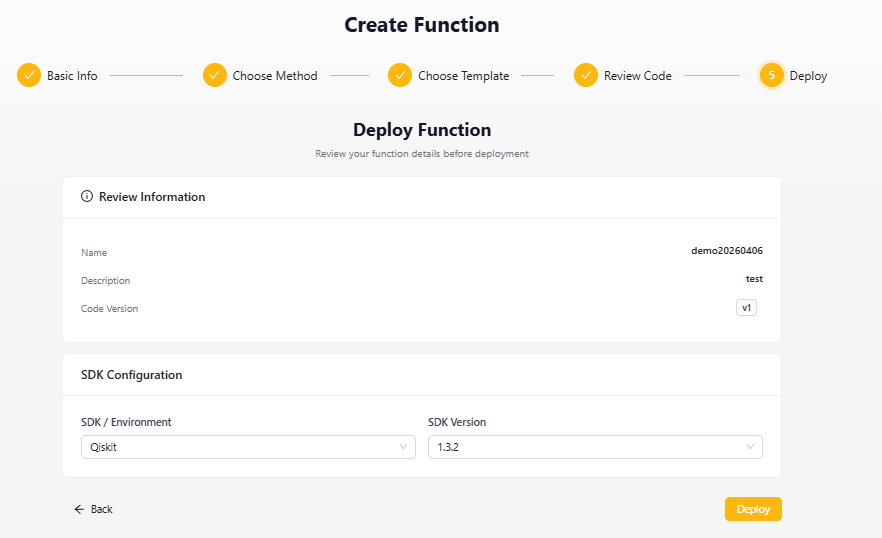
SDK Configuration
Select:
- SDK / Environment
- SDK Version
The available options depend on the SDKs supported by Quapp. See the list in Step 1: Available SDKs.
Deployment
Click Deploy to deploy the function.
Deployment normally takes a few minutes, because the platform builds the runtime environment and installs the function's dependencies. The function passes through four stages — Creation → Build → Deploy → Completion — and a status of Deploying during this period is expected, not a sign that something is stuck.
After a successful deployment:
- The function appears in the function list
- The Invocation tab becomes available on the Function Details page
- The function can be invoked and can execute jobs
⚠️ Confirm that the deployment actually succeeded. A Last Deployed Time value is not proof of success — it can be updated even when the deploy step failed. The reliable signal is the Invocation tab appearing on the Function Details page. If it is missing, check the Build Logs and Deploy Logs tabs.
Navigation
Users may return to Step 4 to modify the source code before deployment.
However, Steps 1–3 are no longer accessible once the function reaches the deployment stage.
Notes
- Templates cannot be changed after deployment.
- Save Version is displayed only when code modifications are detected.
- All required dependencies should be declared before deployment.
- SDK selection is performed during deployment, not during function creation.
- Users may move freely between Steps 2–3 before entering Step 4.
- After entering Step 4, only Step 4 and Step 5 are accessible.
Result After Deploying a Function
After deployment is completed successfully, the system automatically redirects to the Functions page.
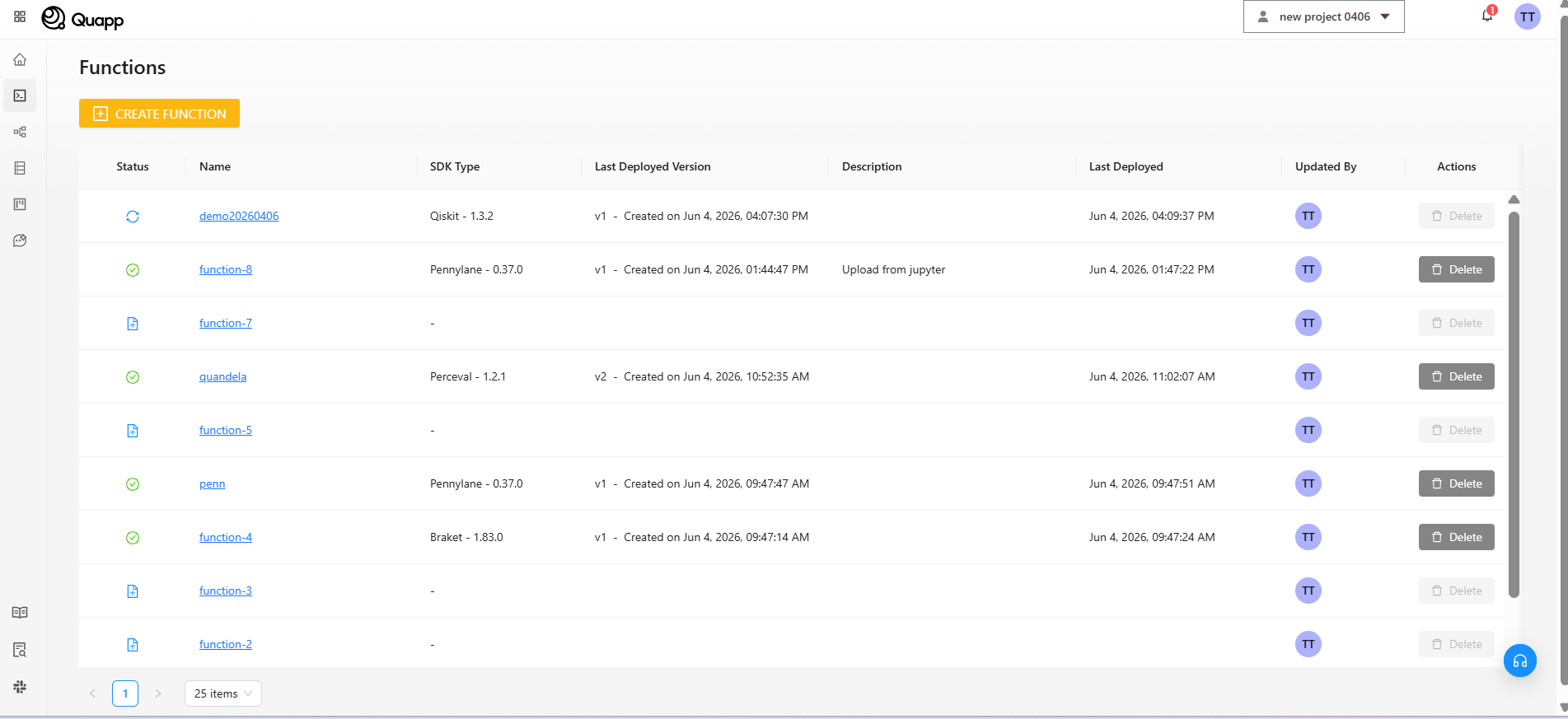
The Functions page displays:
- Function Name
- Current Version
- Deployment Status
- Creation Time
- Related Function Information
The newly deployed function appears at the top of the list.
Before you invoke it, open the function and confirm that the Invocation tab is present — that is what tells you the deployment finished successfully.