Function List
1. Display a list of created functions
The Functions screen includes the following columns:
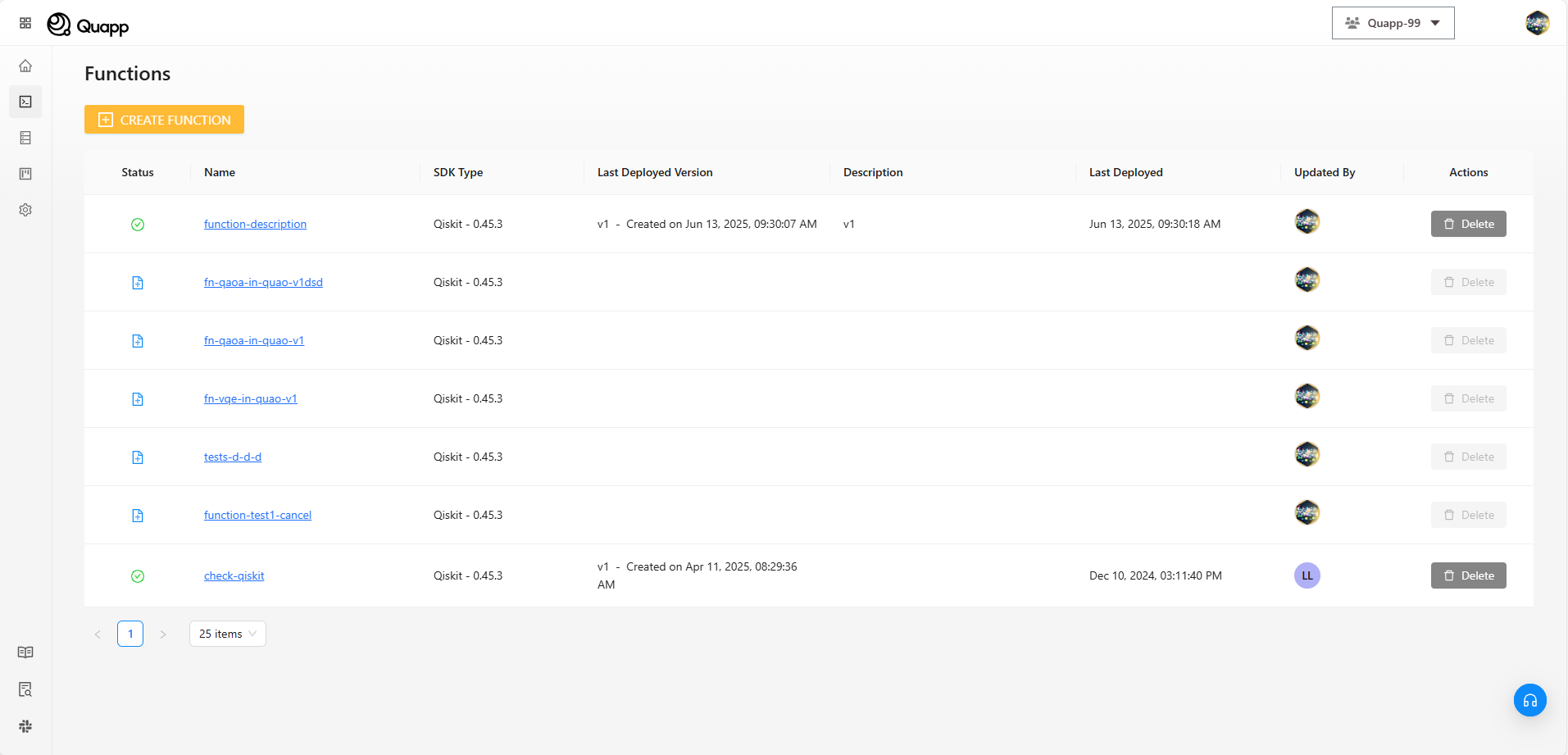
Status
Indicates the current deployment state of the function:
- New The function has been created but has not been deployed yet.
- Deploying The function is currently being deployed. During this state, the function is not available for invocation.
- Ready The function has been deployed successfully and is ready to be invoked or used in jobs.
- Failed The function deployment failed due to an error. Review the function configuration, code, or dependencies before redeploying.
- Waiting The function is waiting for required resources, such as compute provider availability or execution capacity, before deployment or execution can proceed.
Name
The name of the function as defined during creation. Select the function name to view details or manage versions.
Programming Language
The language the function is written in — Python, JavaScript, Q# or C.
SDK Type
The SDK or template used to create the function (for example: Qiskit, PennyLane) along with the corresponding version.
Last Deployed Version
The most recently deployed version of the function, including:
- Version number
- Creation timestamp
Description
A short description provided during function creation, if available.
Last Deployed
The date and time of the most recent deployment attempt. This value can be updated even when the deployment failed, so check the Status column — or the presence of the Invocation tab on the Function Details page — to confirm that a deployment actually succeeded.
Updated By
The user who last deployed or updated the function.
Actions
Available actions for the function, such as Delete, depending on permissions and function status.
Notes
- Newly deployed functions appear at the top of the list.
- Only successfully deployed functions can be invoked.
- Failed deployments may be retried by updating and redeploying the function.
2. How to delete Function
You can delete a function directly from the Functions page when it is no longer needed.
ℹ️ Deleting a function is a soft delete. The function is moved to the Function Trash, where it can be restored. It is only gone for good once someone purges it from the trash.
Delete a Function from the Functions List
Open the Functions page from the left navigation menu. This page shows all functions in your project along with their status, SDK type, and deployment information.
Find the function you want to remove. In the Actions column on the right, click the Delete button next to the function name. Once clicked, the system will ask you to confirm the deletion.
Confirming the Deletion
A confirmation dialog appears so that a function is not removed by mistake. It names the function that will be deleted.
If you are certain that the function should be removed, click Delete to confirm. If you are not sure or want to keep the function, click Cancel to close the dialog without making any changes.
After Deletion
Once the deletion is confirmed, the dialog closes and the function is removed from the Functions list. It is no longer available for deployment or invocation.
The function is now in the Function Trash, where you can Restore it or Purge it permanently. See Function Trash.
Things to Keep in Mind
- Only users with appropriate permissions can delete functions.
- If a function has running jobs, let them finish before deleting it.
- Make sure the function is no longer in use before deleting it.
- Purging a function from the trash cannot be undone.