Create function
Accessing the Function Creation Page
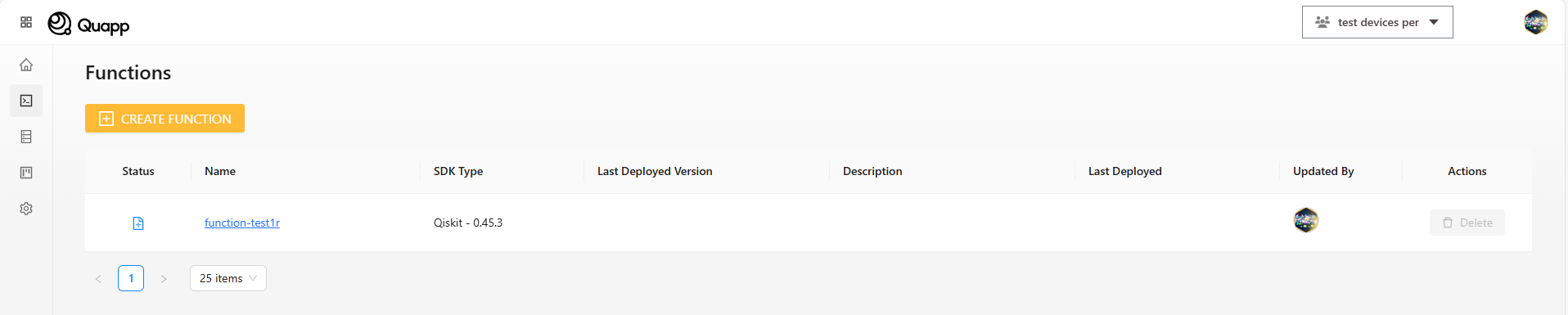
From the left sidebar, select Functions.
On the Functions page, choose Create function to open the function creation screen.
Function Information
The following information is required to create a function:
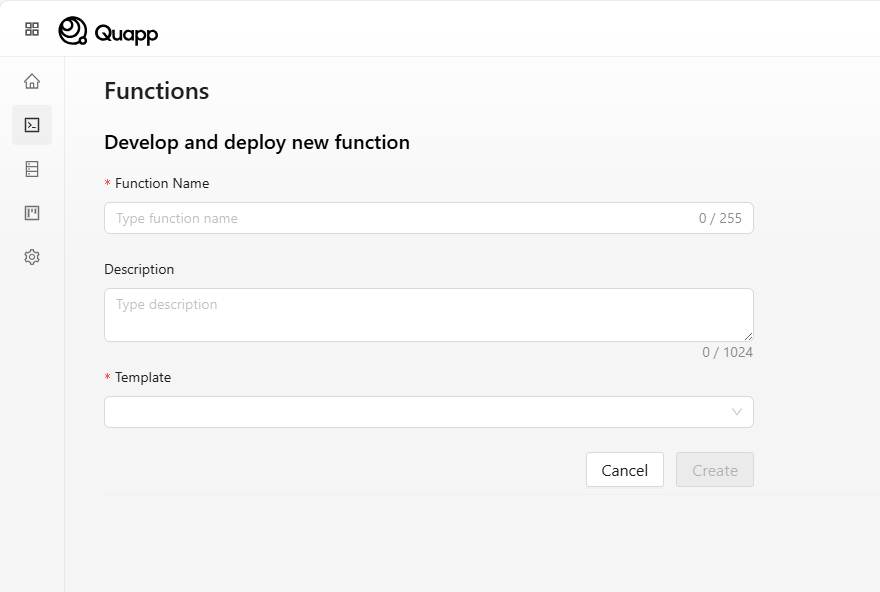
Function Name
Enter a unique name for the function.
Validation rules:
- Allowed characters: lowercase letters (a–z), numbers (0–9), and hyphens (-)
- Spaces are not allowed
- Minimum length: 2 characters
- Function names must be unique within the project
If the name is invalid or already exists, an error message is displayed.
Description (Optional)
Provide a short description to help identify the purpose of the function.
Template
Select a template to define the runtime environment and initial code structure.
Available templates may include:
- Qiskit
- Braket
- CUDA Quantum
- PennyLane
- Other supported environments
After completing all required information and selecting a template, click Create to create the function.
Function Version and Code
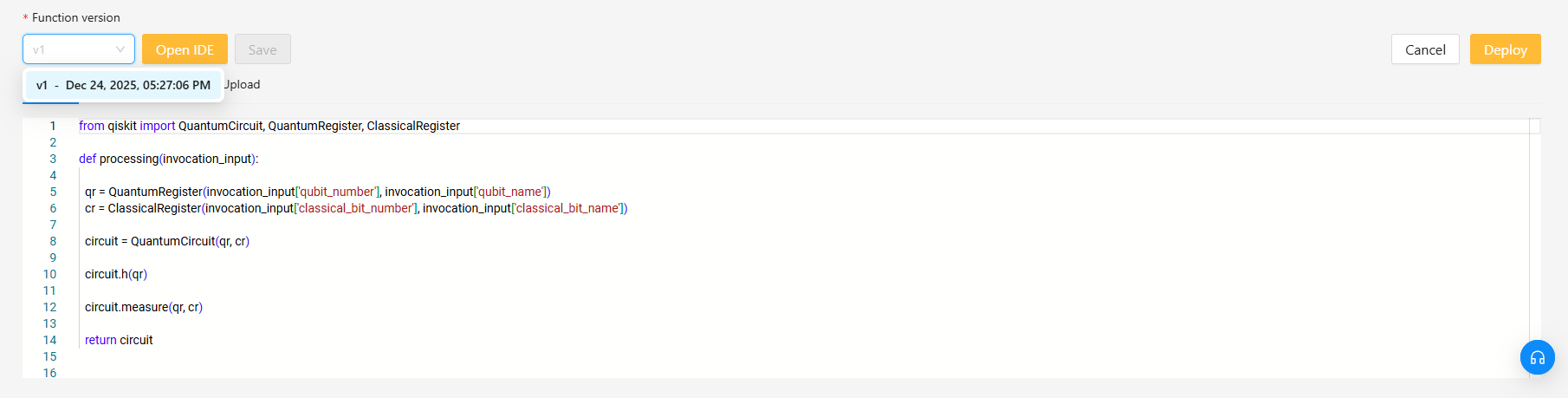
Each function is created with an initial version (for example, v1).
The code editor supports the following files:
handler.py
The file MUST contain two key functions:
processing(invocation_input)
- Receives input from the user or an API call.
- Constructs the corresponding program/circuit/model based on the selected framework (e.g., Qiskit, PennyLane, PyQuil, Braket, CUDA).
- Returns an object representing the program to be executed on the backend (simulator or quantum device).
Note: For comprehensive return object requirements and SDK-specific behavior (e.g., what type
processing()must return for each supported SDK), refer to the Processing Function Return Contract and SDK-Specific Return Requirements in the Developer Guide: Create Function (Code-level).
post_processing(job_result)
- Receives raw results from the backend after execution.
- Defines how results are analyzed, formatted, or aggregated.
- Returns the final processed data for output to the user.
Note: For implementation examples and common result transformation patterns, refer to the
Result Transformation: post_processing(job_result)section in the Developer Guide: Create Function (Code-level).
Summary
- processing() = transforms input into the executable program.
- post_processing() = transforms backend output into the final result.
requirements.txt
- Used only to install external libraries and dependencies.
- Does not define execution logic.
- Each dependency is written one per line, following standard Python requirements.txt syntax.
- If present, the system installs these libraries before executing the function logic defined in handler.py.
Upload
One Python file can be uploaded from a local environment.
The uploaded file is made available in the function runtime environment.
This file:
- Does not replace handler.py.
- Is intended to be imported and used by handler.py.
Save and function versioning
When the user modifies the source code (either by editing in the IDE or uploading new files):
- Click Save to store the changes
- The system creates a new code version for the function
- The new version appears in the Function version list and can be selected later
Versioning enables users to track code changes and deploy different versions of the same function.
Notes
- Templates cannot be changed after the function is created.
- Each deployment creates a new function version.
- Ensure all required dependencies are declared before deployment.
Deploying the Function
After completing the configuration and code setup, select Deploy.
Once deployment is successful:
- The system returns to the Functions page
- The newly created function appears at the top of the list
- The function is ready to be invoked or used in jobs
Notes
- Templates cannot be changed after the function is created.
- Each deployment creates a new function version.
- Ensure all required dependencies are declared before deployment.
Result After Deploying a Function
After selecting Deploy on the function creation screen, the system automatically redirects you to the Functions page.
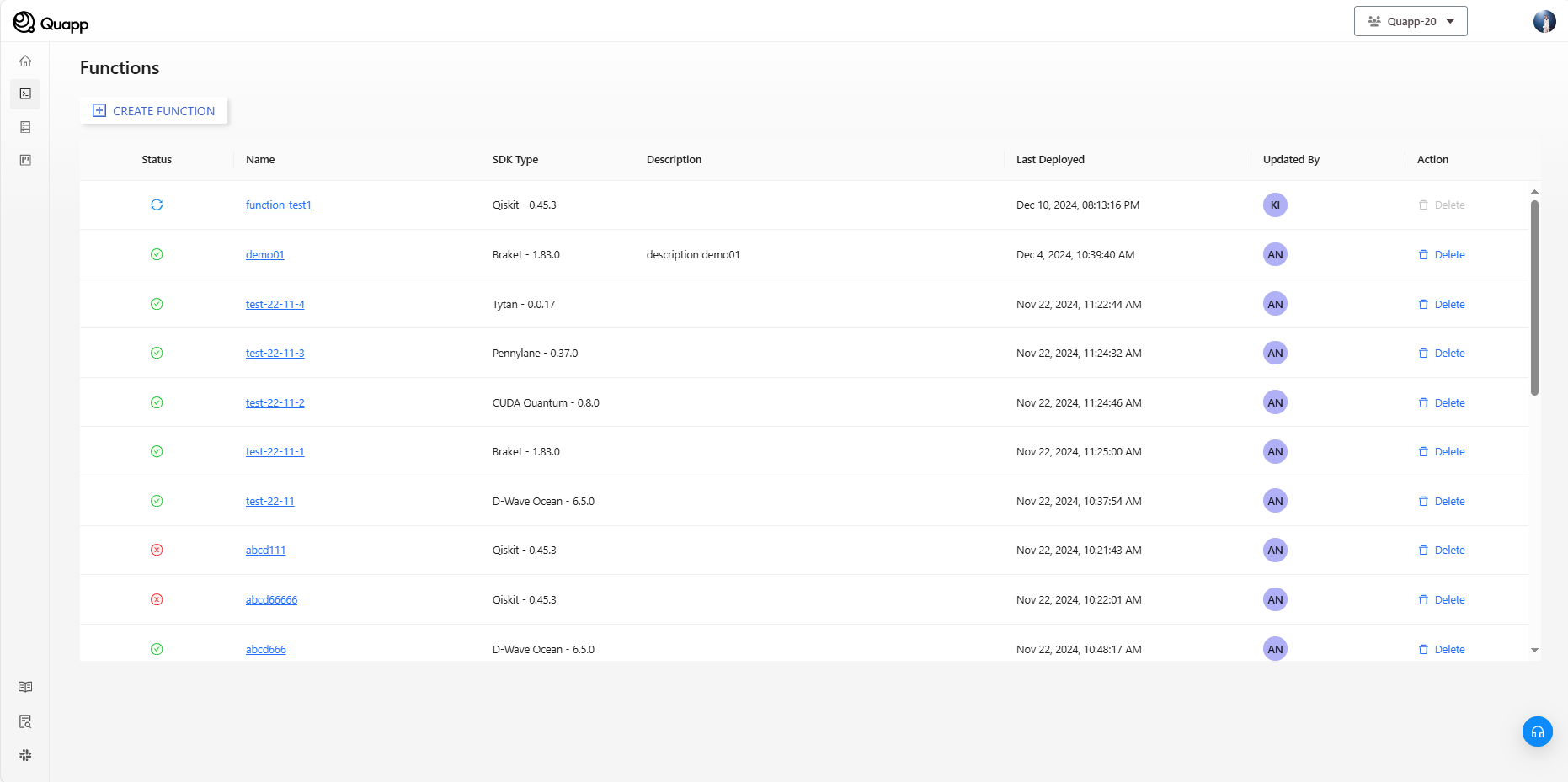
This page displays a list of all functions created within the current project, along with their deployment status and related information.