Delete Function
You can delete a function when it is no longer needed. The platform provides two convenient ways to remove a function: from the Functions list or directly from the Function Details page.
⚠️ Important Deleting a function is a permanent action. Once deleted, the function can only be restored by a project administrator.
Deleting a Function from the Functions List
The Functions page displays all functions in the current project.
Locate the function you want to remove. In the Actions column on the right side of the list, click the Delete button next to the function name.
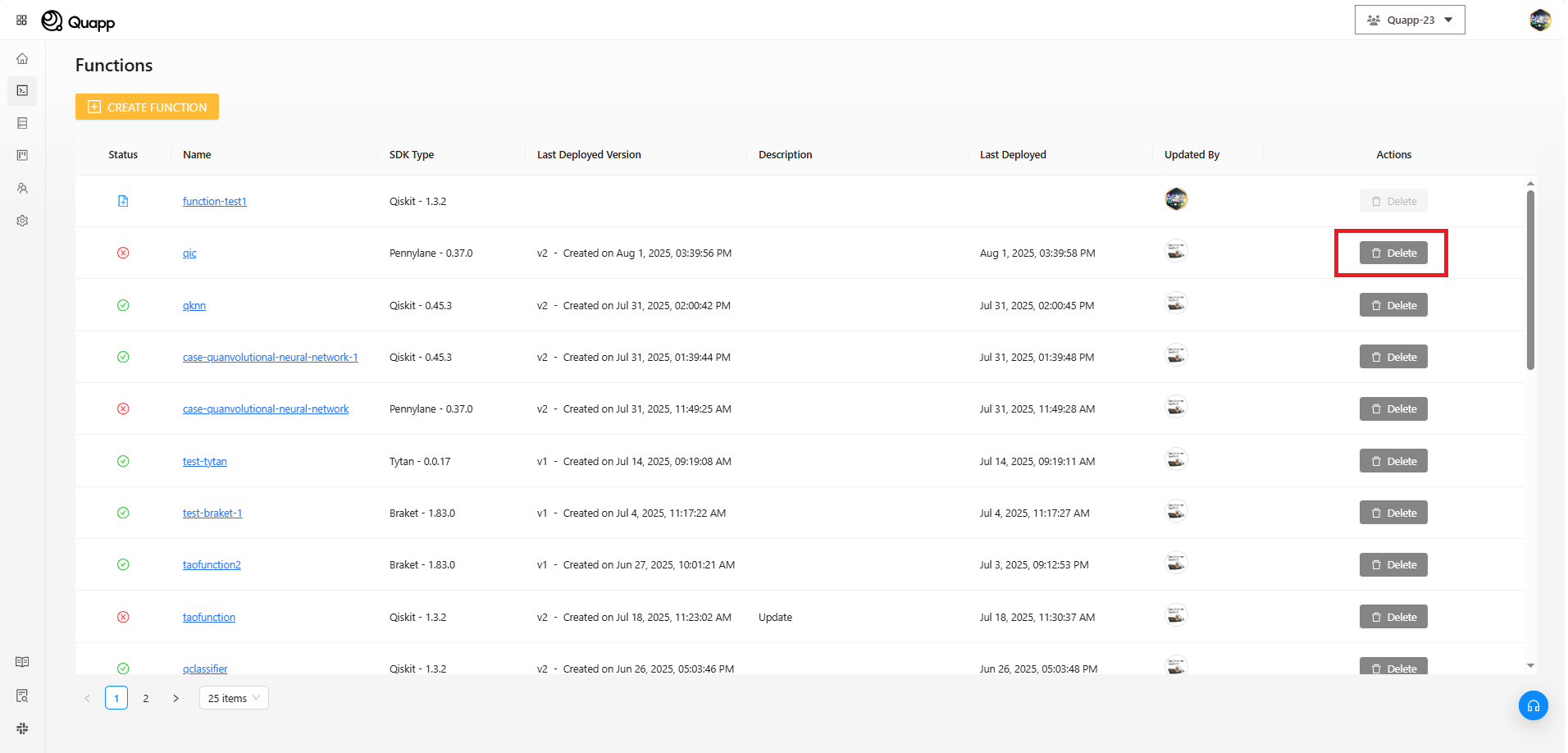
This action opens a confirmation dialog to prevent accidental deletion.
A warning message is displayed, for example:
“A deleted function can only be restored by a project administrator. Are you sure you want to delete ‘hartree-fock-ground-state’ function permanently?”
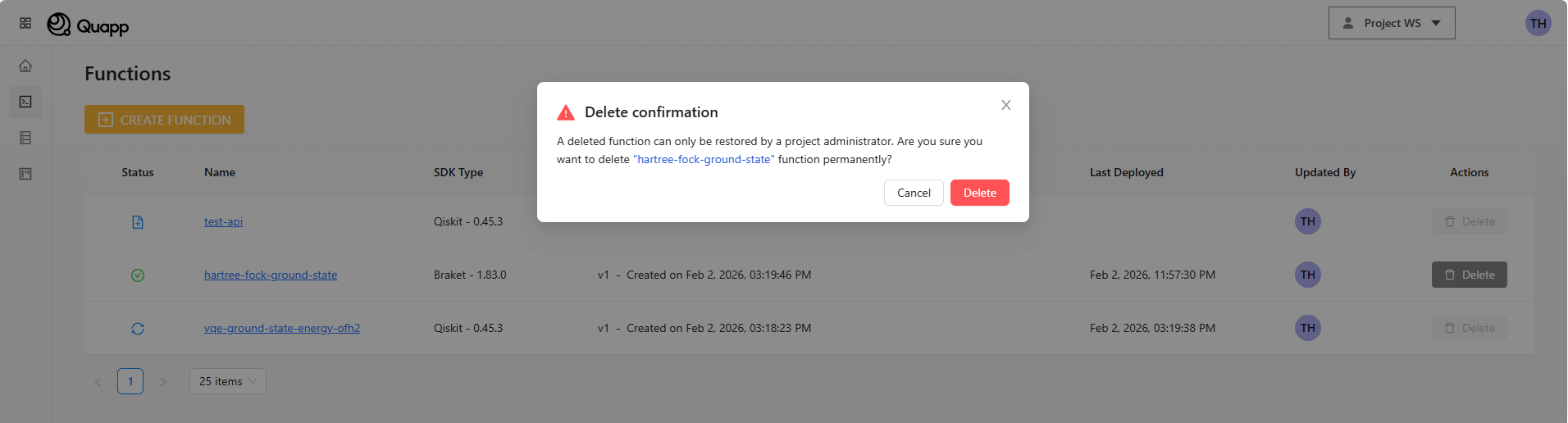
If you are certain, click Delete to confirm. If you change your mind, click Cancel and the function will remain unchanged.
Deleting a Function from the Function Details Page
You can also delete a function while viewing its details.
Open the function you want to remove to access the Function Details page. At the top of the page, click the Delete button.
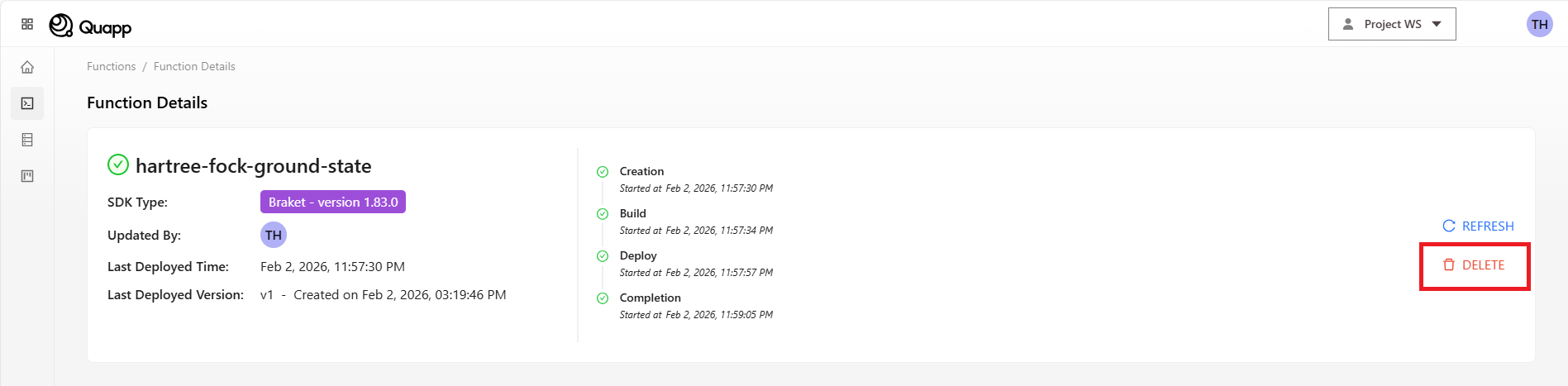
A confirmation dialog appears with the same warning message, reminding you that the deletion is permanent and restricted to project administrator recovery.
Click Delete to proceed with the removal, or Cancel to exit without deleting the function.
After Deletion
Once the deletion is confirmed:
- The function is immediately removed from the system
- The function no longer appears in the Functions list
- The function cannot be deployed or invoked anymore
Things to Keep in Mind
- Only users with sufficient permissions can delete a function
- Deleted functions cannot be recovered by regular users
- Make sure the function is no longer in use before deleting it
- Consider reviewing related jobs or results before removal