Managing and Tracking Job Results
The Job Details page provides detailed information about a function invocation, including execution status, configuration, and results.
Job status
A job passes through these states:
| State | Meaning |
|---|---|
| Queued | Waiting for the selected device to become available |
| Running | The device is executing the job |
| Done | Execution finished successfully; results are available |
| Error | Execution failed; open the job to see the details |
Only jobs in the Done state display full result data. For why a job may wait in Queued, see Job queue.
Accessing Job Details
The Job Details page can be accessed in the following ways:
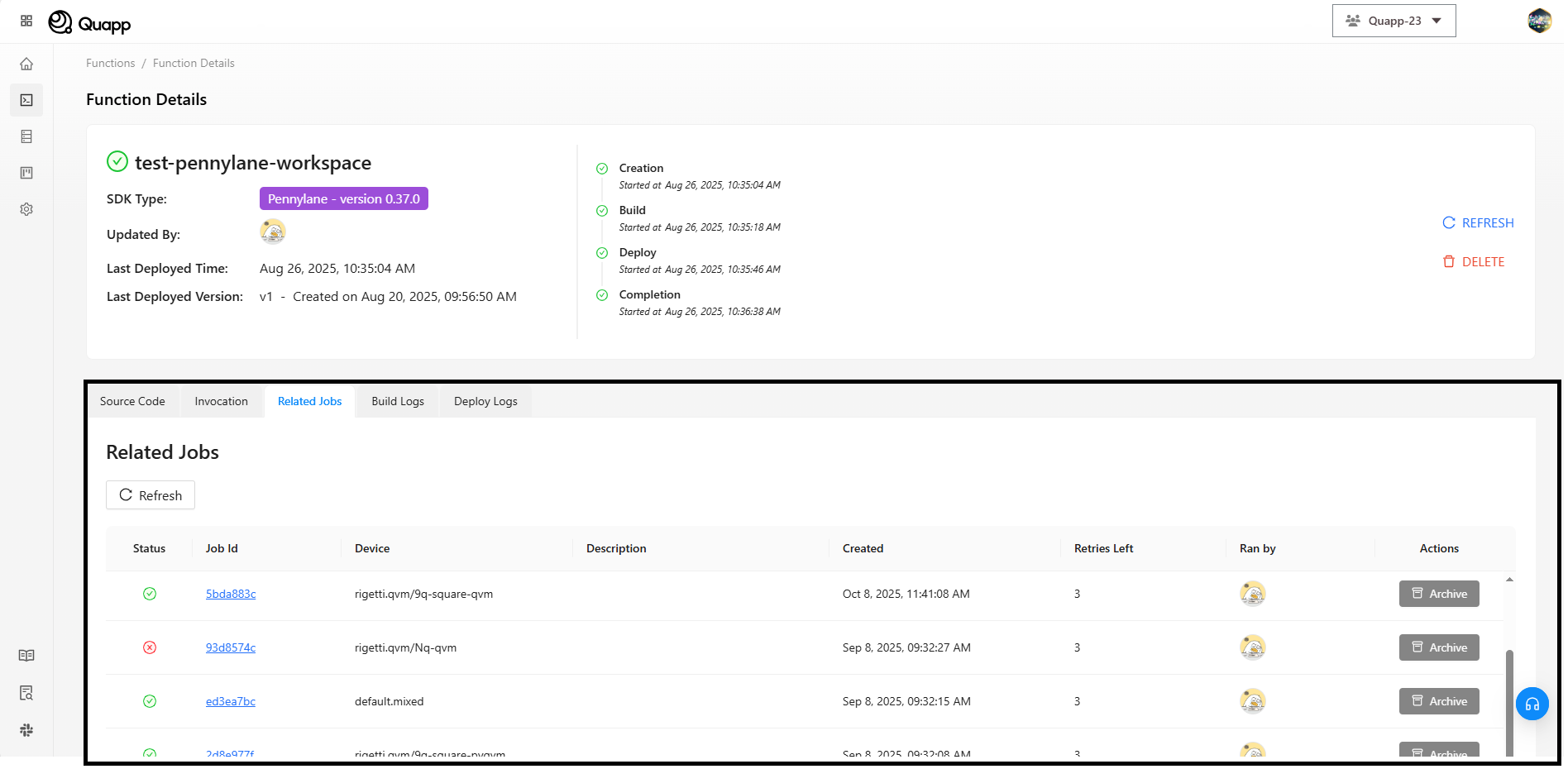
From Function Details
From the Functions page, select the function name you want to view.
On the Function Details page, locate the Related Jobs section.
Select a job from the list to open its Job Details view.
Jobs are grouped by function. Jobs created using different providers or devices are all displayed in the same job list for that function.
From Provider Details
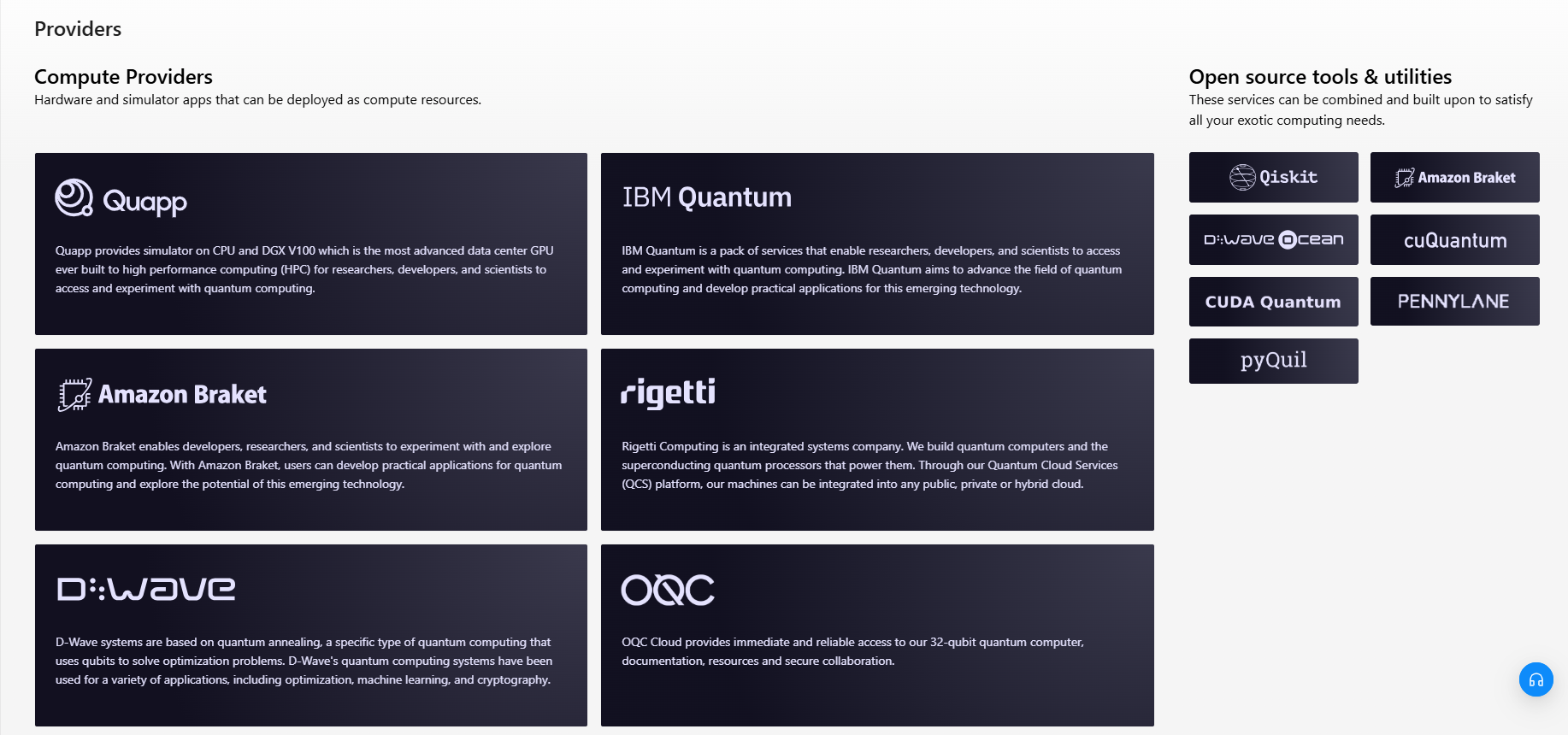
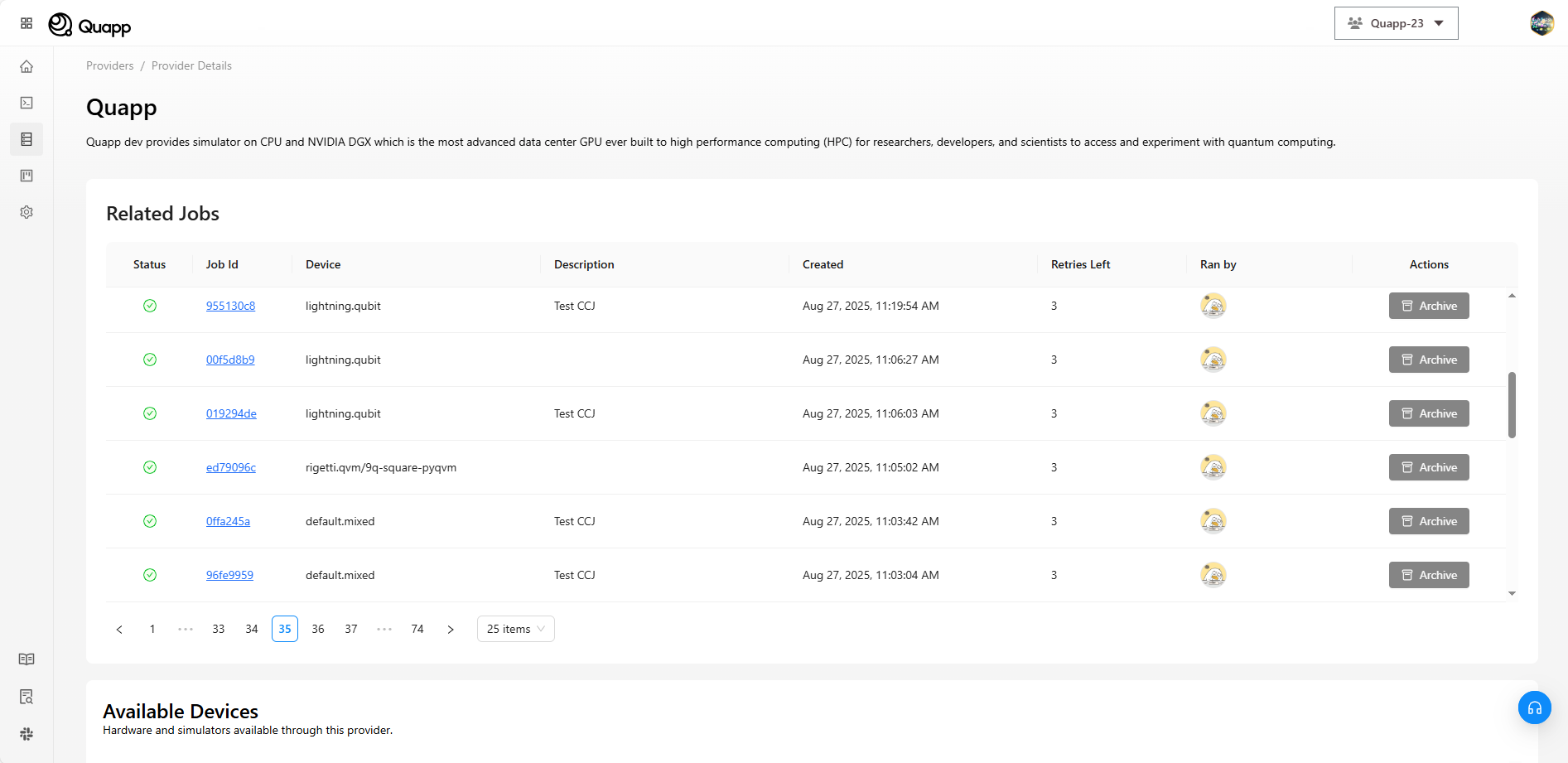
From the Providers section, navigate to the provider details view.
Select a job associated with the provider to open the Job Details page.
Job Information
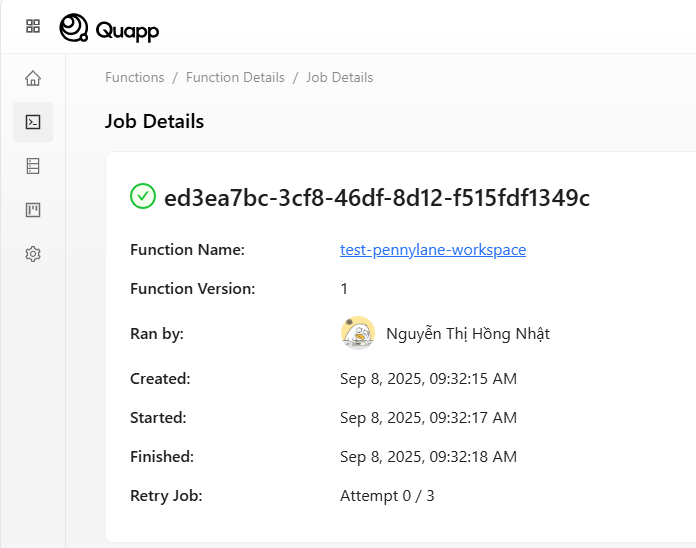
The top section of the Job Details page displays general execution information, including:
- Job ID Unique identifier of the job.
- Function Name The function that was invoked.
- Function Version The version of the function used for execution.
- Run By The user who invoked the job.
- Created / Started / Finished Timestamps indicating the job lifecycle.
- Retry Job Number of retry attempts used and remaining.
Job Execution Timeline
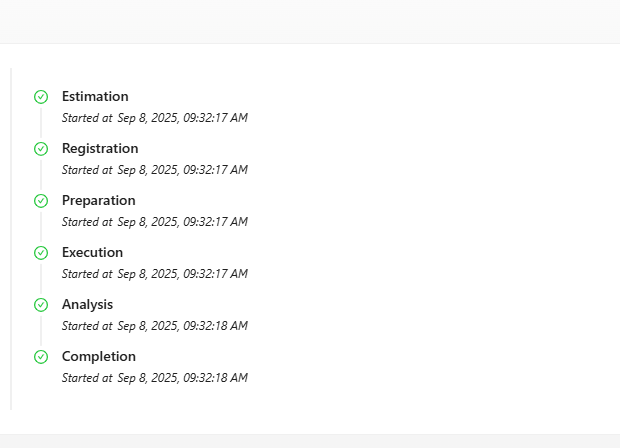
The execution timeline shows the progress of the job across different stages:
- Estimation
- Registration
- Preparation
- Execution
- Analysis
- Completion
Each stage includes a timestamp indicating when it started.
Job Data
This section displays the execution configuration used for the job:
- Total Completion Time
- Provider
- Device
- Shots
- Description
- Input
Job Result
The Job Result section presents the output generated by the execution.
Available views may include:
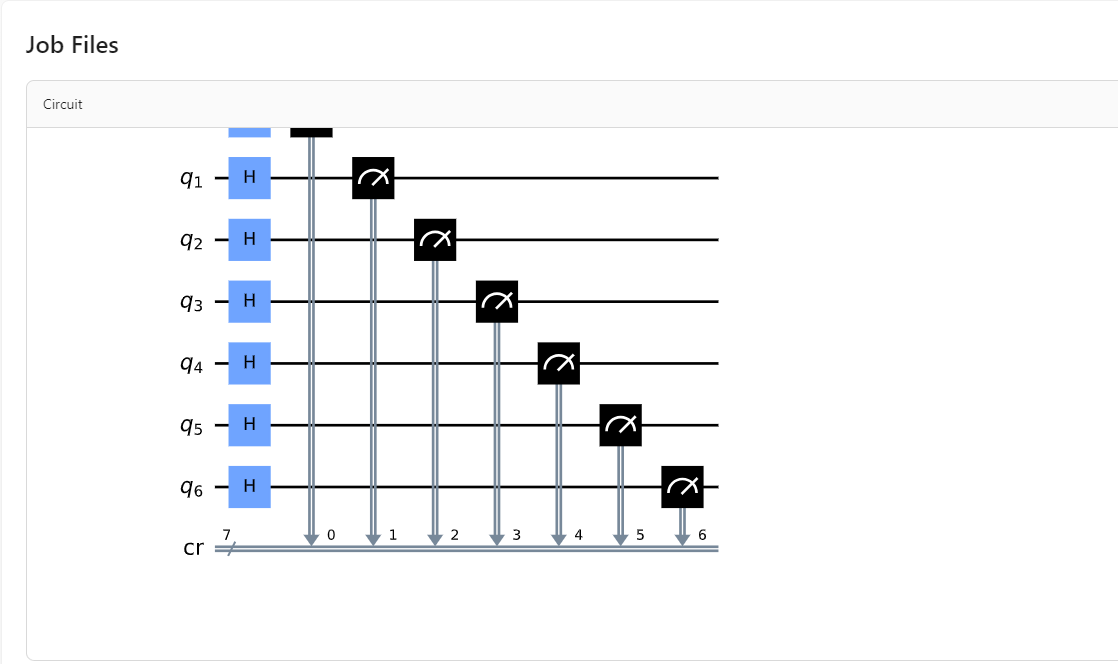
- Circuit Visual representation of the executed quantum circuit.
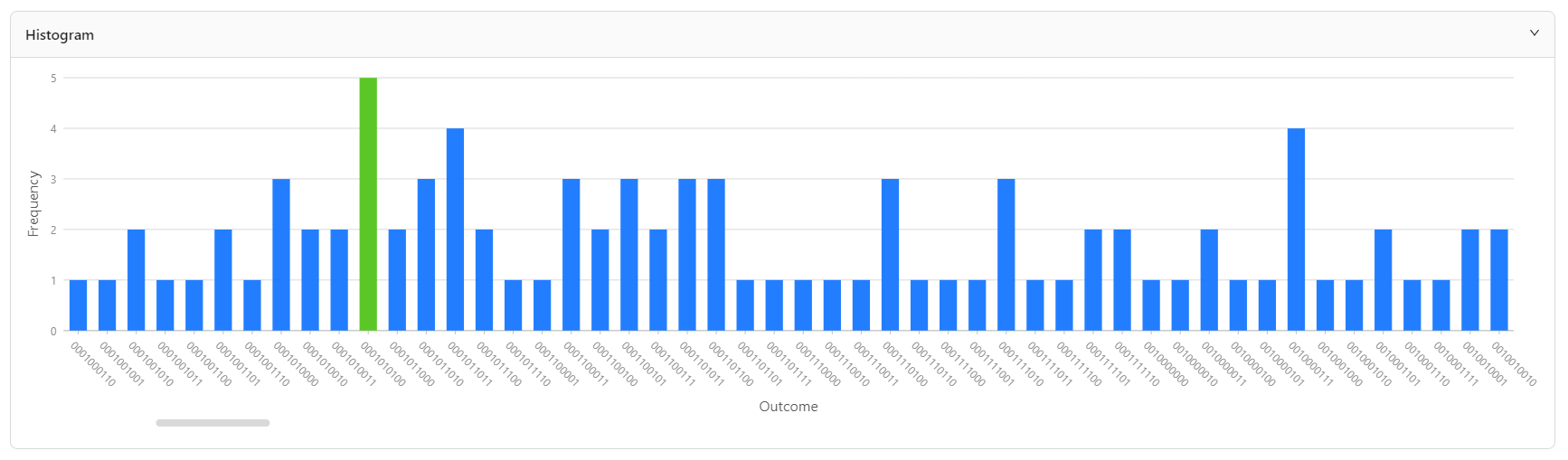
- Histogram Measurement results displayed as a chart or table.
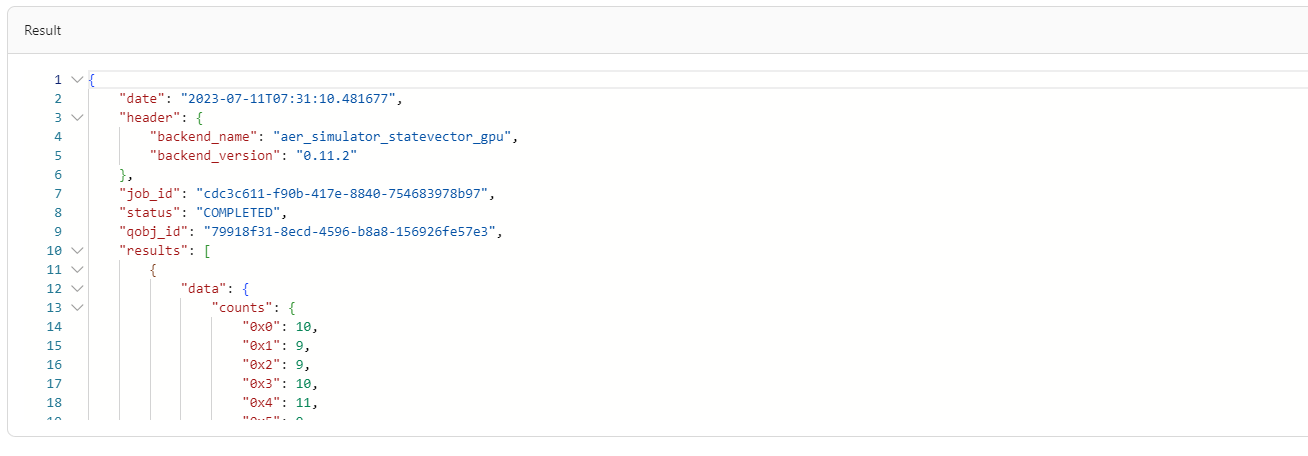
- JSON Raw result data in JSON format.
Actions on a job
- Refresh — updates the job status and result data.
- Archive — moves a finished job out of the working job list. Use it for jobs you no longer need to see day to day.
Archiving a job
Archiving is not deleting. An archived job keeps its results and stays readable; it simply leaves the main job list so the list reflects your current work.
To archive a job, open it and select Archive from its actions.
Restoring an archived job
Restoring is a System Admin operation. A project member cannot restore a job themselves — raise a support request.
- The System Admin opens the Jobs Archive screen and selects the job.
- Selecting Restore returns the job to its original project with its original status.
- The page reloads and the job appears in the project's job list again.
If the restore fails because of a network or server error, the matching error message is shown and the job stays archived. The operation can be retried.
Notes
- Only completed jobs display full result data.
- Job results depend on the selected provider and device.
- Archived jobs remain accessible for review — archiving never discards results.
- Retry Job shows how many automatic retries a job has left. Quapp retries jobs that failed for transient reasons; you receive exactly one notification for the final outcome, not one per attempt. See Notifications.