Invite the user to the workspace
1. Access Workspace User Settings
- Log in as the Workspace Admin.
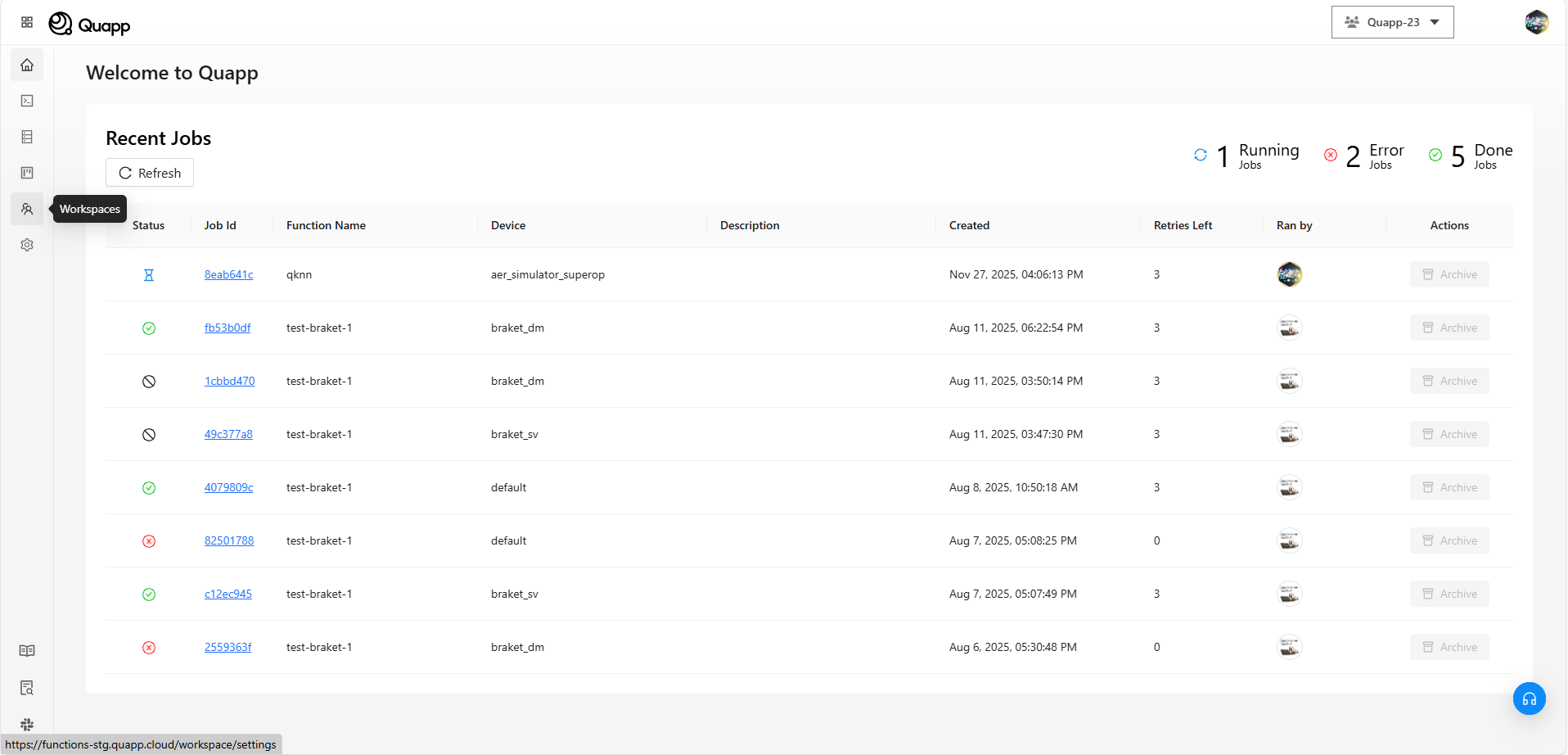
- Navigate to Workspace Settings → select Users.
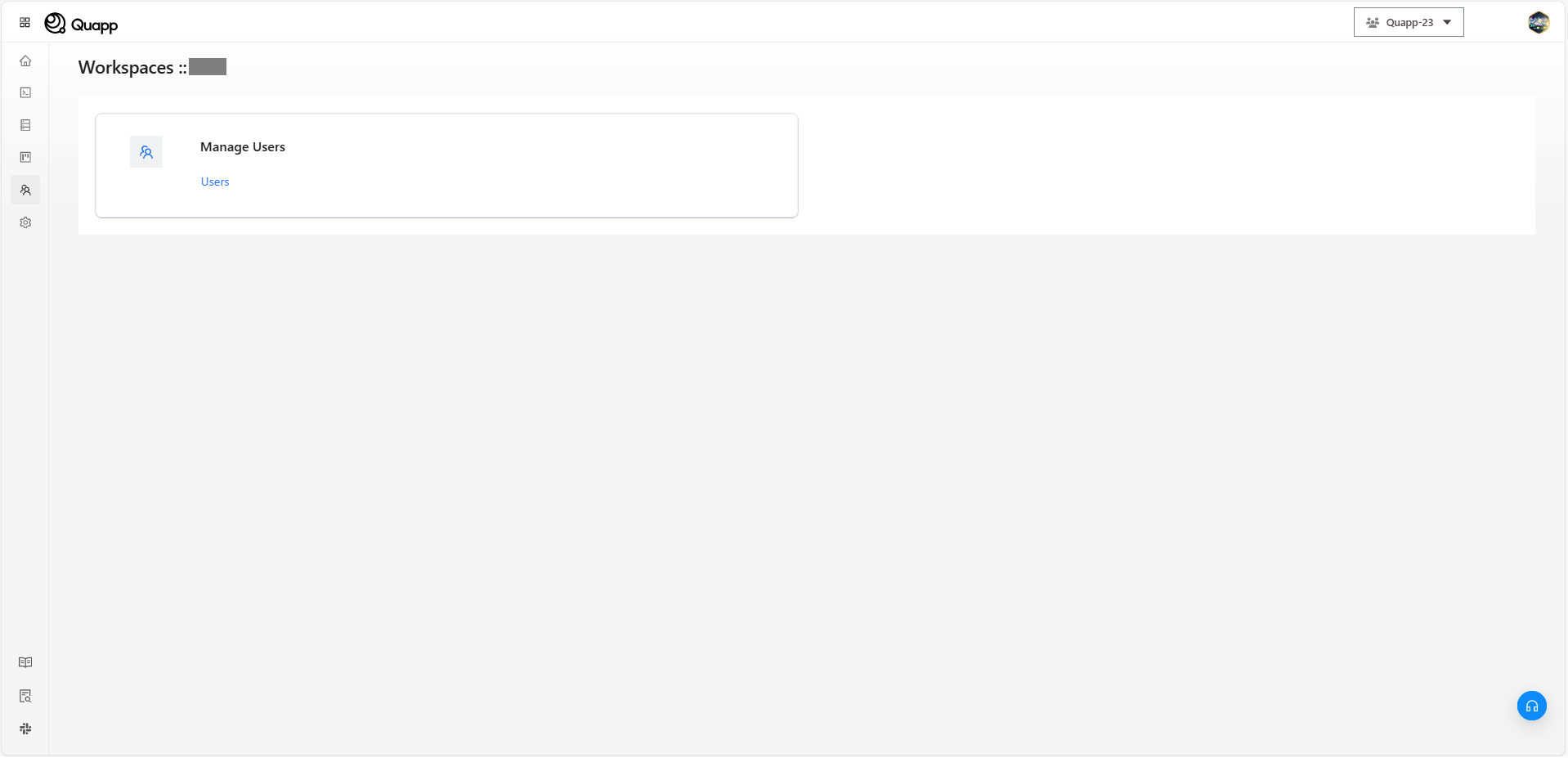
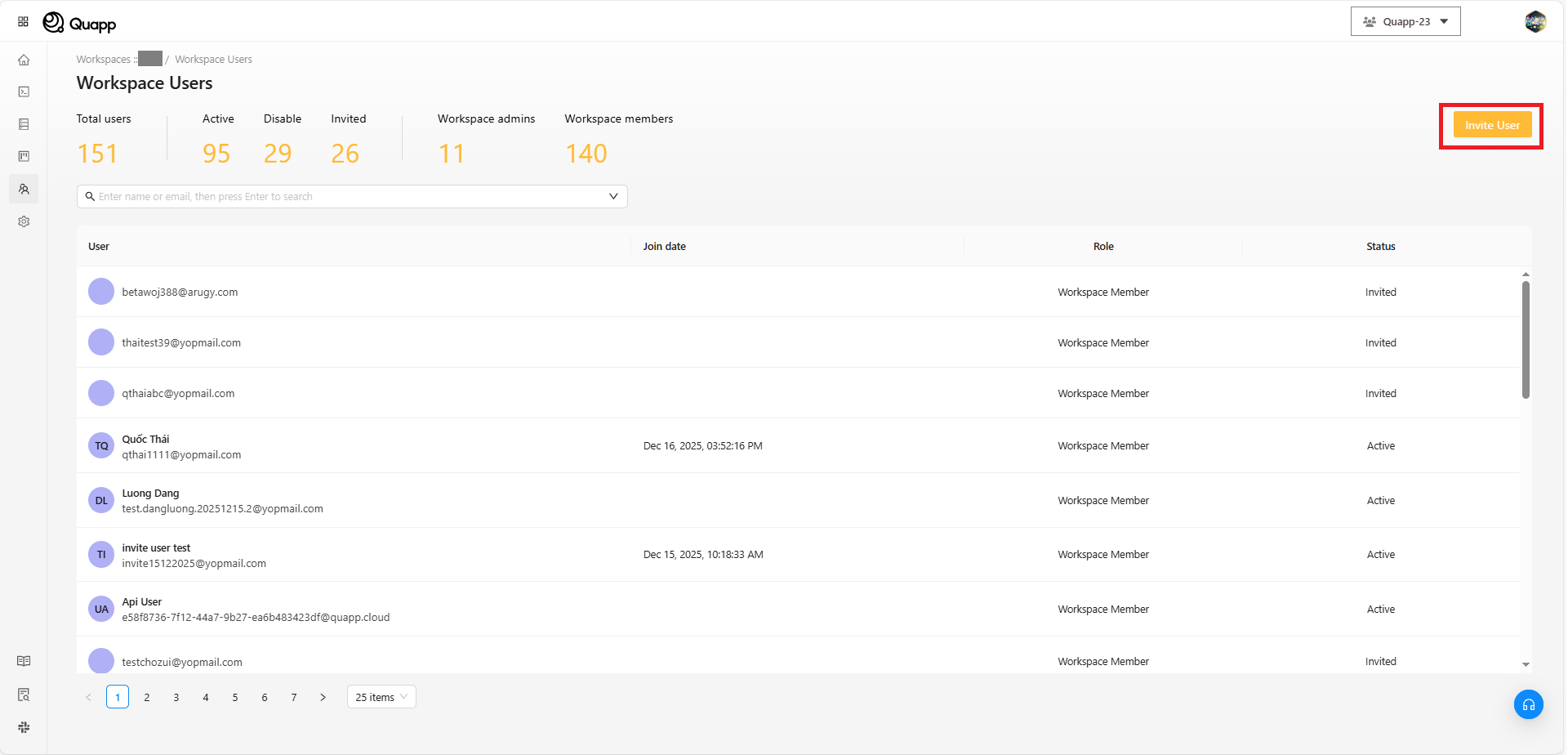
2. Begin the User Invitation Process
- On the Users screen, click “Invite User”
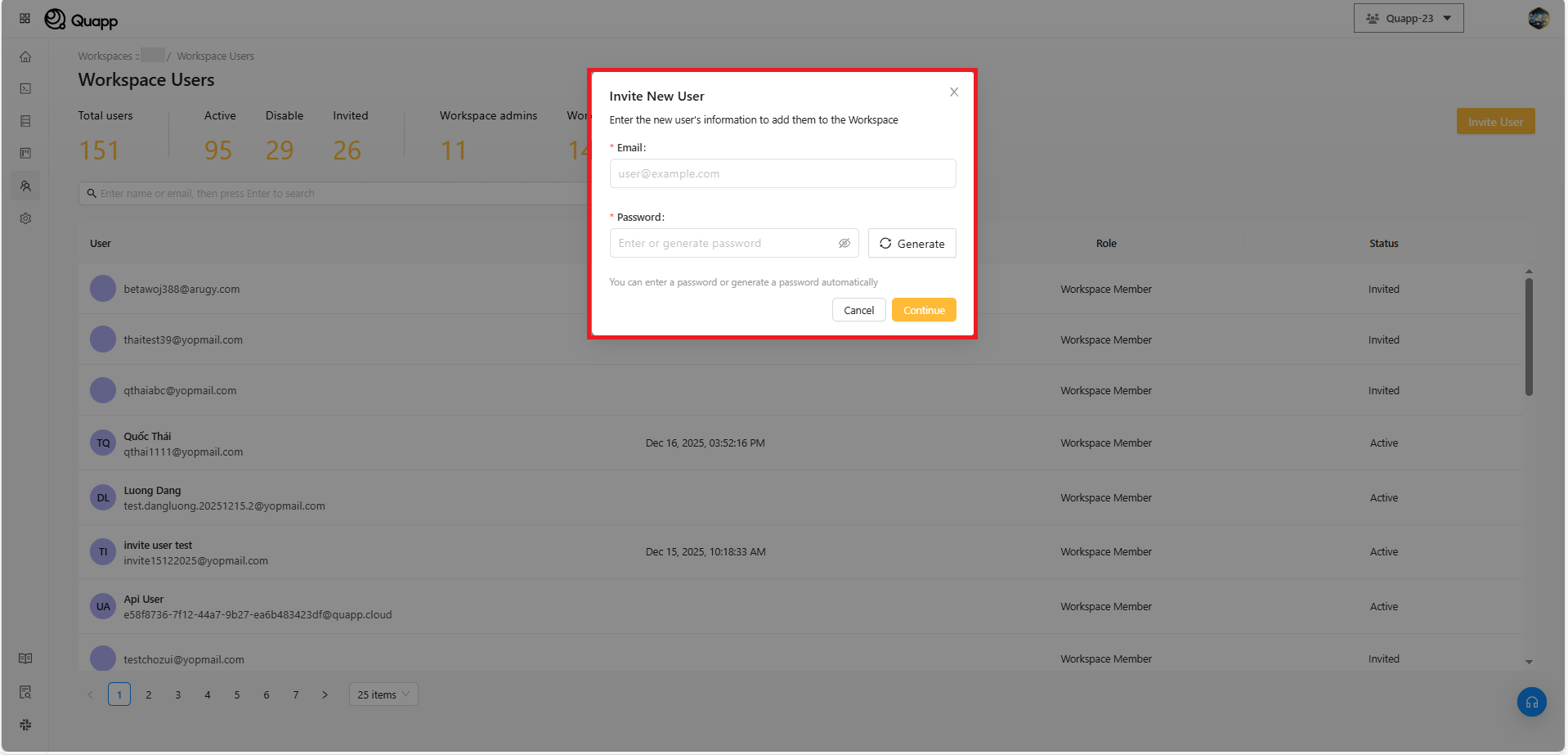
3. Fill in the Invitation Details
- The “Invite New User” window will appear.
- Enter the user’s email and password.
- You may click “Generate” to automatically create a password.
- After completing the required fields, click “Continue.”
4. Confirm the User’s Email
- The system will display a “Confirm email information” screen.
- Verify the email is correct and click “Confirm.”
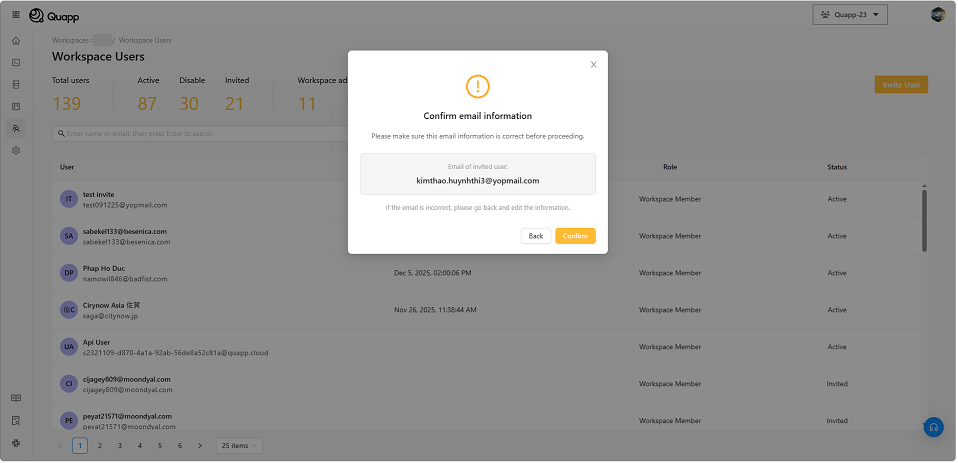
Possible Outcomes:
-
If the user already exists on Quapp: The system displays: “User already exists.”
-
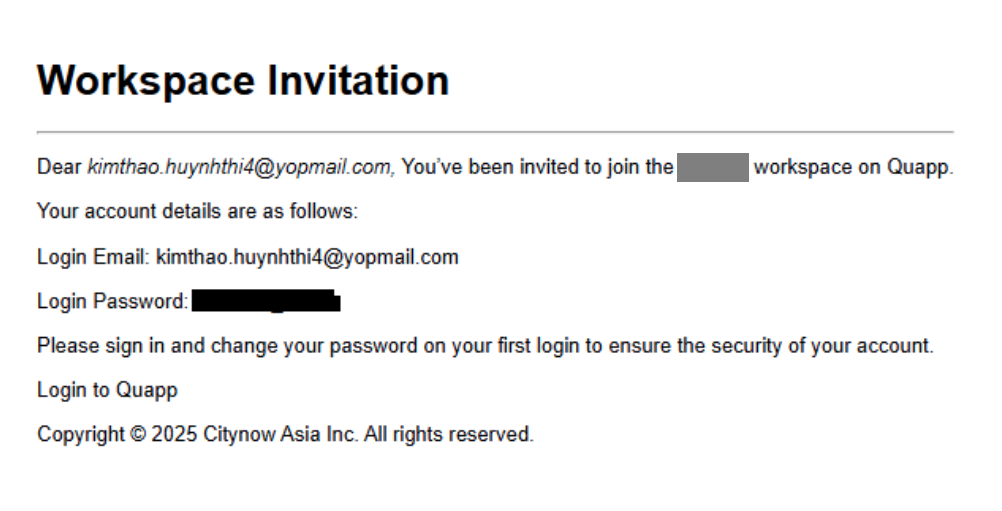
If the user does not exist on Quapp: The system creates a new account and displays: “Account created successfully.”. An email will be sent to the user containing:
- Their login email
- Their password
- The login link
5. Select a Payment Plan
After confirming the email, the system will display the Select Payment Plan screen. The Workspace Admin can choose one of the following:
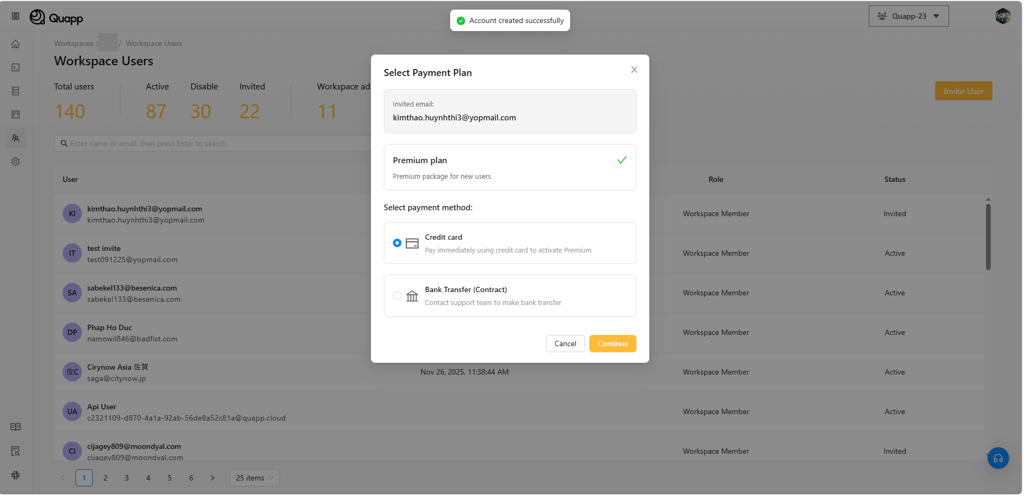
Option A: Credit Card
-
Purchase a Premium plan on behalf of the user.
-
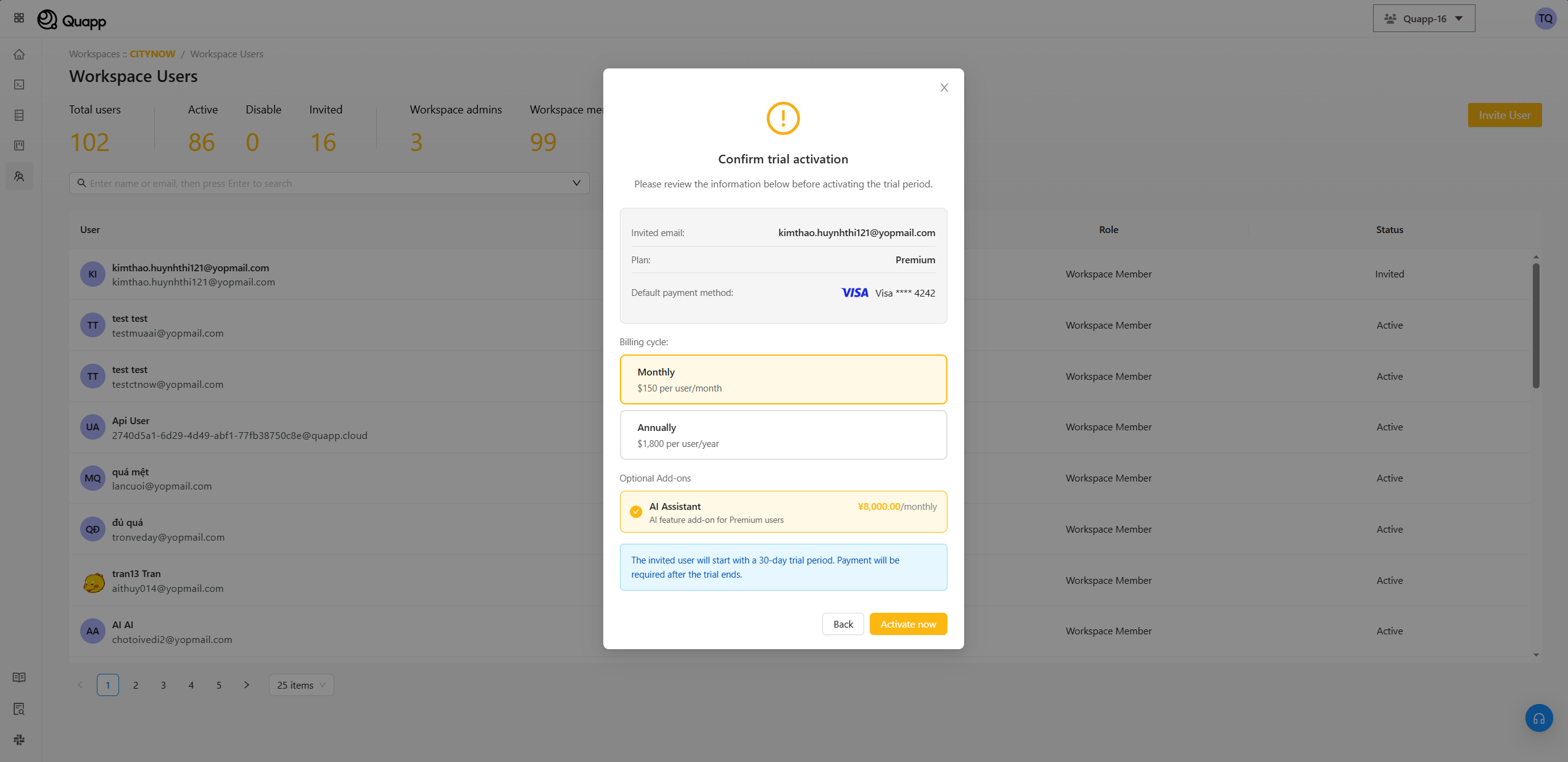
The AI Assistant can be purchased as an individual add-on when inviting a user.
To enable this option:
- Select the AI Assistant add-on during the plan selection step.
- The add-on will be applied to the invited user upon completion.
Workspace Admins can enable this based on the user’s needs.
Option B: Bank Transfer (Contract)
- Send a request to the System Admin to issue a contract for the user.
Option A: If “Credit Card” Is Selected
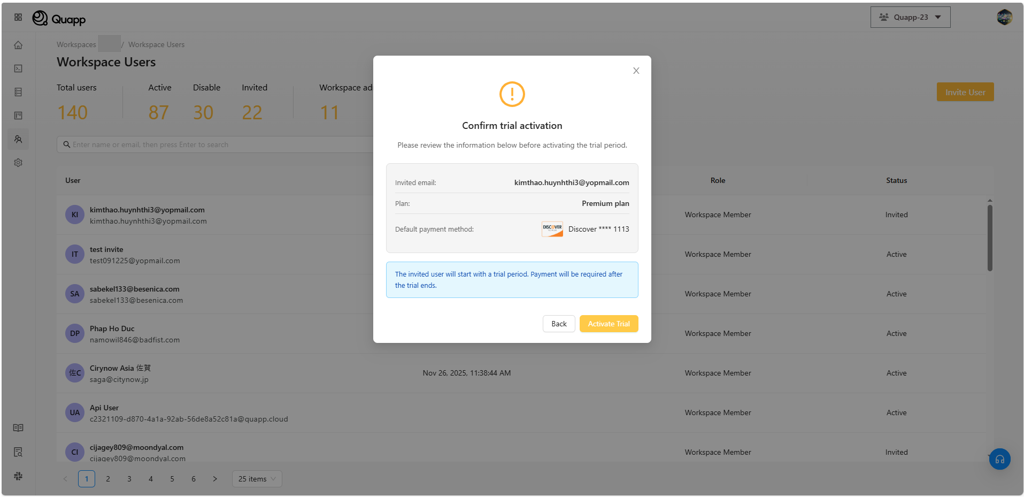
6. Confirm Trial Activation
The system shows a “Confirm trial activation” modal containing:
- Selected plan
- Default payment method
→ Click “Activate trial.”
7. Complete the Invitation
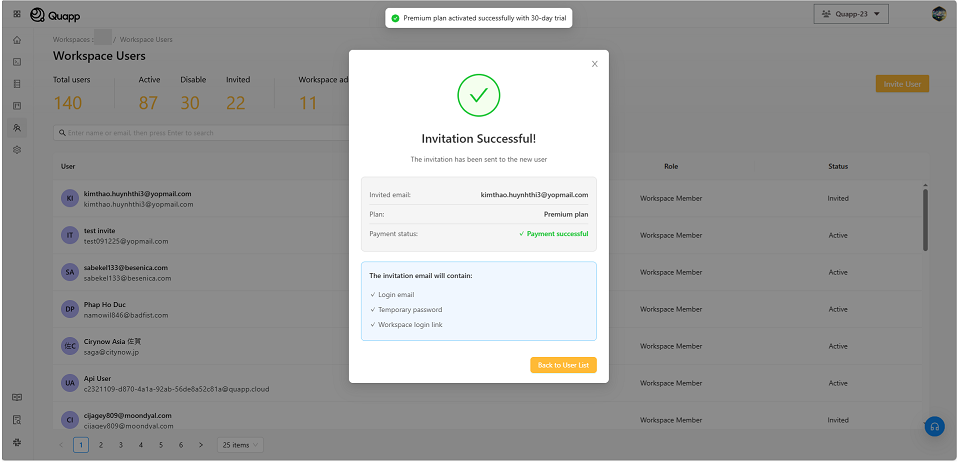
- The system processes the Premium payment.
- The “Invitation Successful!” modal appears.
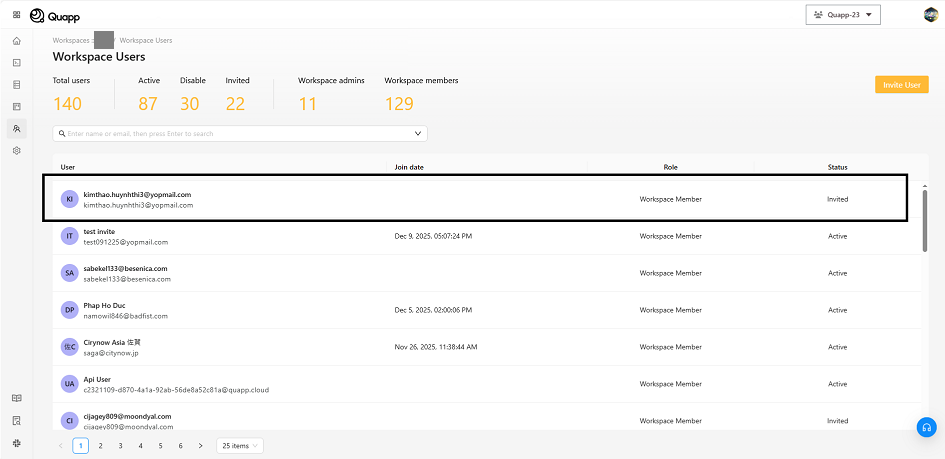
- Click “Back to User List.”
A new user with status: Invited will now appear in the user list.
Option B: If “Bank Transfer (Contract)” Is Selected
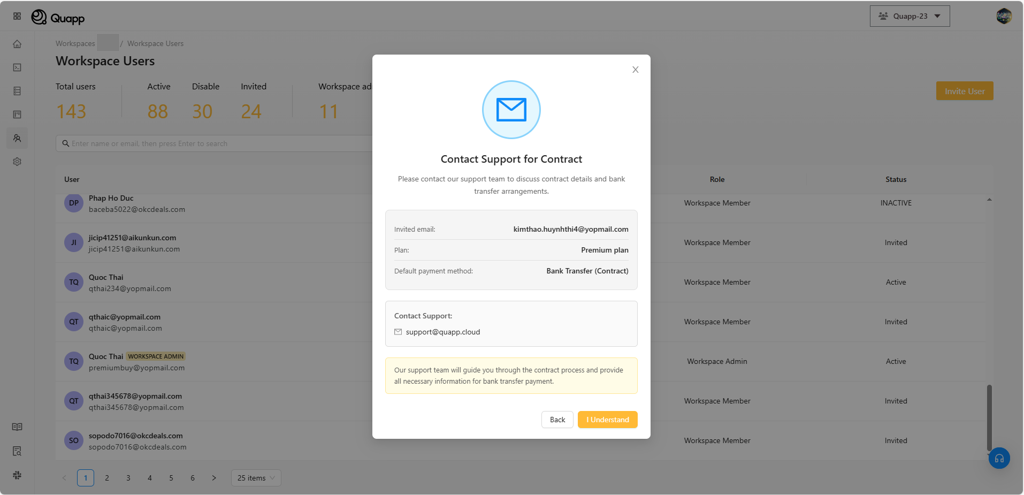
6. Contact Support
- The system displays a “Contact Support for Contract” modal with support contact information. => Please contact us via email for support.
- Click “I understand” to finish the process.
After the invitation
The invited user appears in the user list with status Invited. To change what role they hold in the workspace afterwards, see Workspace Member Roles.