Quickstart: run your first quantum function
You will create a function from a ready-made template, deploy it, run it once on a simulator and read the result. No code to write. It takes a few minutes, most of it waiting for the deployment.
The template used here is Bernstein-Vazirani (Qiskit): you give it a secret bit string such as 1011, and the quantum algorithm finds that string again in a single query. You know the right answer before you start, so you can see at a glance that everything worked.
Every step and screenshot on this page was walked through on 21 October 2026. The red boxes and numbers show what to click.
Before you start
- You are signed in and have a project selected.
- The project has simulator time left. Every invocation uses project quota.
1. Start a new function
In the left sidebar, select Functions, then Create Function.
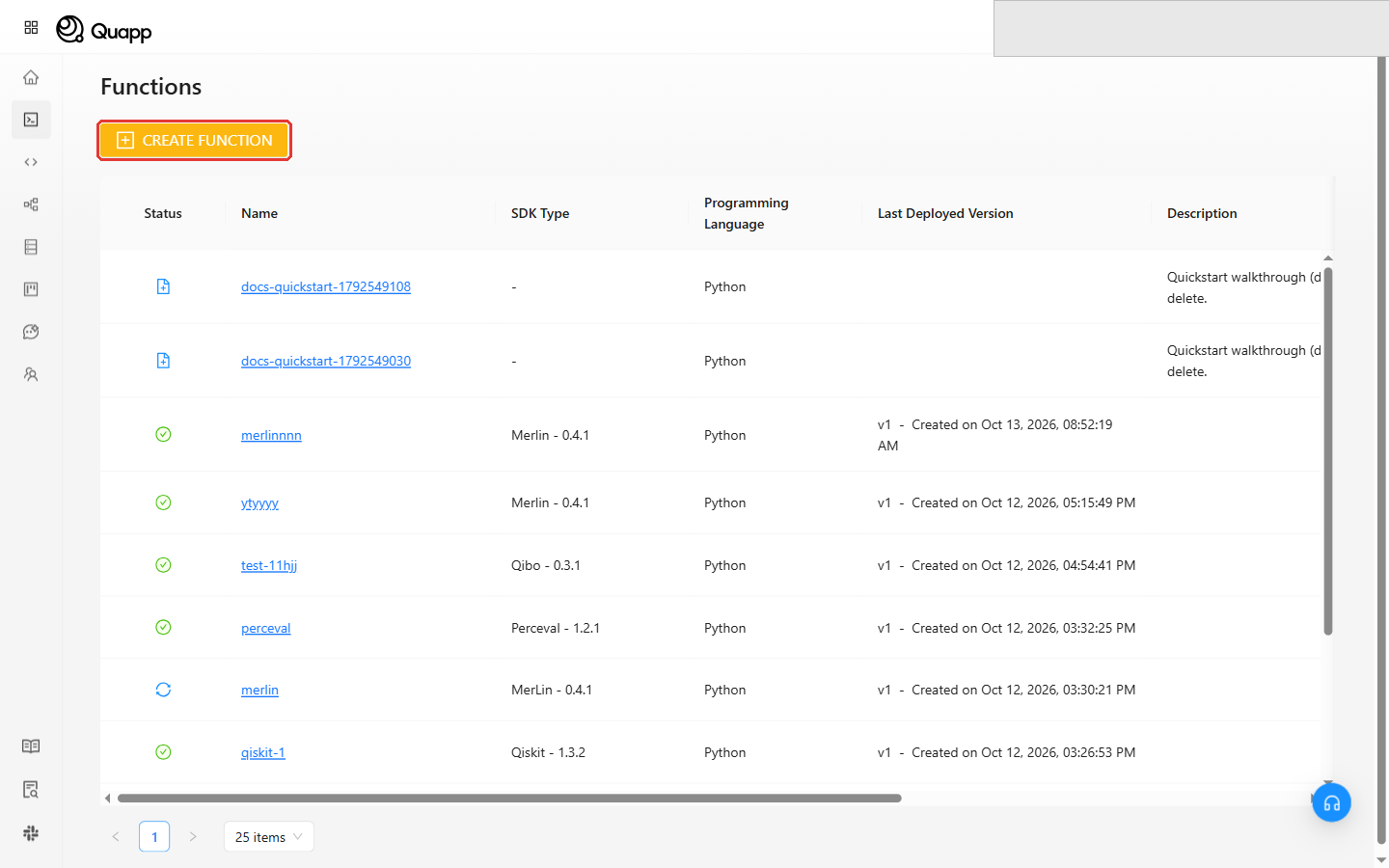
2. Basic Info
- Enter a Function name (the naming rules apply). The description is optional.
- Keep Python as the Programming Language.
- Select Create Function.
The Available SDKs provided by Quapp panel is for information only; the SDK is set in the last step.
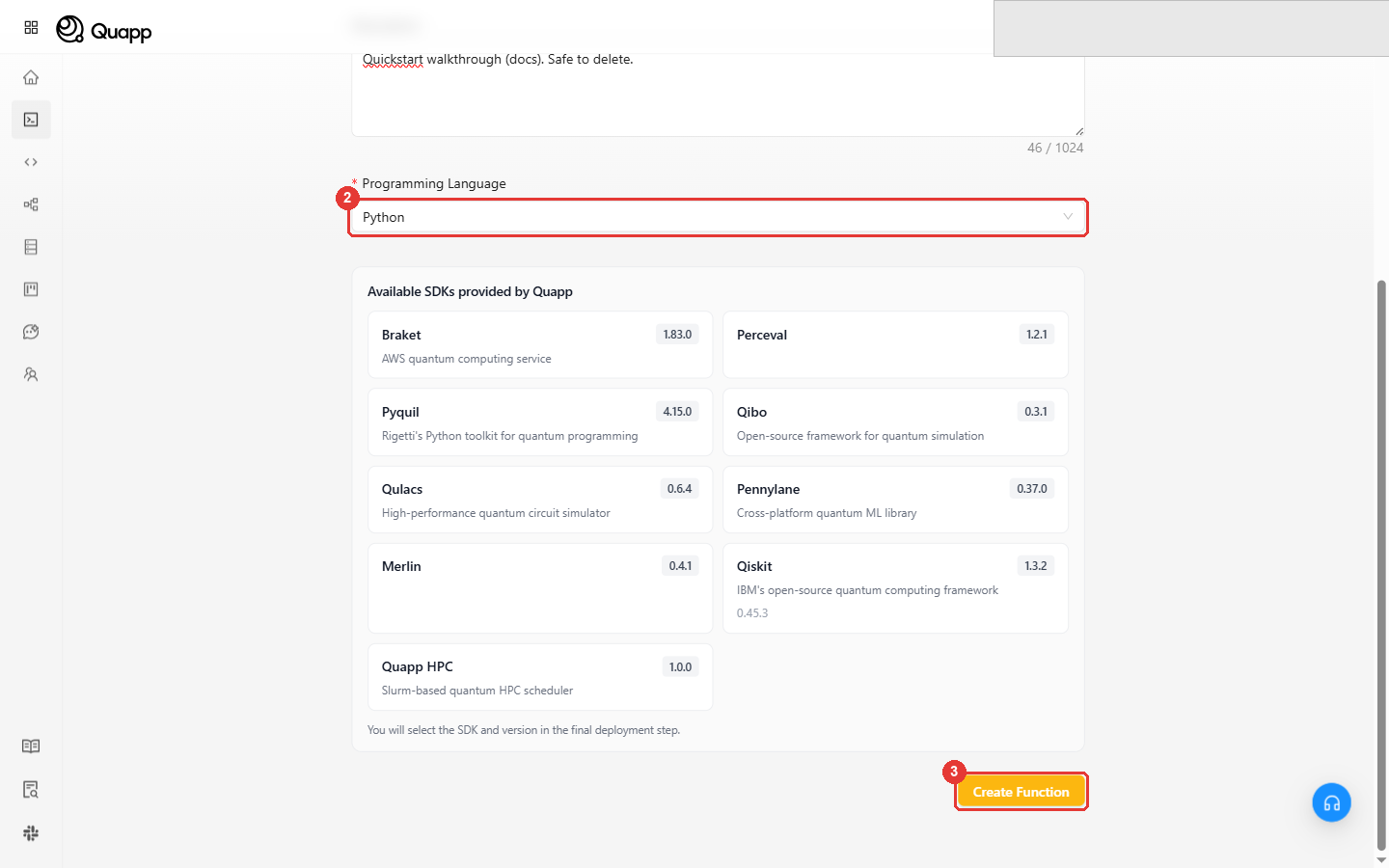
Selecting Create Function already saves the function as a draft. If you leave the wizard now, it stays in the Functions list without an SDK until you deploy it.
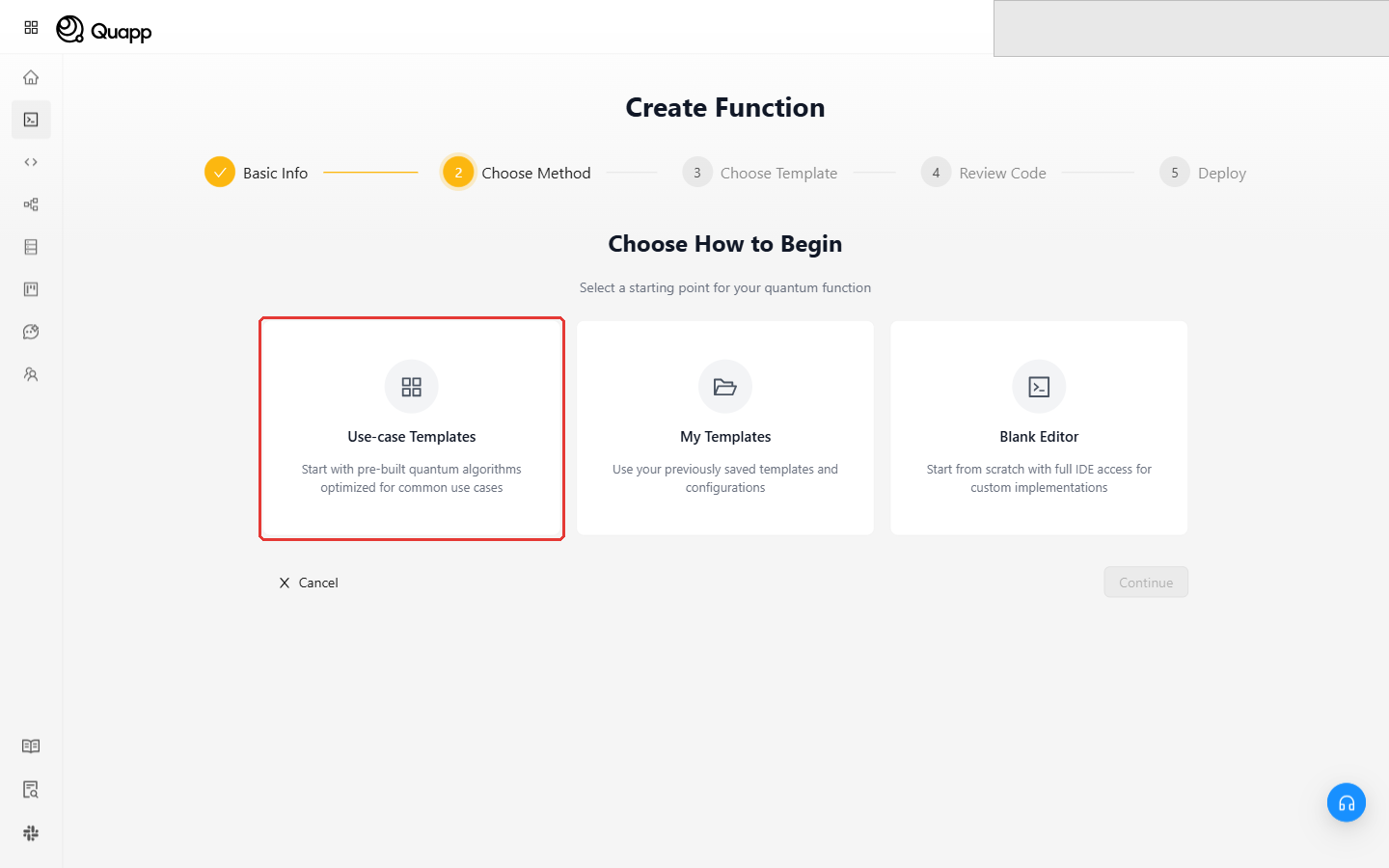
3. Choose how to begin
Select Use-case Templates, then Continue. (The other choices are My Templates, for templates you saved yourself, and Blank Editor, to start from empty code.)
4. Pick the template
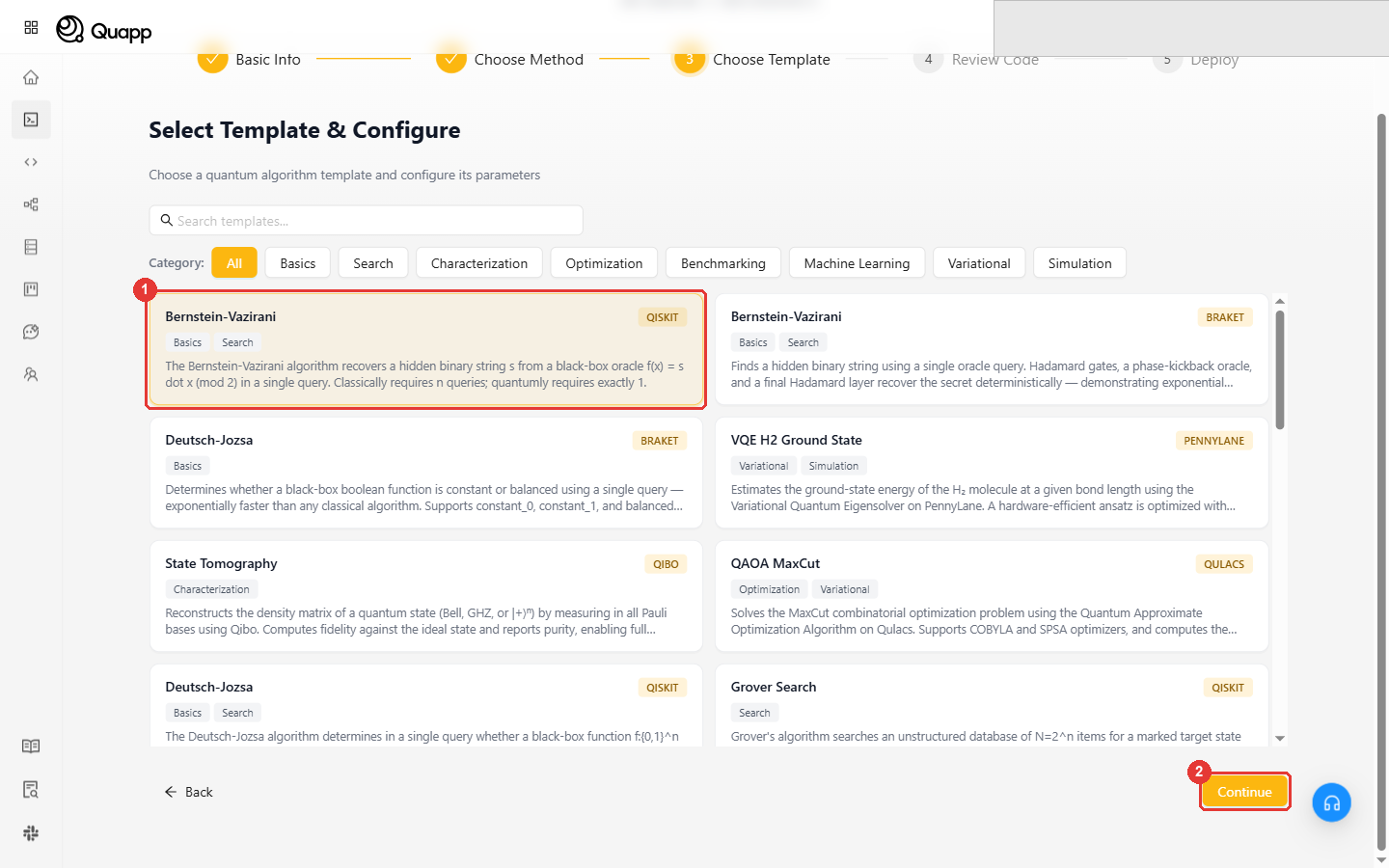
- Find Bernstein-Vazirani with the QISKIT badge (there is also a Braket version). The category buttons (Basics, Search, Optimization…) and the search box narrow the list.
- Select the card, then Continue.
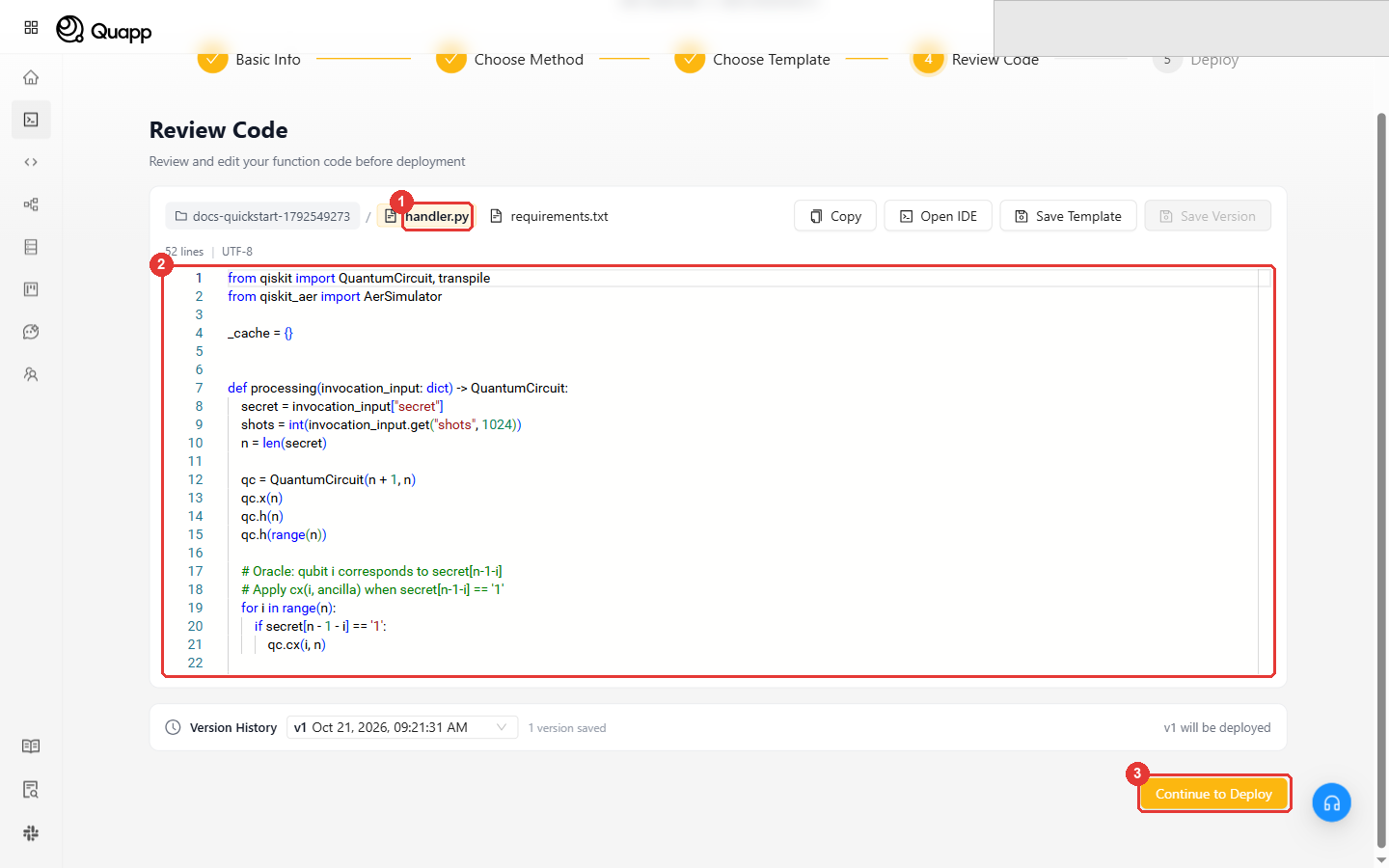
5. Look at the code, then continue
The template's handler.py opens in the editor. You do not have to change anything. Note one line: the function reads a value called secret from its input:
secret = invocation_input["secret"]
You will provide that value when you run the function. Select Continue to Deploy.
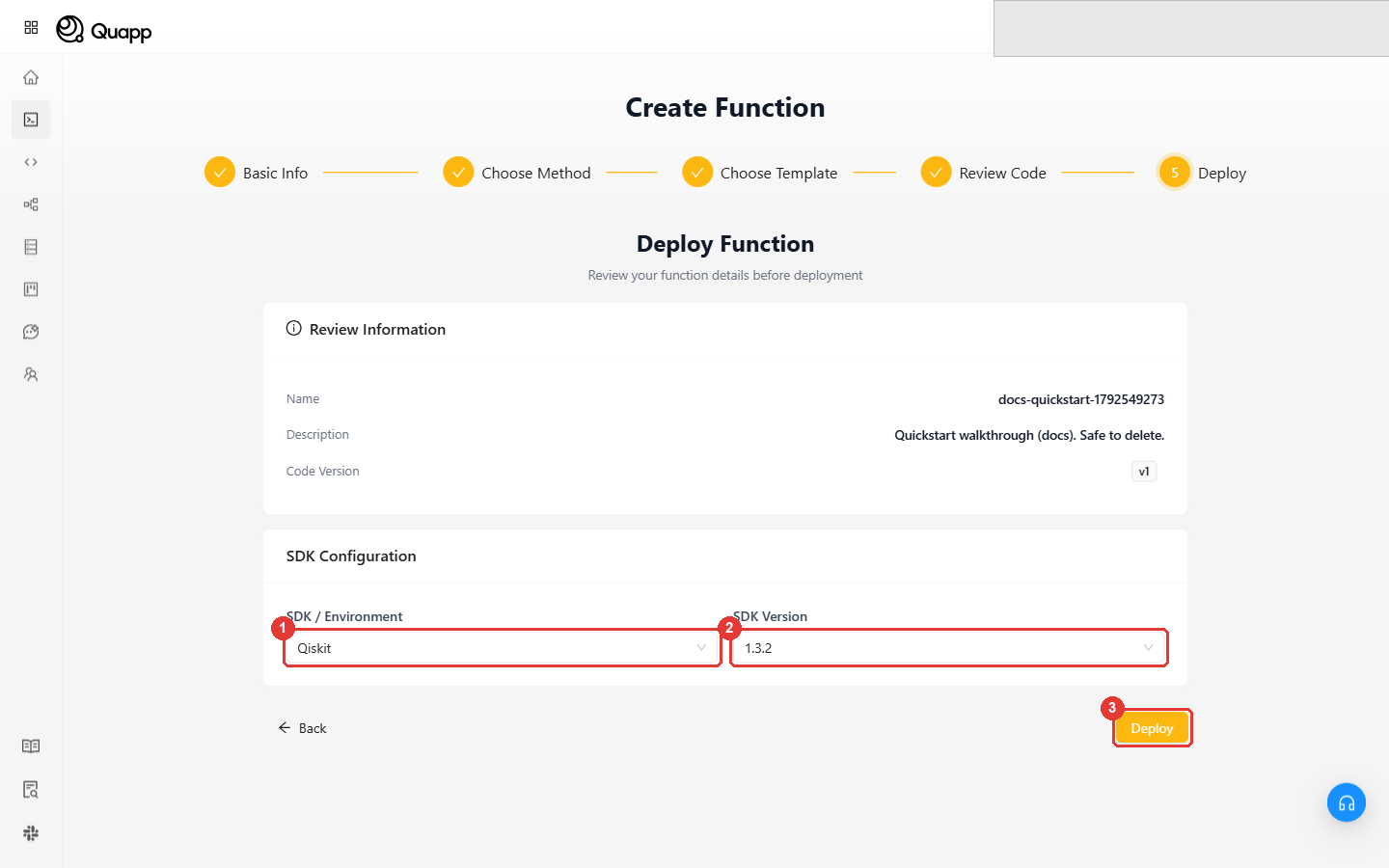
6. Deploy
The template has already filled in SDK / Environment (Qiskit) and SDK Version (1.3.2). Select Deploy.
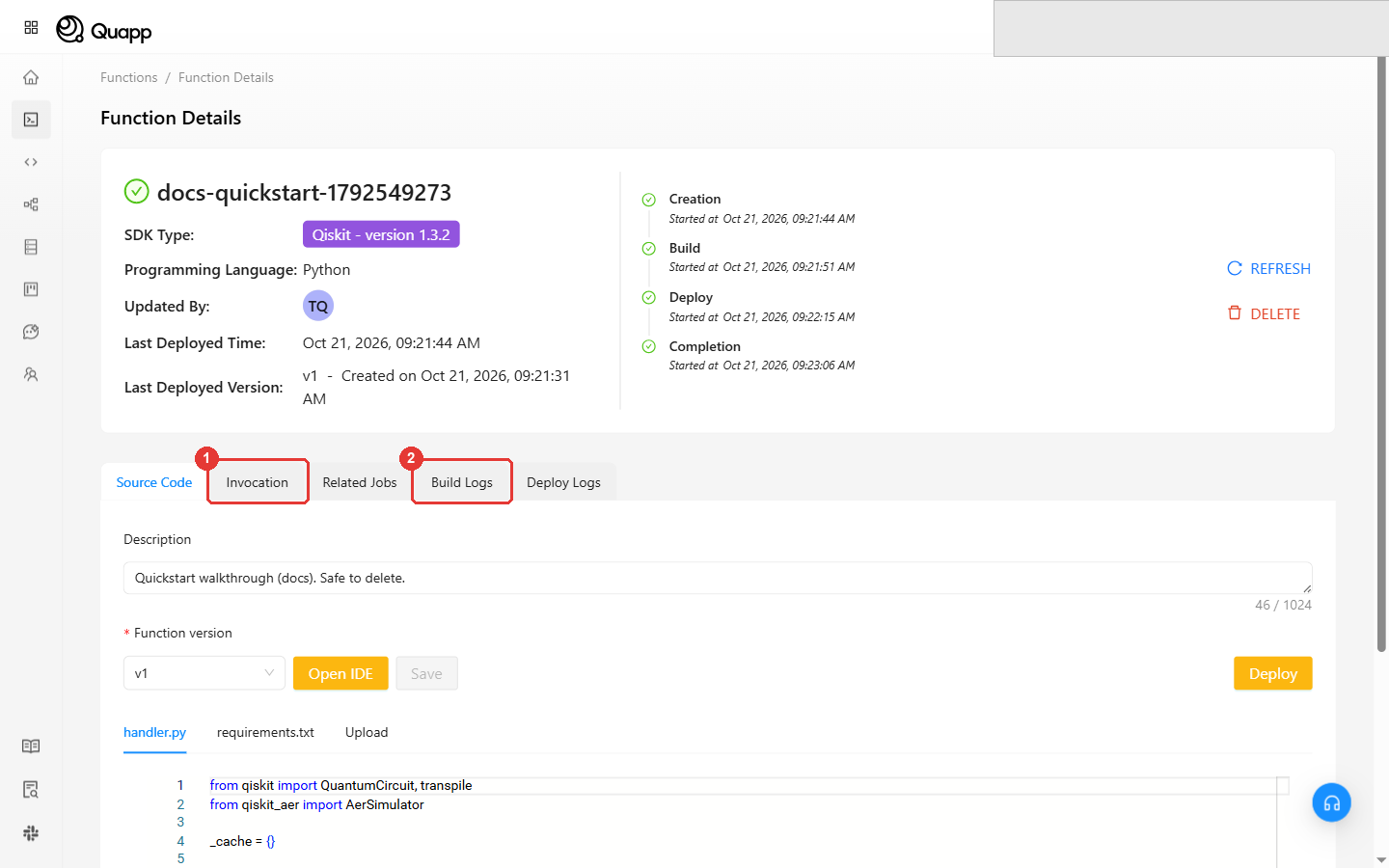
You land on the Function Details page. The deployment goes through Creation → Build → Deploy → Completion; in our run it took about a minute and a half.
While the page stays open, the tab strip shows only Source Code, Related Jobs, Build Logs and Deploy Logs, even after Completion. Go back to Functions and open your function again: the Invocation tab is then there. If it is still missing, open Build Logs to see why the deployment failed.
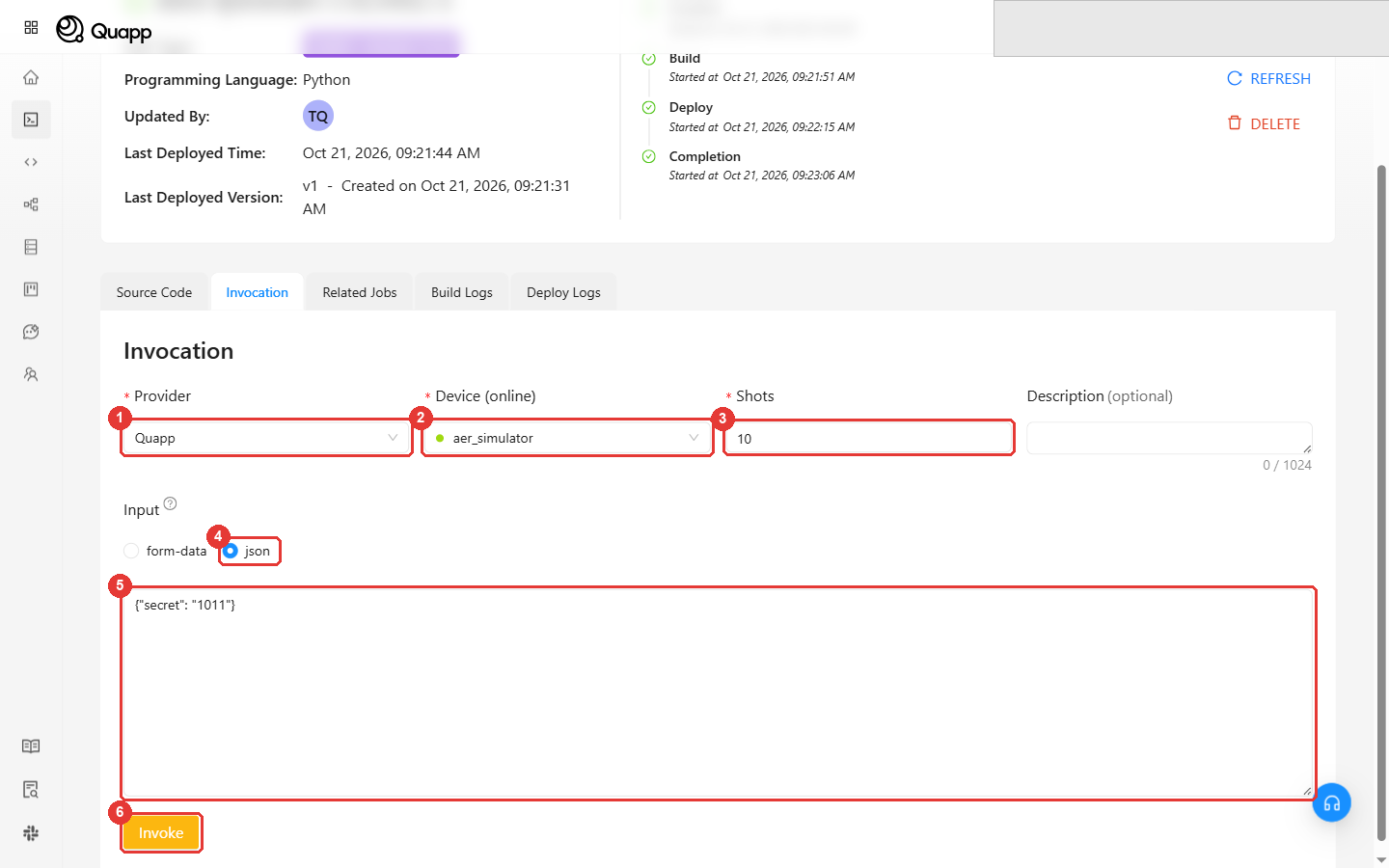
7. Run it
Open the Invocation tab and fill in the form:
-
Provider: Quapp. (A Qiskit function also offers other providers, including real quantum hardware; stay on the simulator for now.)
-
Device (online): aer_simulator. Avoid
unitary_simulator, which computes a matrix instead of measurement results. -
Shots: keep the default, 10.
-
Input: select json and enter:
{"secret": "1011"}Use json, not form-data: form-data turns
1011into the number 1011, and this template needs text (the job then fails withHANDLER_ERROR). -
Select Invoke.
When you choose a device, an Available time panel opens with the device description and its weekly availability. Select OK to close it.
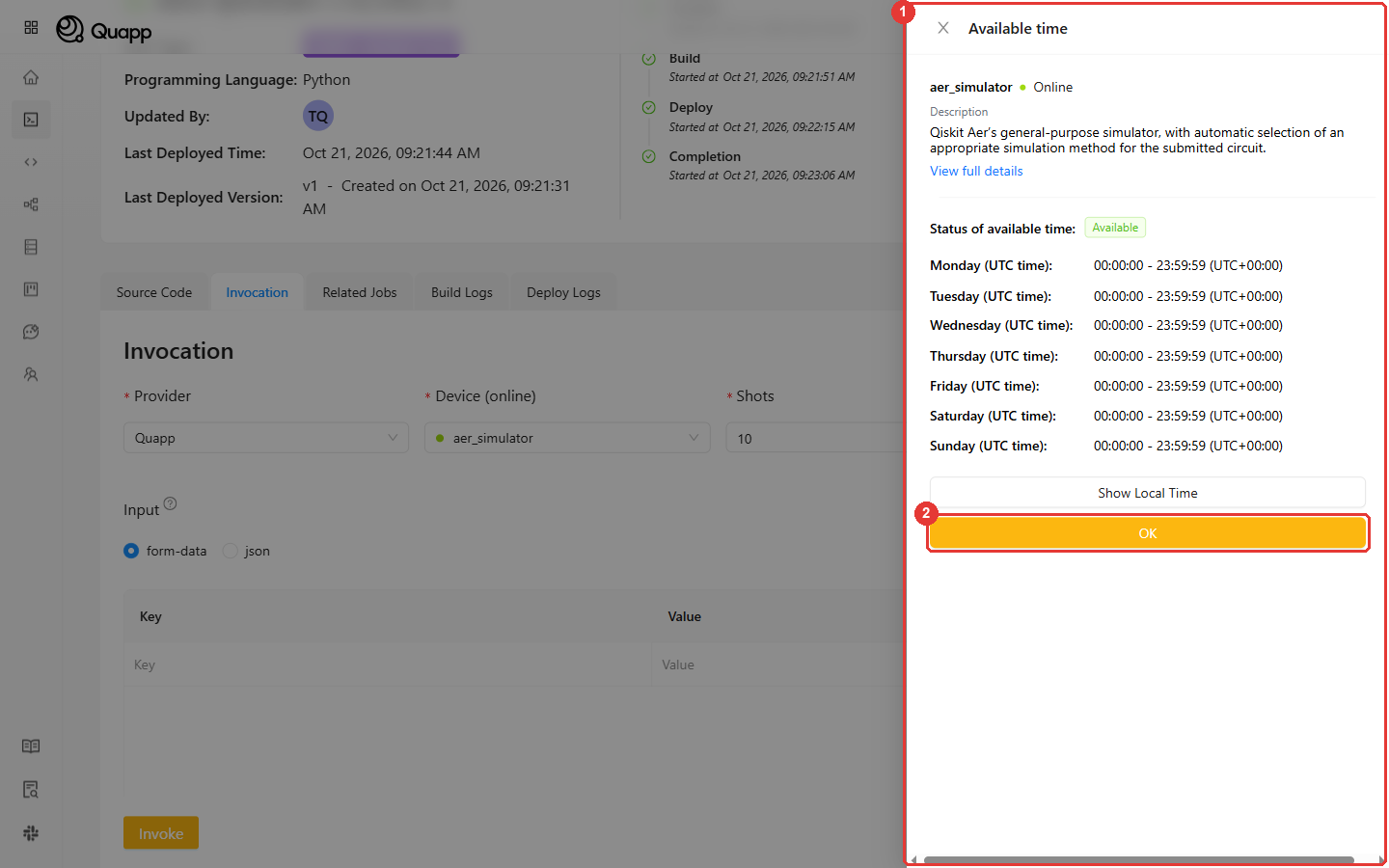
Invoke stays enabled with an empty input, but the job then fails with INPUT_MISSING_FIELD (see If the job fails).
8. Watch the job
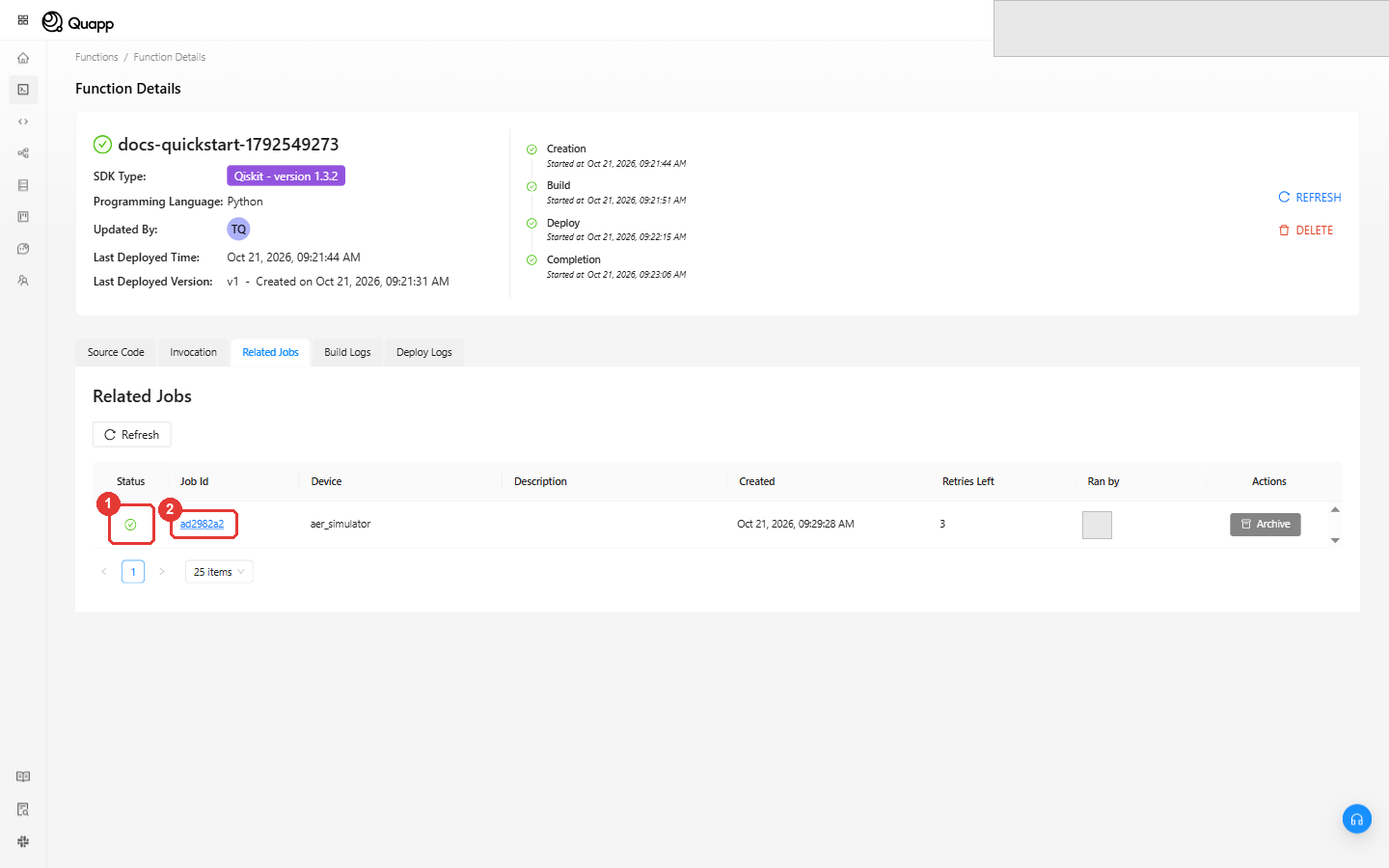
After Invoke, the page switches to Related Jobs and your job appears at the top. A green tick in Status means it has finished (ours took 17 seconds). Select the Job Id to open it.
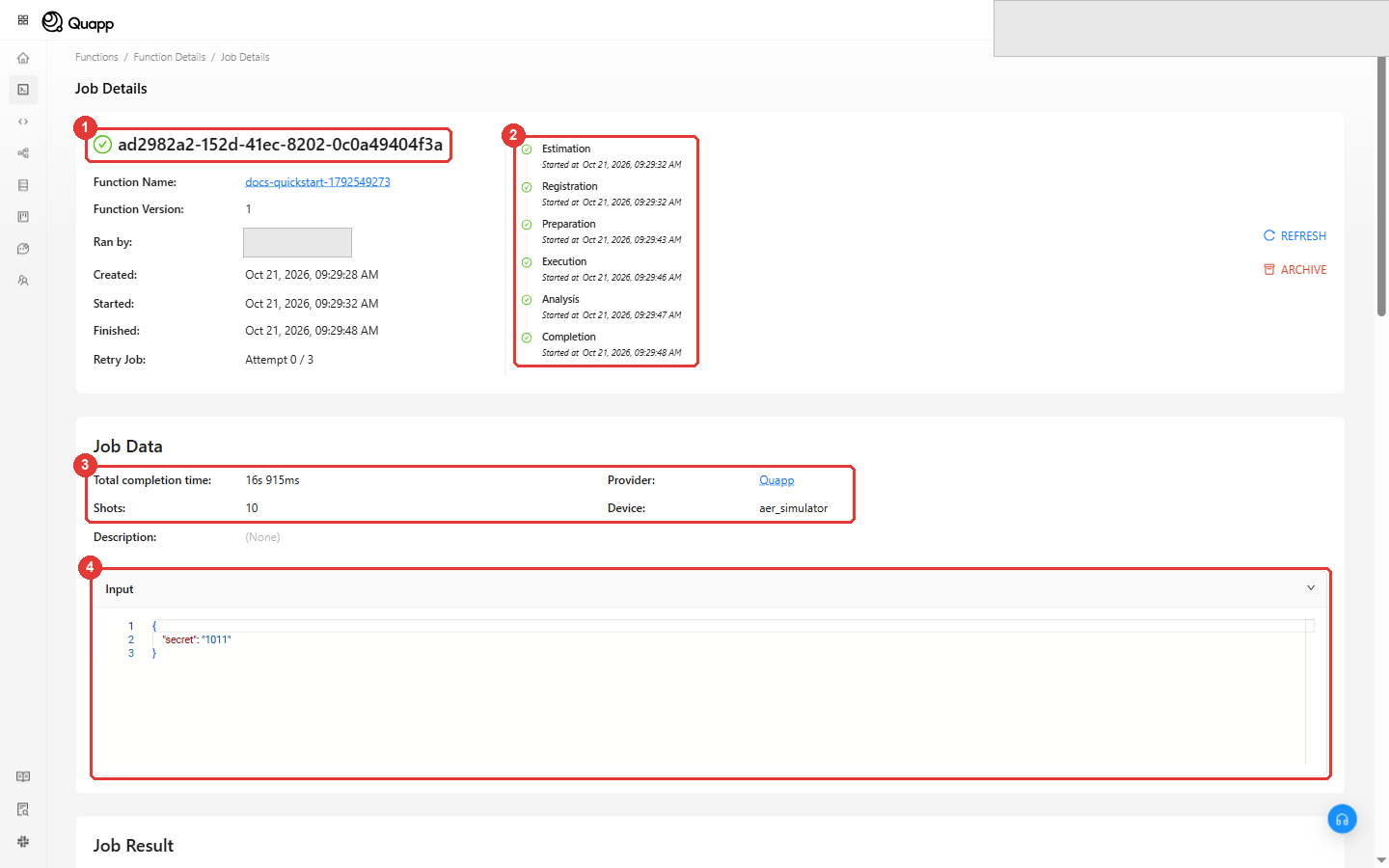
Job Details shows the job's stages (Estimation → Registration → Preparation → Execution → Analysis → Completion) and, under Job Data, the shots, provider, device and the input you sent.
9. Read the result
Scroll to Job Result. For this template the answer is in the JSON panel:
{
    "counts": { "s_1011": 1024 },
    "secret": "1011",
    "success": true,
    "n_qubits": 4,
    "recovered": "1011"
}
recovered equals the secret you sent, and success is true: the algorithm found the hidden string in one query, and every one of the measurements (counts) gave 1011.
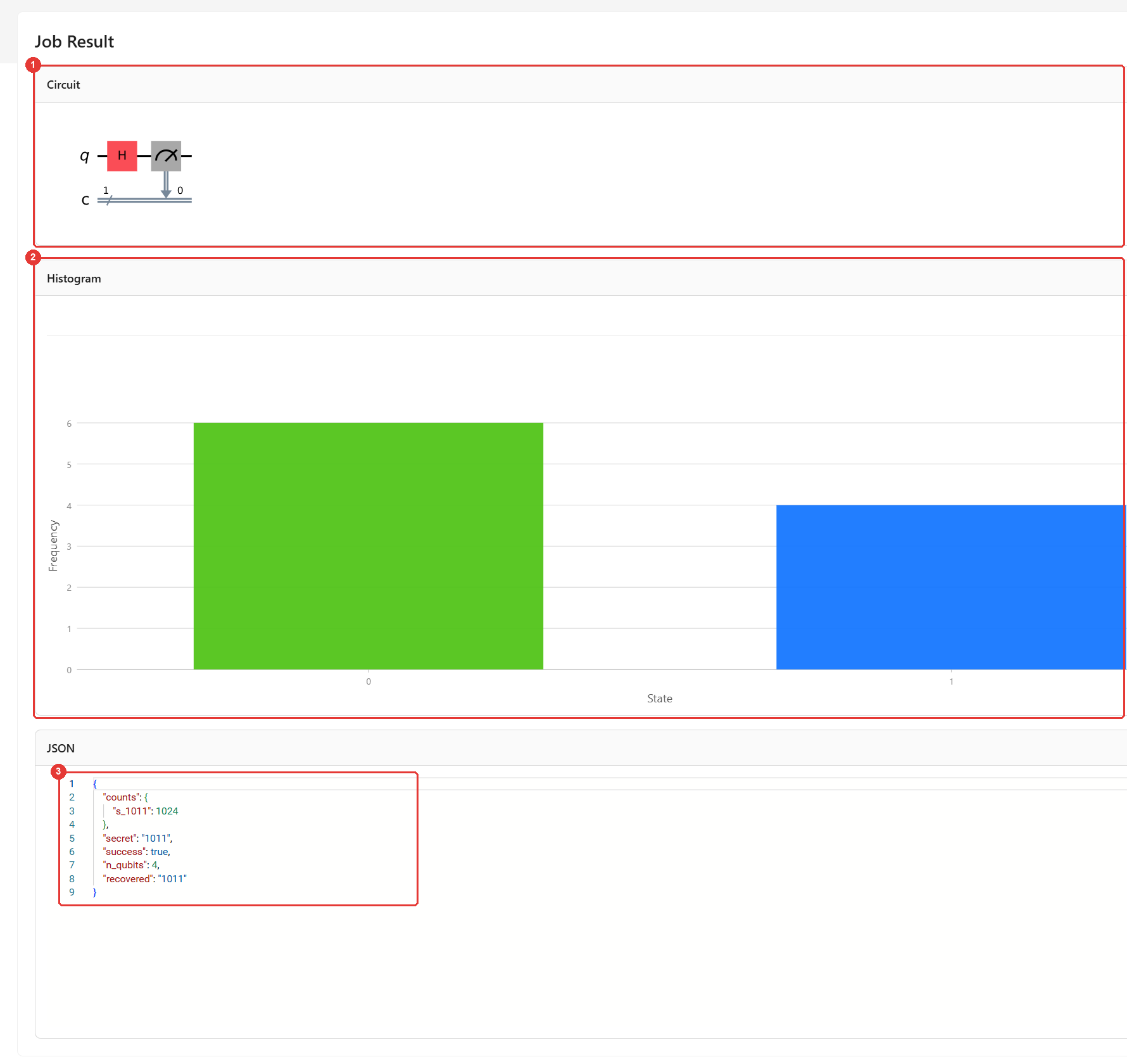
This template runs the Bernstein-Vazirani circuit inside the function itself, on its own simulator with 1024 shots (send "shots" in the input to change that), and returns a small one-qubit placeholder circuit to the platform. The Circuit (1) and Histogram (2) panels show that placeholder run with your 10 shots, roughly half 0 and half 1. The algorithm's result is the JSON (3).
If the job fails
A red cross in Status means the job failed. Open it: Failure Details says what went wrong and how to fix it. Here the input was left empty:
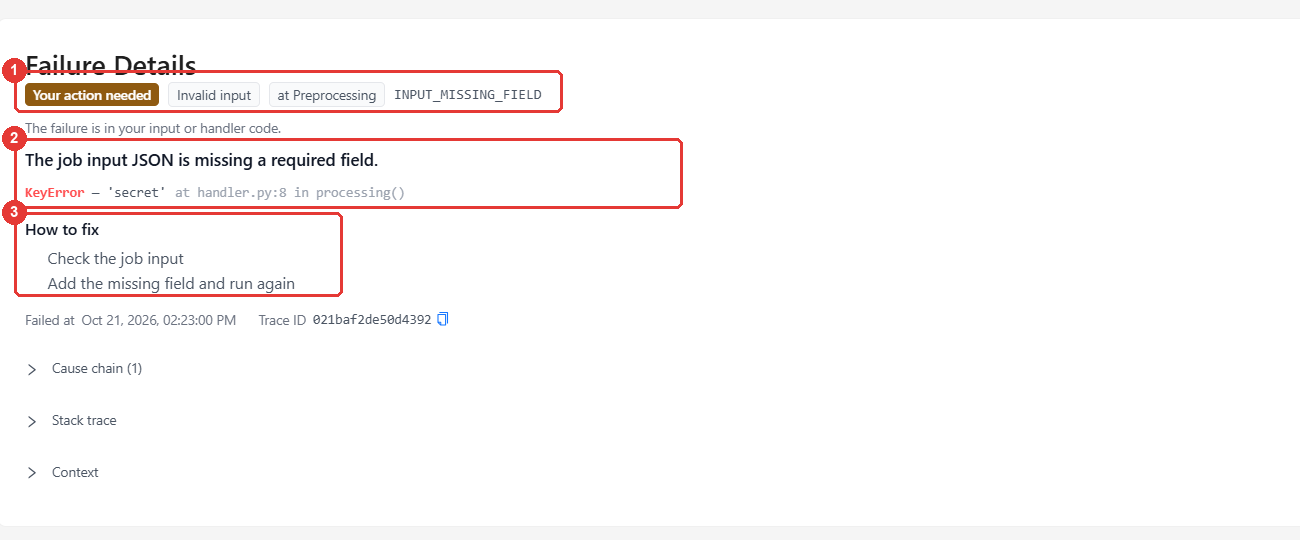
- The error code and the stage where it failed (
INPUT_MISSING_FIELD, at Preprocessing). Your action needed means the cause is in your input or your code, not in the platform. - What went wrong, down to the line of
handler.py. - How to fix.
The two mistakes we made while writing this page:
| You see | Cause | Fix |
|---|---|---|
INPUT_MISSING_FIELD, KeyError — 'secret' | Input left empty | Enter {"secret": "1011"} in json |
HANDLER_ERROR, object of type 'int' has no len() | Input entered with form-data, which sent the number 1011 | Use json and put the value in quotes |
A failed job of this kind can still take a few minutes to show the red cross, because the platform retries it before giving up.
Try it again
- Run it with another secret, for example
{"secret": "110101"}. A longer secret uses more qubits. - Open other templates in the Basics category, such as Deutsch-Jozsa.
What next?
- Write your own code: the code contract (
processing(),post_processing(), return types per SDK) is in Create function (Code-level). - Every field of the wizard: Create Function.
- Every field of the invocation form: Job Invocation.
- Why a job waits, and its states: Job Queue.
- Run functions from your own code: API Access Tokens.