AI Assistant User Guide
1. AI Assistant
AI Assistant helps users ask questions, interact with AI, and receive responses directly within the IDE.
🔹 How to Open AI Assistant
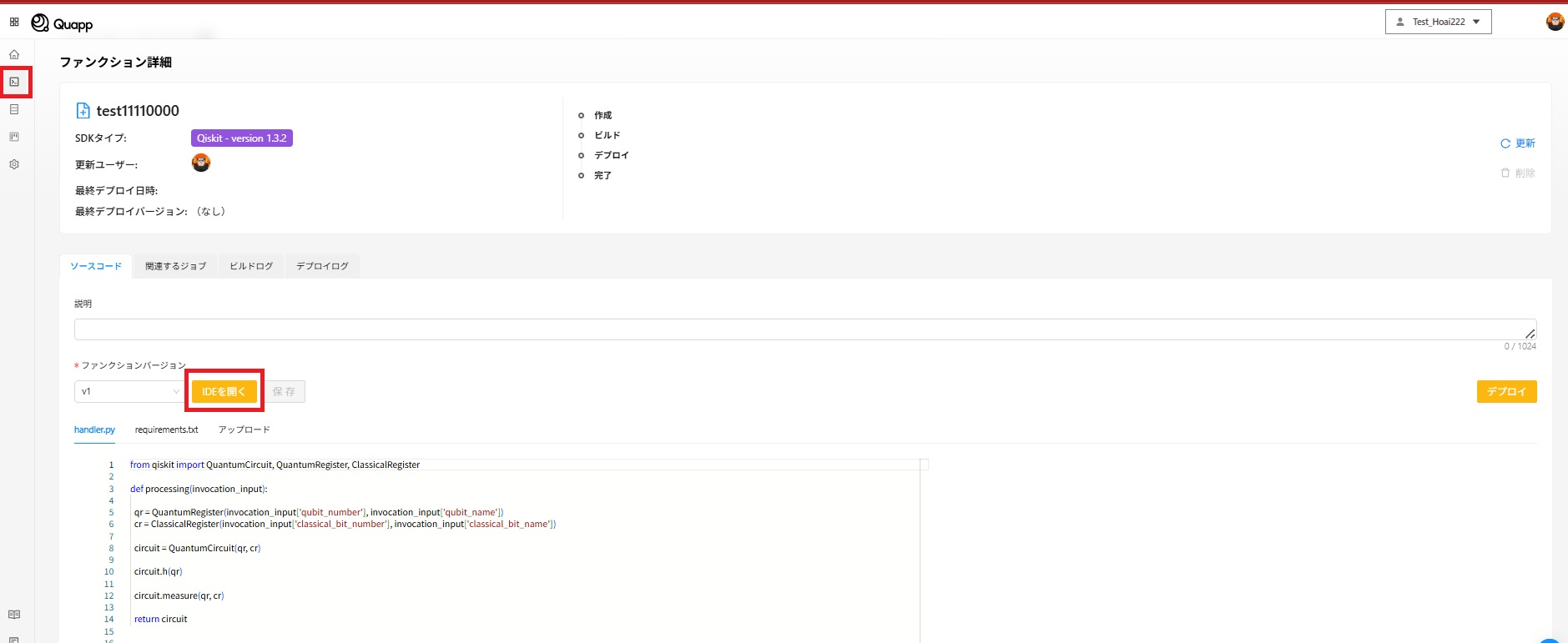
・Create or open a Function.
・Select Open IDE to open the IDE screen.
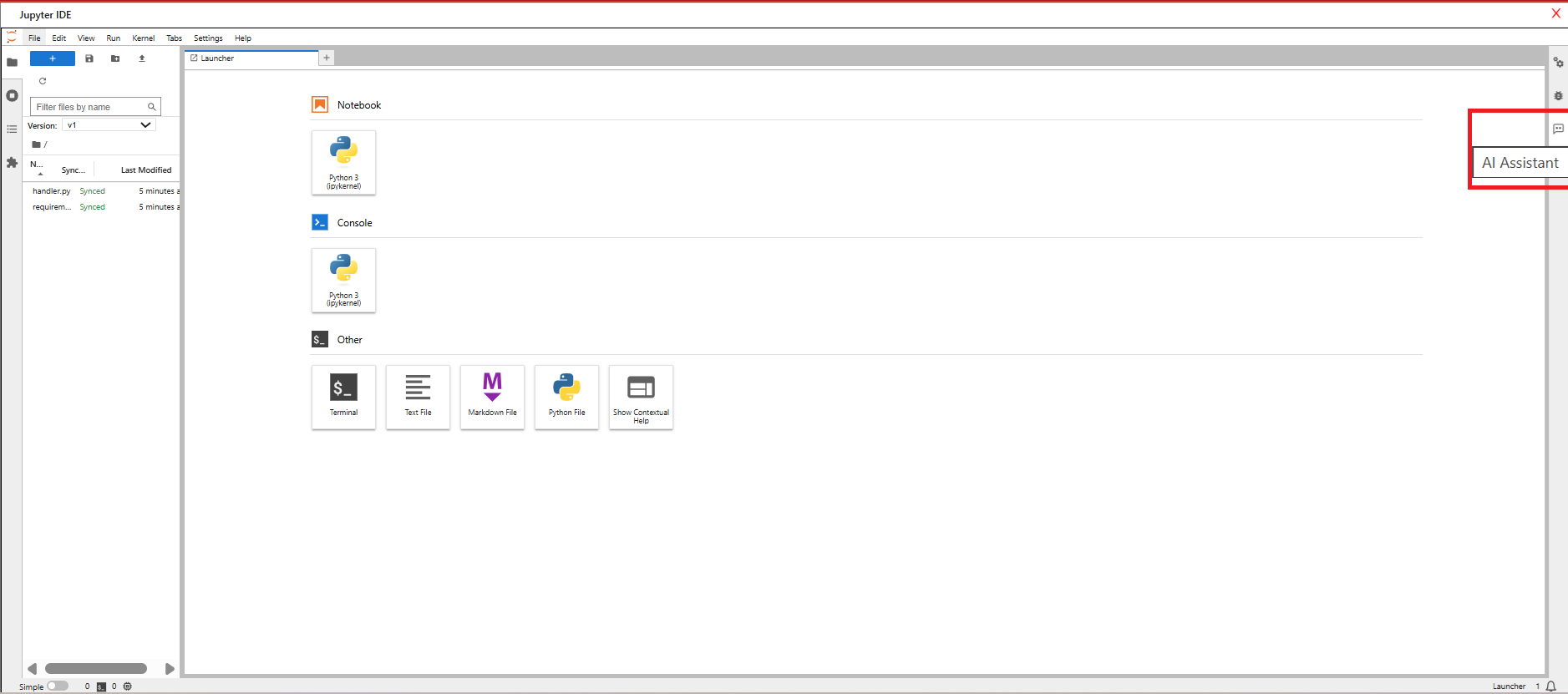
・Click the AI Assistant button on the right side of the screen.
🔹 Select an AI and Start Chatting
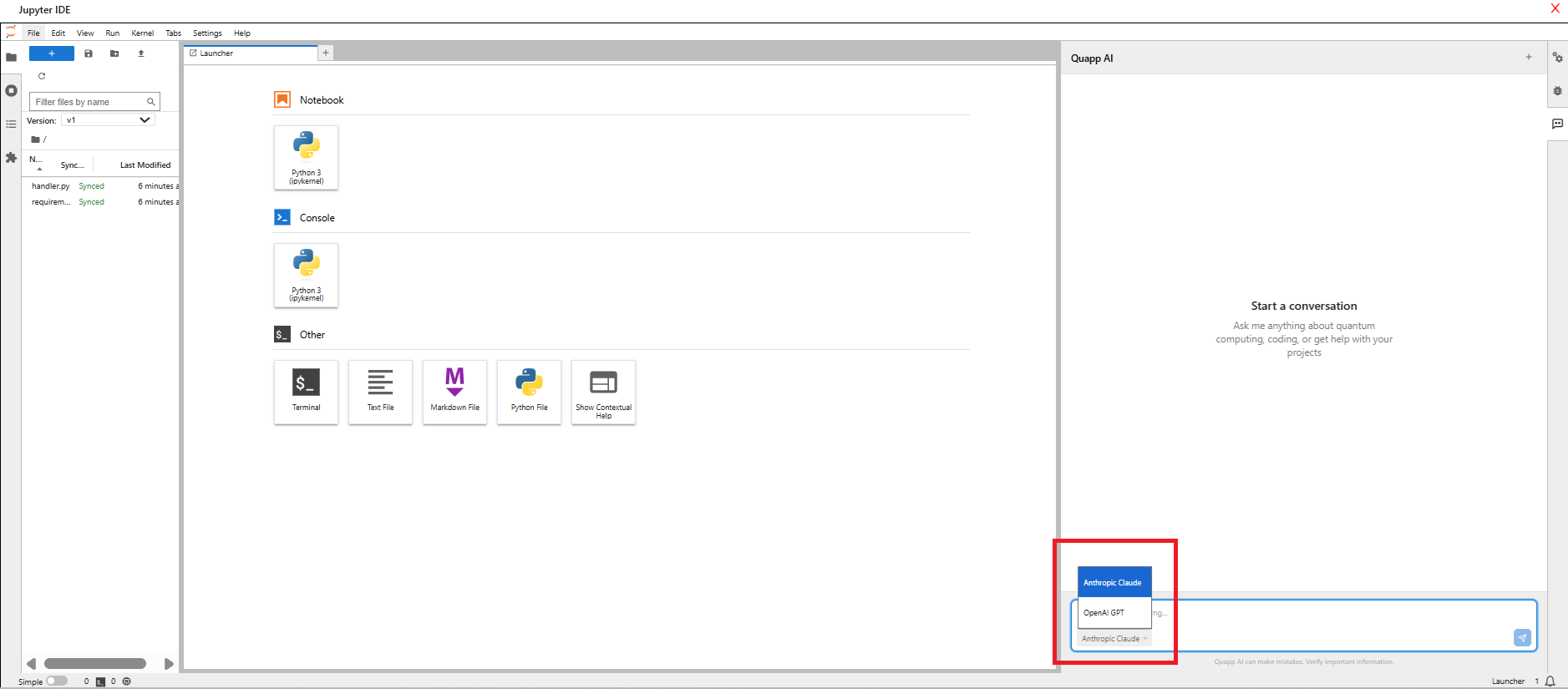
At the bottom-right corner of the AI Assistant panel, select one of the following AI models:
・OpenAI GPT
・Anthropic Claude
Enter your question and send it to receive a response from the AI.
🔹 AI Assistant Controls
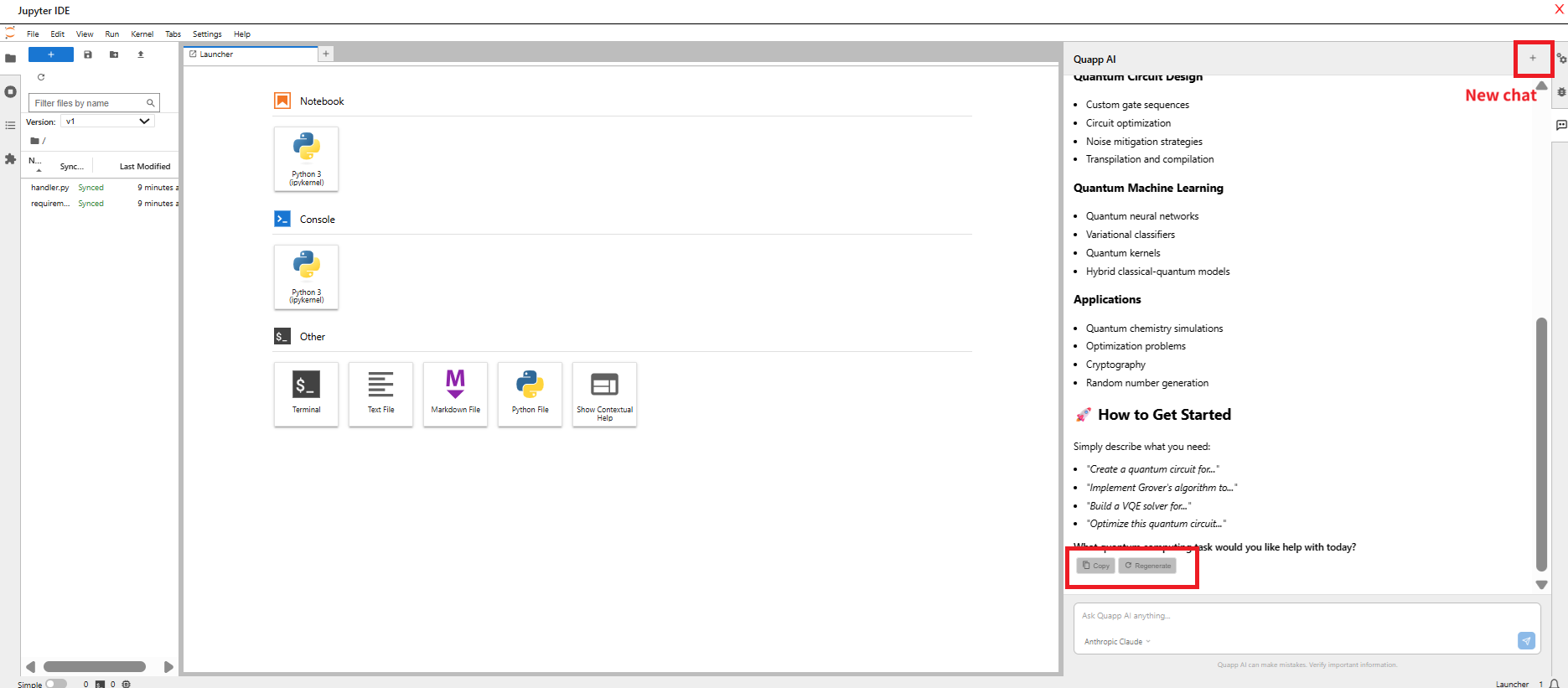
・Resize chat panel: Drag the AI Assistant panel to enlarge the view.
・Copy: Copy the AI’s response.
・Regenerate: Generate a new response for the previous question.
・New Chat: Start a new conversation.
🔹 Chat History Drawer
As part of the AI Assistant improvements, a new History Drawer feature has been implemented.
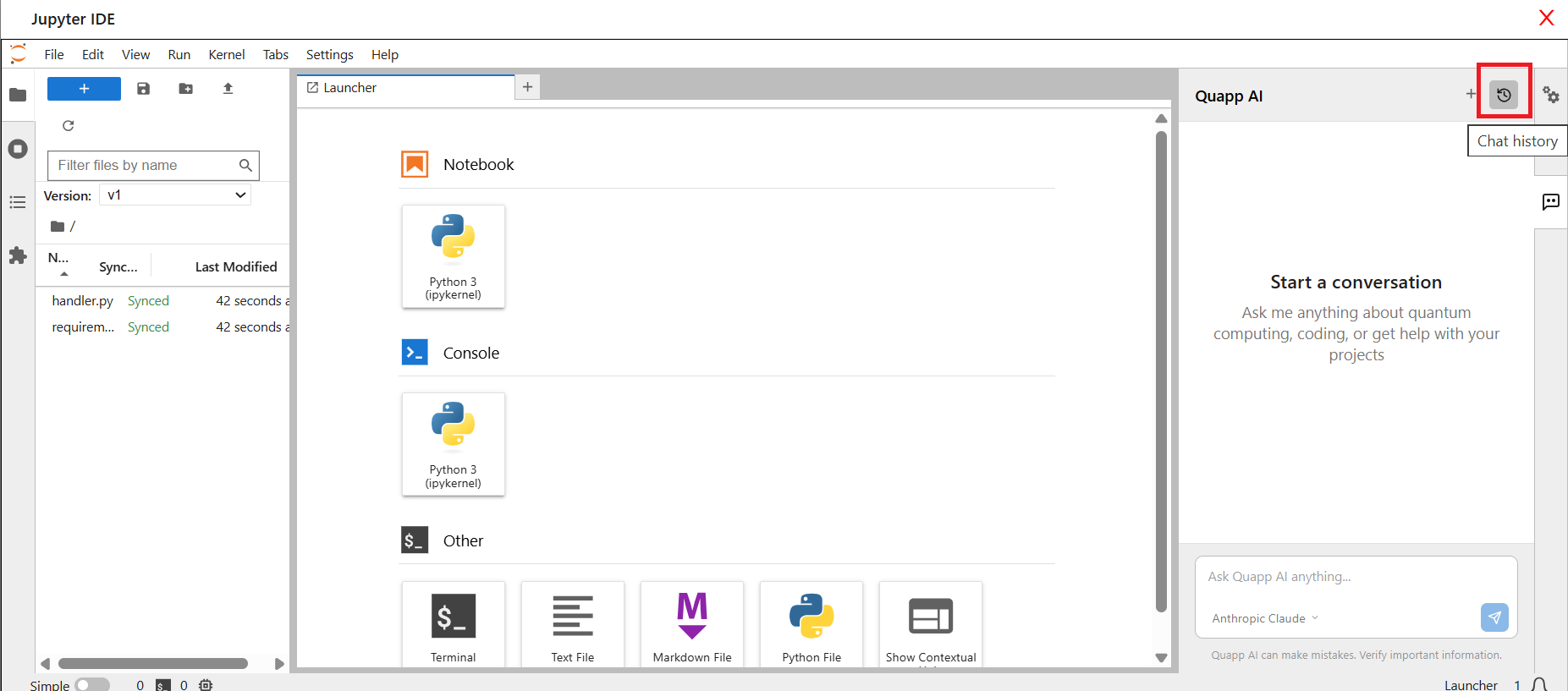
This feature allows users to manage chat conversation history efficiently. With the History Drawer, you can:
・View past conversations in a list format.
・Rename chat sessions to organize them by topic or purpose.
・Search chat history using keywords.
・Delete unnecessary conversations.
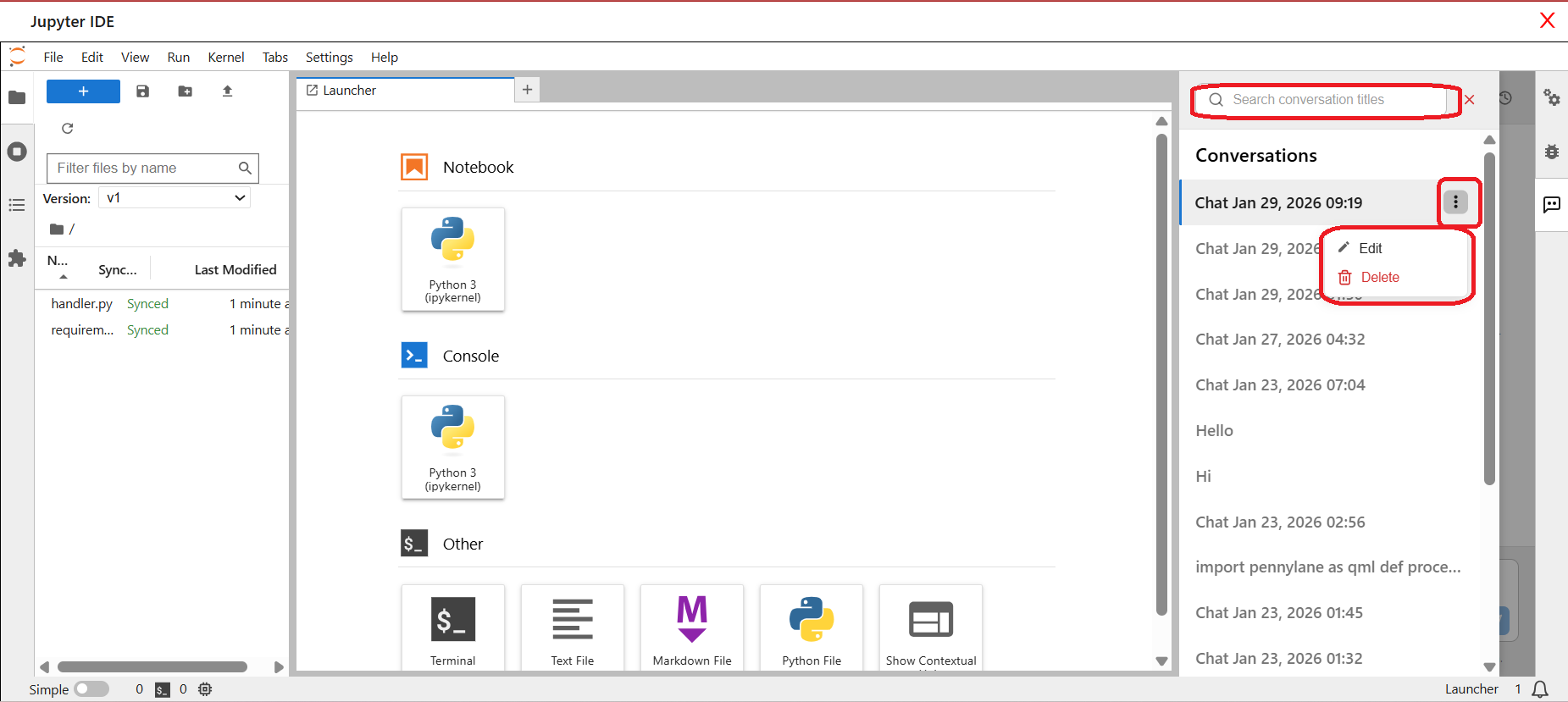
The History Drawer helps users quickly access previous discussions and keep conversations organized within their projects.
📌 Note
・Deleted chat histories cannot be restored. Please confirm before deleting.
・For a completely new topic, it is recommended to use New Chat to keep conversations organized and improve AI response accuracy.
2. Suggest Code
The Suggest Code feature allows AI to assist with writing or continuing code directly in a Python file.
🔹 How to Use Suggest Code
Open the Python file you want to edit (for example: handler.py).
Move the cursor to the location where you want AI assistance.
Press Tab → AI will automatically suggest and generate code.
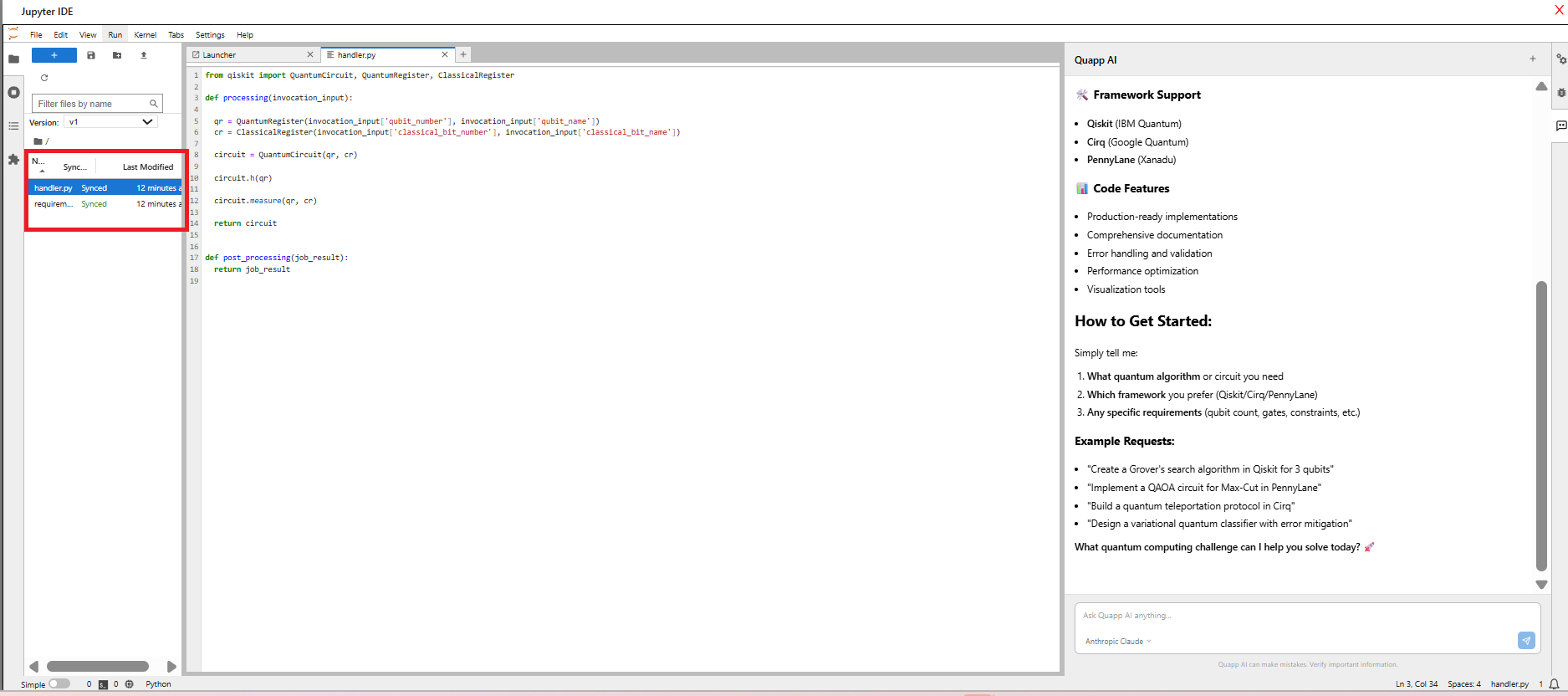
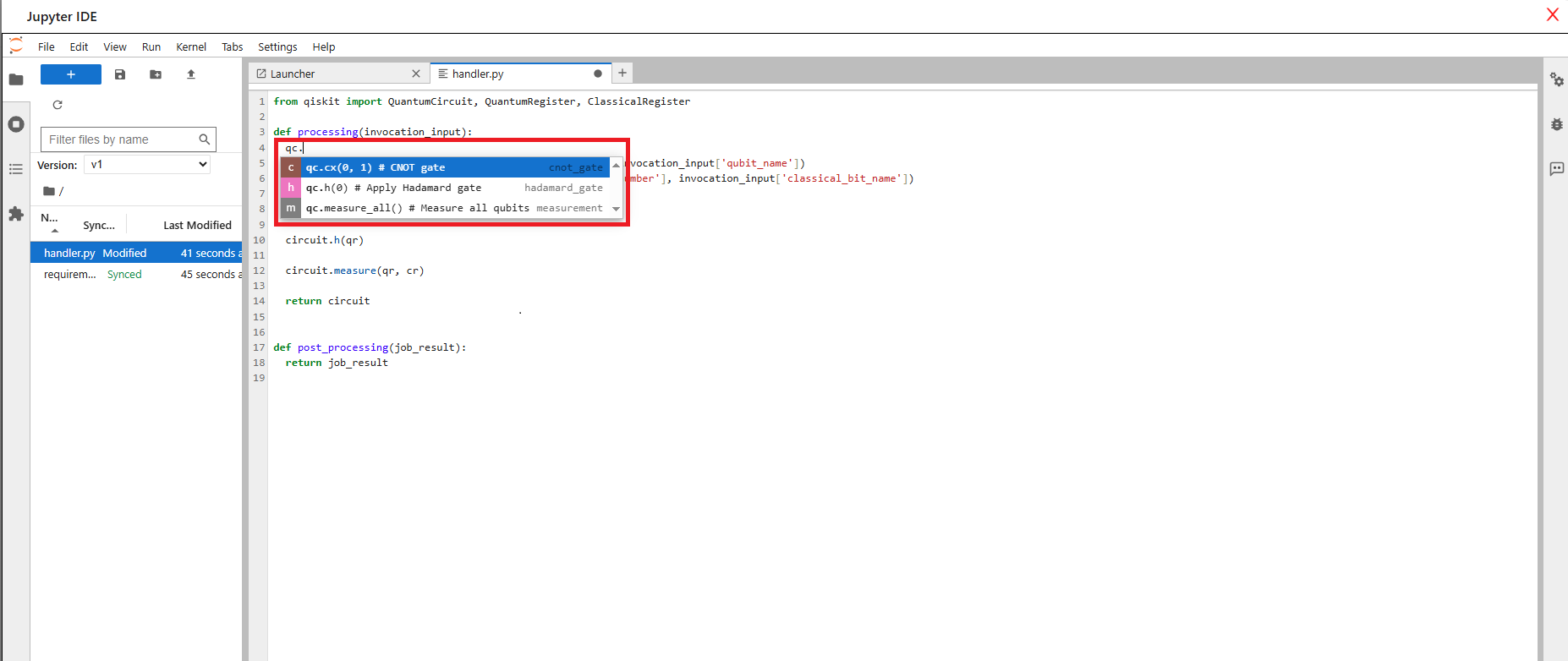
🔹 Save, Sync, and Manage Versions
- After editing the code:
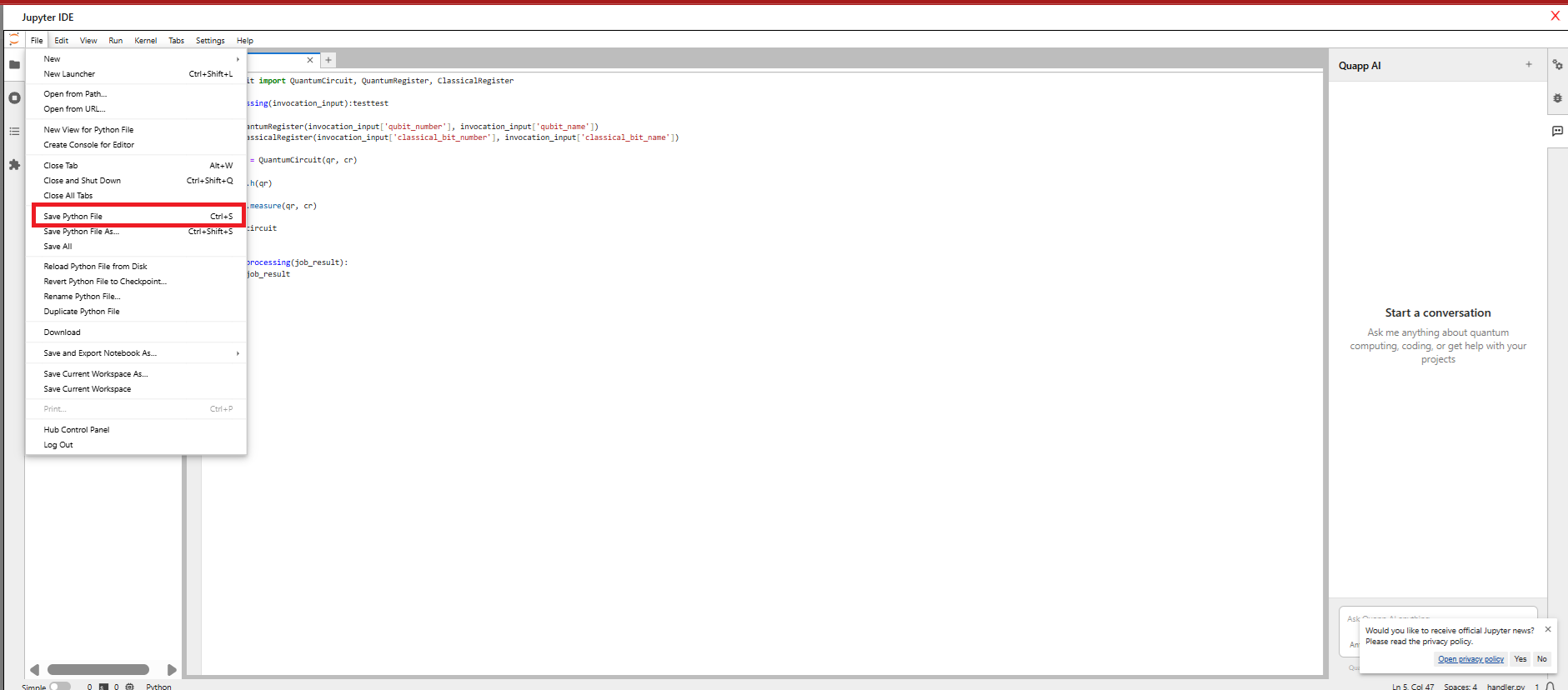
・Press Ctrl + S, or
・Select File → Save Python File
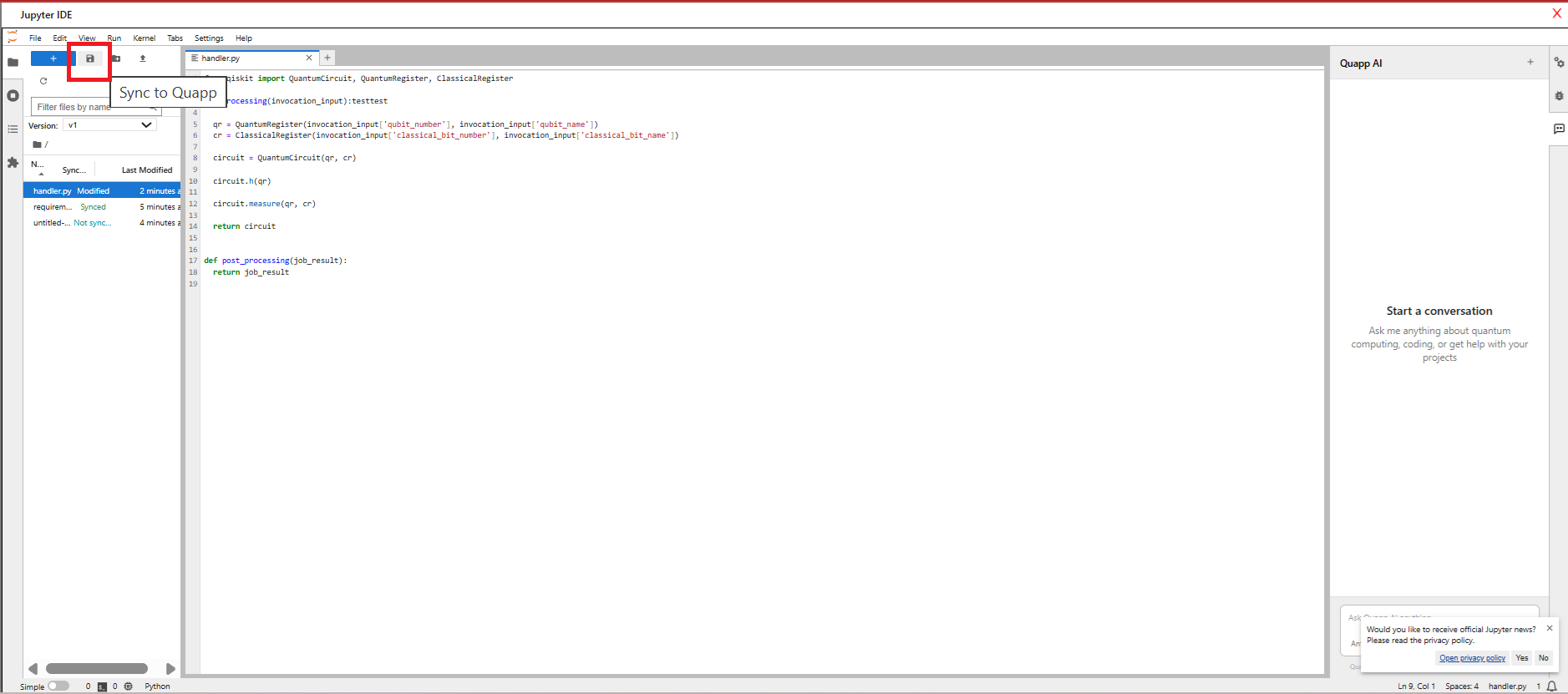
- Click the Sync to Quapp icon to sync your code.
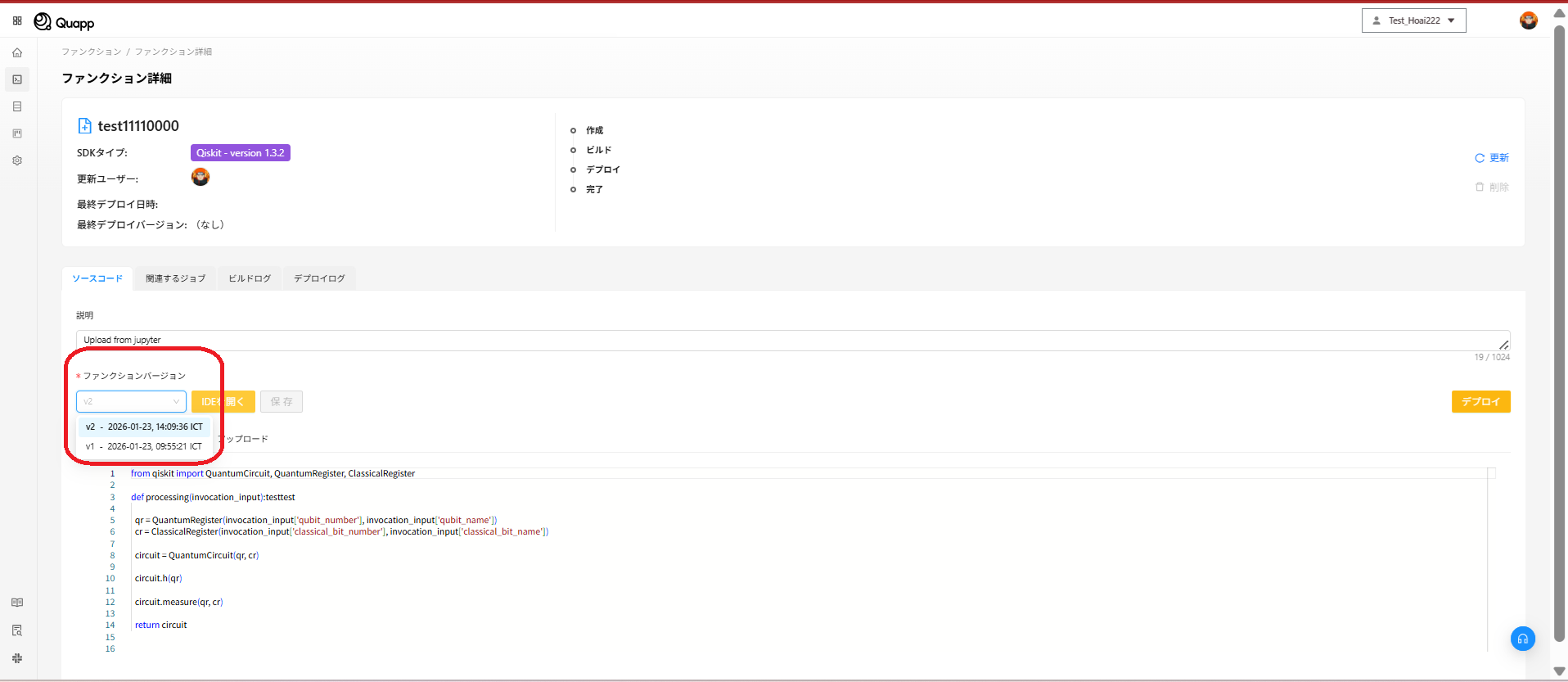
- Each time the code is modified and saved, the system automatically creates a new Function Version.
- After a new version is created, go back to Function Version and select the newly created version to use it.
📌 Notes
・Always check the currently selected Function Version before testing or deploying.
・When switching to a completely new topic, use New Chat to get more accurate AI responses.