Quapp Editor
The Quapp Editor is a development environment that belongs to your project. You choose an editor — Quapp Lab (JupyterLab) or Quapp Code (Visual Studio Code) — and the resources it runs on, and Quapp starts it in your browser. The Editor lists the functions of your project as folders, so you can work across them in one place.
This is different from opening an IDE for one function with Open IDE, which is described in Browser IDE. The Editor is opened from its own page.
Open the Editor page
Select Editor (the <> icon) in the left menu. When no editor is running, the page says No editor configured and offers Configure Editor.
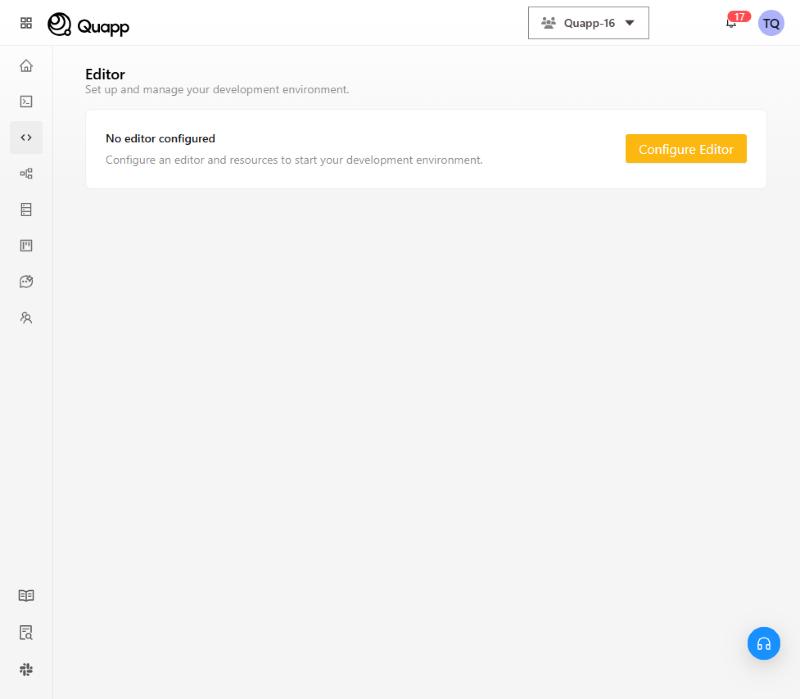
Configure an editor
Configure Editor takes you through four steps. Use Next and Previous to move between them, and Cancel to leave without starting anything.
Step 1: Select Editor
Choose the editor for your current project.
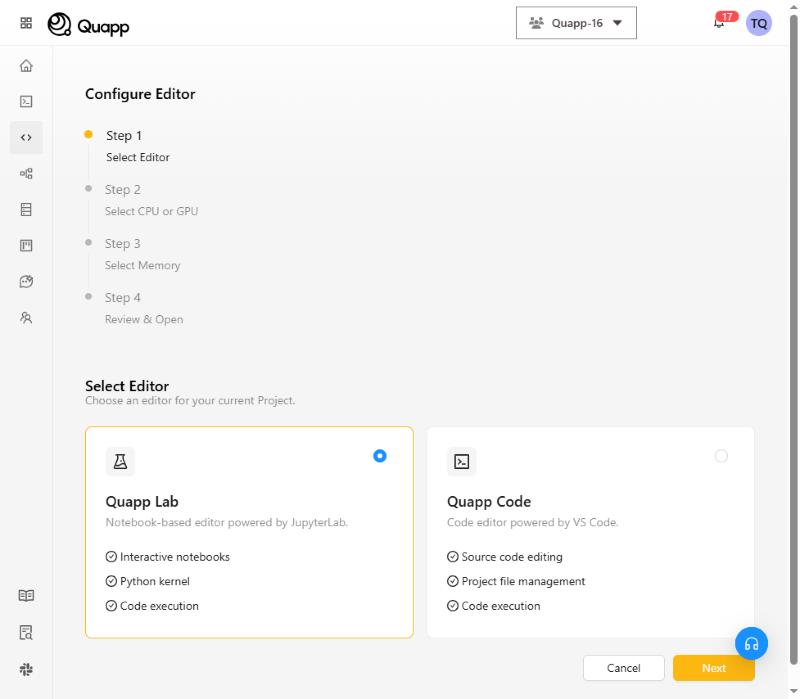
| Editor | What it is | What it offers |
|---|---|---|
| Quapp Lab | Notebook-based editor powered by JupyterLab | Interactive notebooks, a Python kernel, code execution |
| Quapp Code | Code editor powered by VS Code | Source code editing, project file management, code execution |
Step 2: Select CPU or GPU
Choose the processing power for your environment. You choose a number of vCPUs and a GPU option.
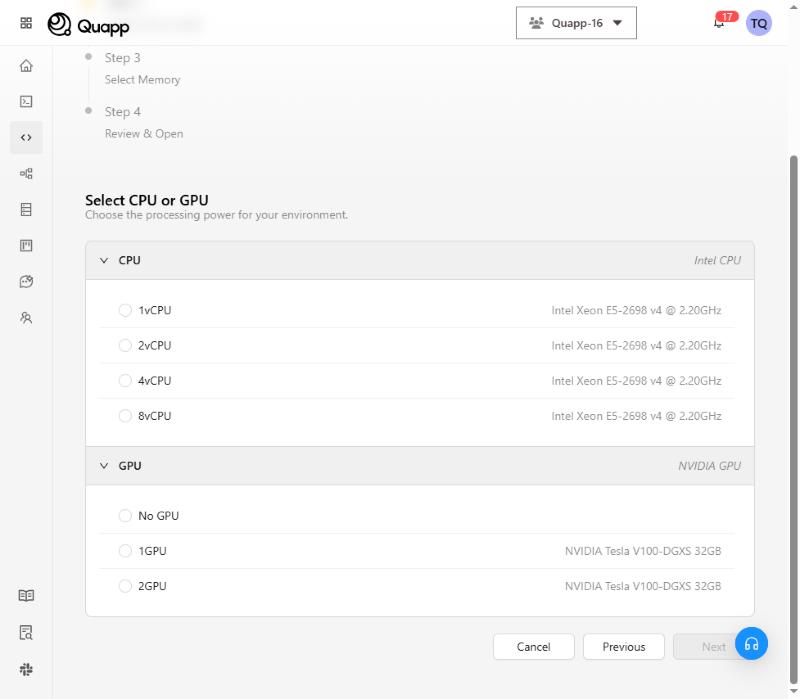
- CPU – Intel CPU, for example 1, 2, 4 or 8 vCPUs.
- GPU – NVIDIA GPU: No GPU, 1GPU or 2GPU. Choose No GPU if you only need a CPU.
You select one option in each group before Next is available. The options you see depend on your environment and your subscription. For what a GPU costs, see Quapp Editor: Resources and Pricing.
Step 3: Select Memory
Choose the memory available for your Editor.
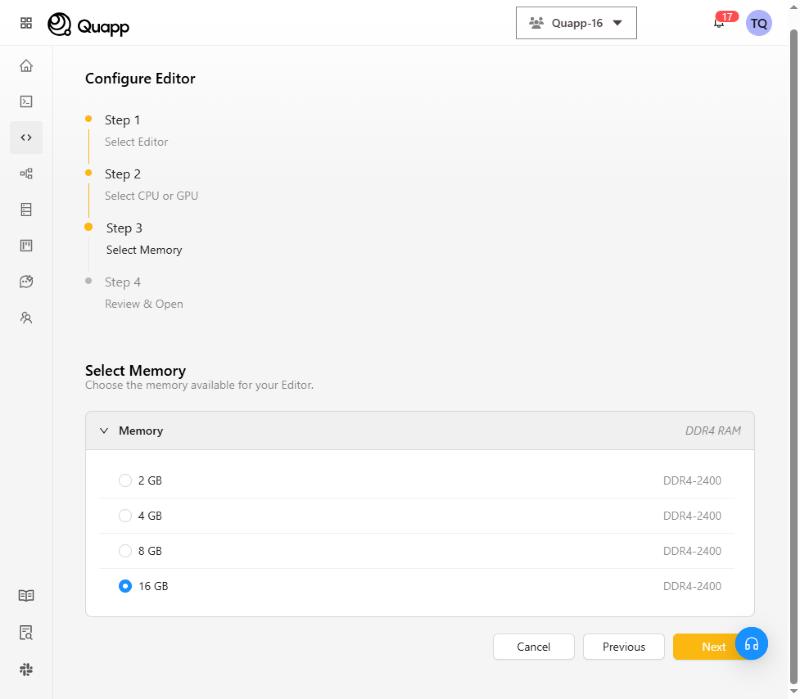
Memory is offered in sizes such as 2, 4, 8 and 16 GB. A size that does not fit the CPU you selected is shown as Not available with the selected CPU.
Step 4: Review & Open
Review your configuration before opening it.
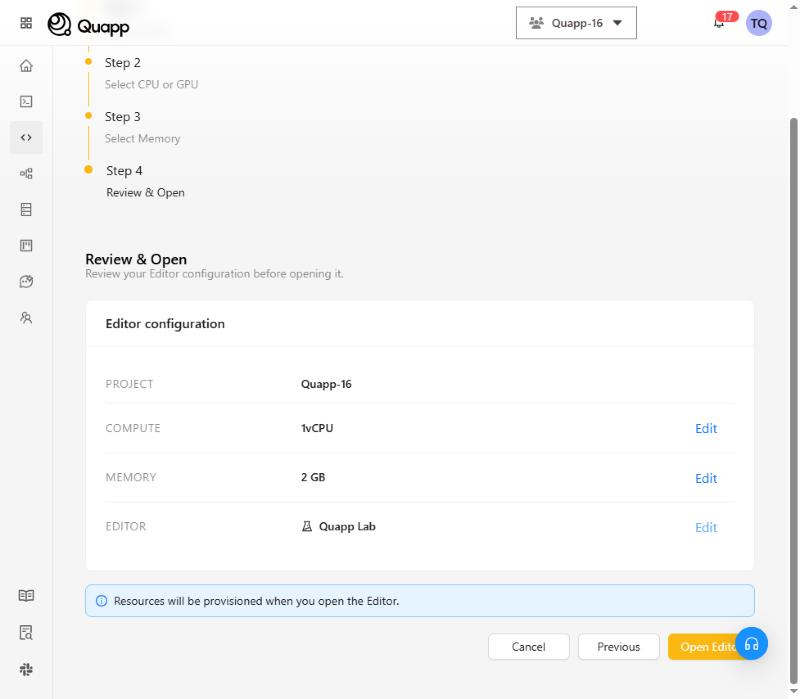
The Editor configuration card lists the Project, the Compute, the Memory and the Editor you chose. Select Edit next to a line to change it. The page reminds you that Resources will be provisioned when you open the Editor. Where charging is turned on for your environment, the review also shows the hourly rate; see Quapp Editor: Resources and Pricing.
Select Open Editor to start.
While the Editor starts
A Preparing your editor screen shows the progress. The editor opens by itself when it is ready. Select View startup details to follow what the server is doing.
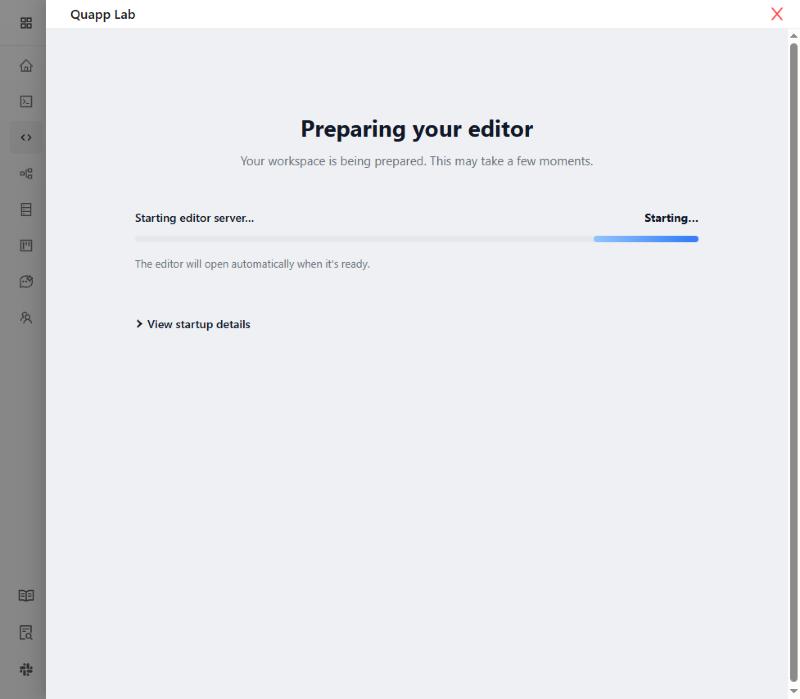
Starting an editor can take a minute or more, because the resources have to be provisioned.
Working in the Editor
The editor opens in a panel over the Editor page.
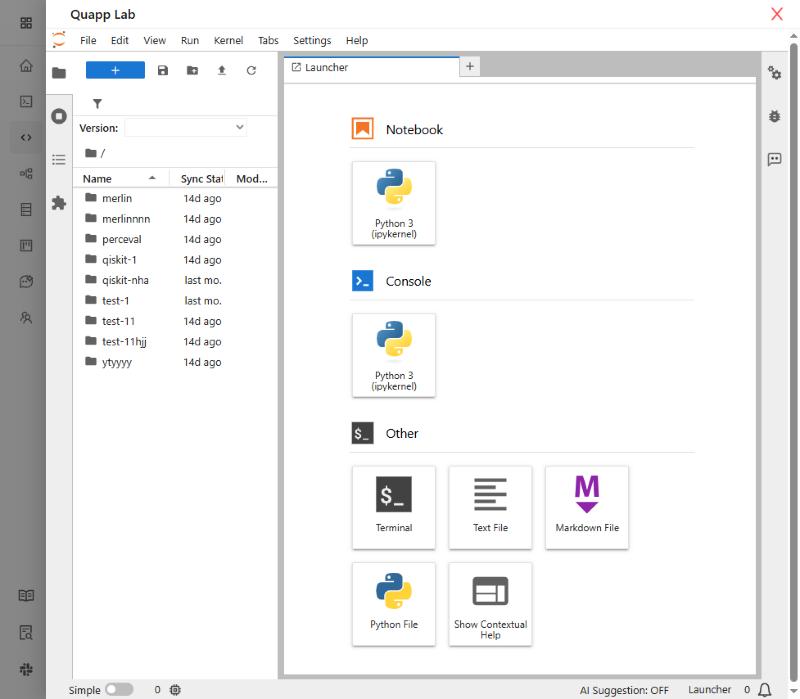
Quapp Lab opens on the Launcher. The file browser on the left shows your project's functions as folders. Open a folder to work on that function's files.
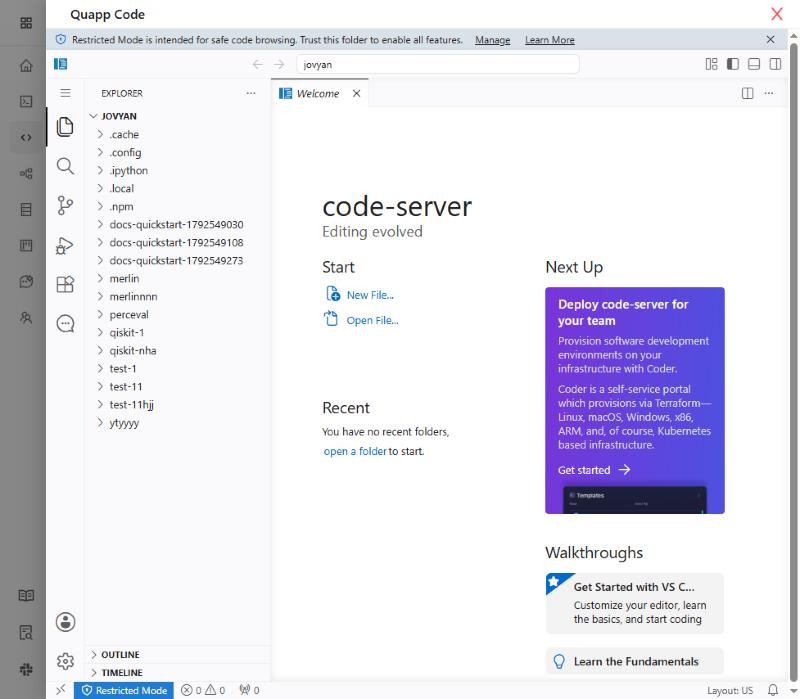
Quapp Code opens with the project's functions in the Explorer. It can start in Restricted Mode, which is meant for safe code browsing; select Manage in the banner to trust the folder.
Manage the running editor
When an editor is running, the Editor page shows it under Active editor, with its status (STARTING, RUNNING, STOPPING or STOPPED) and two buttons: Open Editor to bring the panel back, and Stop Editor.
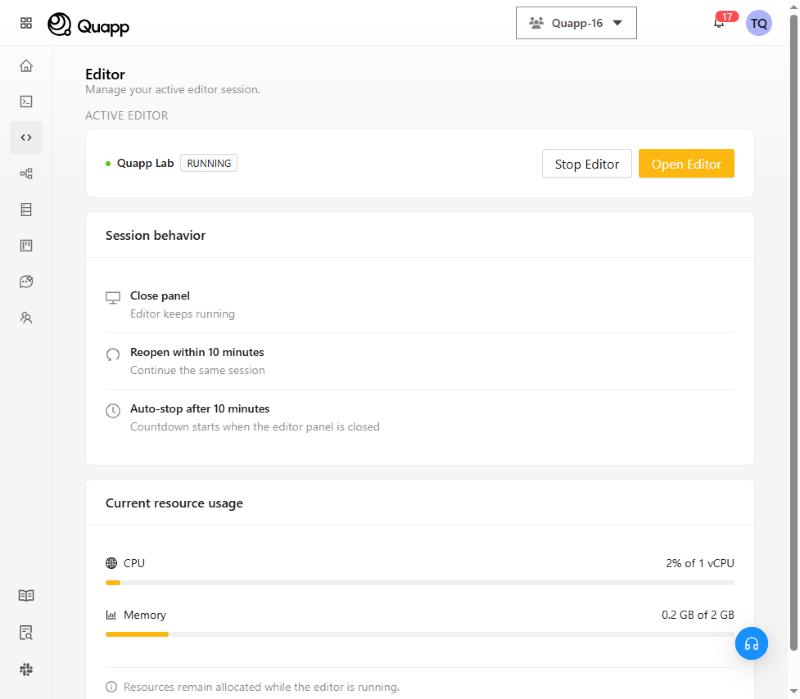
Session behavior tells you what closing the panel does:
- Close panel – the editor keeps running.
- Reopen within 10 minutes – you continue the same session.
- Auto-stop after 10 minutes – the countdown starts when the editor panel is closed.
Current resource usage shows the CPU in use (for example 2% of 1 vCPU) and the memory in use (for example 0.2 GB of 2 GB). While the editor is starting it shows Starting up. Resources stay allocated for as long as the editor is running.
Close the panel or stop the editor
-
Closing the panel with the X does not stop the editor. It keeps running, and keeps using its resources, until you reopen it or the 10 minutes pass. A paid editor is charged for that time.
-
Stop Editor shuts the editor down at once. Quapp asks you to confirm.
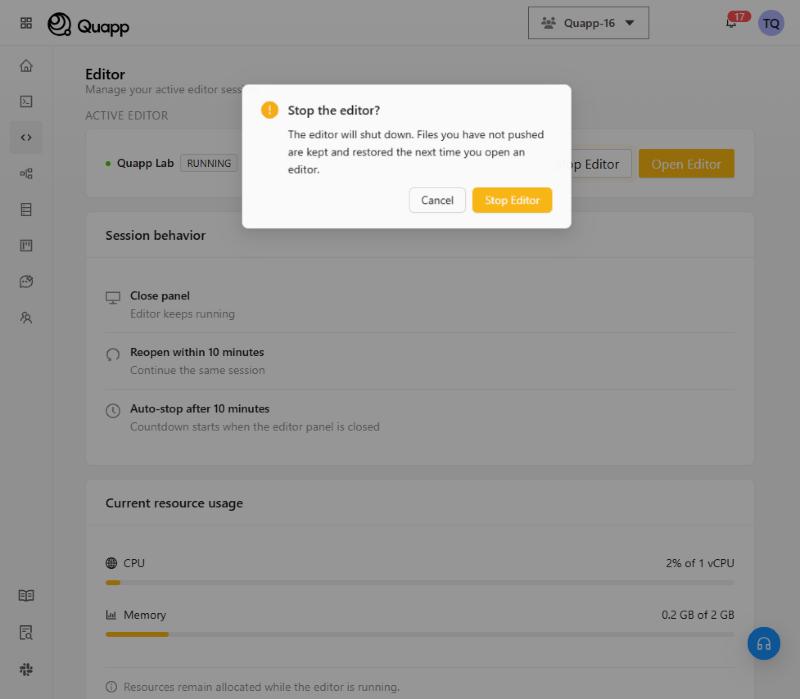
The editor will shut down. Files you have not pushed are kept and restored the next time you open an editor.
After the editor has stopped, or has stopped by itself, the page returns to No editor configured. To work again, configure an editor from the start.
One editor at a time
You can have one editor or IDE session at a time. You may see these messages:
| Message | What to do |
|---|---|
| You already have an IDE running. Stop it before opening the Editor. | Leave the IDE with its close control (see Browser IDE), then open the Editor. |
| An editor is already starting or stopping. Please try again in a moment. | Wait a moment and try again. |
| Selected resources are currently unavailable. Please try again later or choose a different configuration. | Choose smaller resources, or try again later. |
| The selected resources are not available in this environment. Choose a different configuration. | Choose one of the options shown in the steps. |
| Could not load the editor session. | Select Retry before configuring a new editor. |